
Published 13 October 2026 · By JonsTech
How to Find Calendar Events on iPhone
Find a specific iPhone calendar event by searching for a distinctive detail. Here’s how Apple Calendar search works and what to know about searching in TapCal.
To find a specific event on iPhone, open your calendar app, tap its search button and enter a distinctive word from the event title. If the title escapes you, try a detail you remember. In Apple Calendar, search can match titles, invitees, locations and notes. In TapCal, open Search from the main toolbar and search events in your visible calendars; reminders aren’t included. Apple’s guide to event search.
For example, if you’re trying to find an appointment called “Dentist – annual check-up”, start with “Dentist”. If that brings up several events, make the search more specific, such as “annual check-up”. Then check the matching event’s date and time before relying on it. That small confirmation matters when you have recurring appointments or similarly named plans.
Start with a word you’ll recognise
A whole title is not always necessary. Search for the memorable part: a person’s name, the venue, or a phrase you’re fairly sure was written into the event. A short, distinctive term is usually a better first try than a broad one like “meeting” or “call”, which may match plenty of entries.
If the first search is too broad, add another word from the title or try a different detail. If you cannot remember what was entered, try a location or invitee in Apple Calendar. For TapCal, the current help guide confirms that Search covers events in visible calendars, but it does not specify which individual event fields match. So if you use TapCal, the safest starting point is a word from the event title rather than assuming that searching notes, locations or invitees is supported.TapCal’s current Search guidance explains its search scope.
Find Search in TapCal
In TapCal, look for the magnifying-glass Search button in the main toolbar. Tap it, enter a distinctive title word, then check the event matches against the date and time you expect. The example search here is hypothetical: say the event is called “Dentist – annual check-up”; try “Dentist” first, then narrow the query if there are several matches.
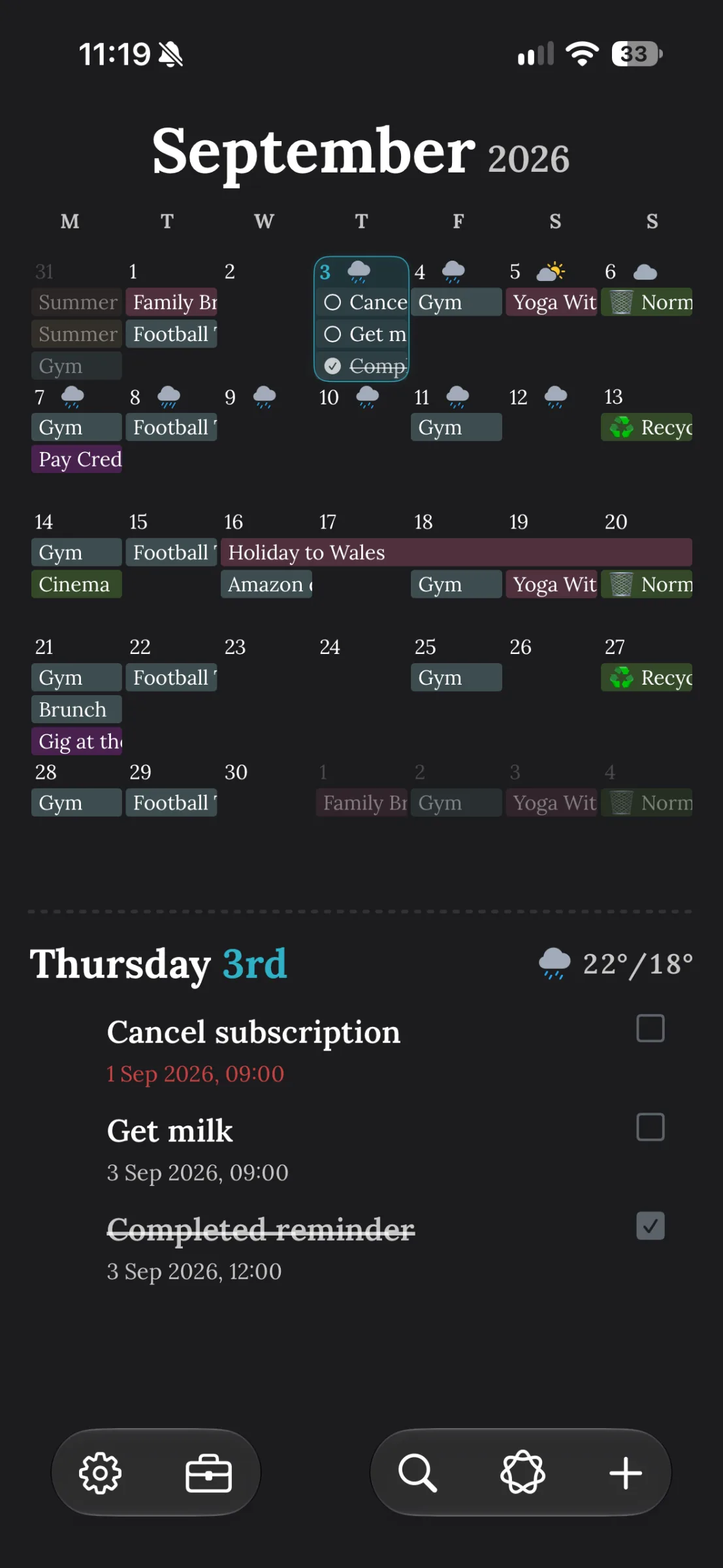
The screenshot shows TapCal’s main calendar and the Search icon in its bottom toolbar. It illustrates where to begin, rather than showing search results. Once you have a matching event, use its date and time to distinguish it from another event with a similar name.
Search is intended for events in calendars you currently have visible. If something you expect to find is missing, check that its calendar is enabled in TapCal. Also note that this search does not include Apple Reminders, even though TapCal can show reminders alongside calendar events elsewhere in the app. If you’re looking for a task rather than an appointment, check Reminders or the relevant reminder list instead.
Check the match before you act
A matching title is a clue, not the whole answer. Confirm the date, time and, where relevant, the calendar it belongs to. This is especially useful for routine events such as training, school pick-ups or recurring appointments, where the same title can appear on different days.
If you still can’t find it, check that the right calendar account is connected to iOS and that its calendar is visible in the app. TapCal reads calendars made available to iOS, so an event in an account that is not connected or enabled won’t appear in its calendar views or search. If you’re unsure which calendars are visible, TapCal’s Help page lists the settings path.
Search doesn’t replace a clear calendar view
Search is useful when you have a name or detail to start from. When you’re trying to understand how a whole week or month fits together, a clear calendar view can be more helpful than a list of matches. TapCal’s month view displays event titles, so you can scan for a plan without relying only on small indicators. Its other views and widgets offer different ways to see upcoming events at a glance.
The simple workflow is: open Search, type a distinctive event-title word, then check the date and time. If the event doesn’t appear in TapCal, first check the visible calendars. And if what you meant to find is a reminder, search in Reminders instead: TapCal’s calendar Search is for events, not reminders. See TapCal on the App Store.