
Published 9 October 2026 · By JonsTech
How to Fix iPhone Calendar Events Showing the Wrong Time
An iPhone calendar event can appear at a different hour after you travel because its time zone and your calendar’s display time zone do different jobs. Here’s what to check, and how to review an event’s time zone in TapCal.
If an iPhone calendar event seems to move when you travel, first check the time zone saved on that event, then check which time zone your calendar is set to display. A meeting scheduled for a fixed moment can show at a different local hour in another city; an event intended to happen at the same local time wherever you are needs different handling. Don’t change the event time until you know which kind you’re looking at.
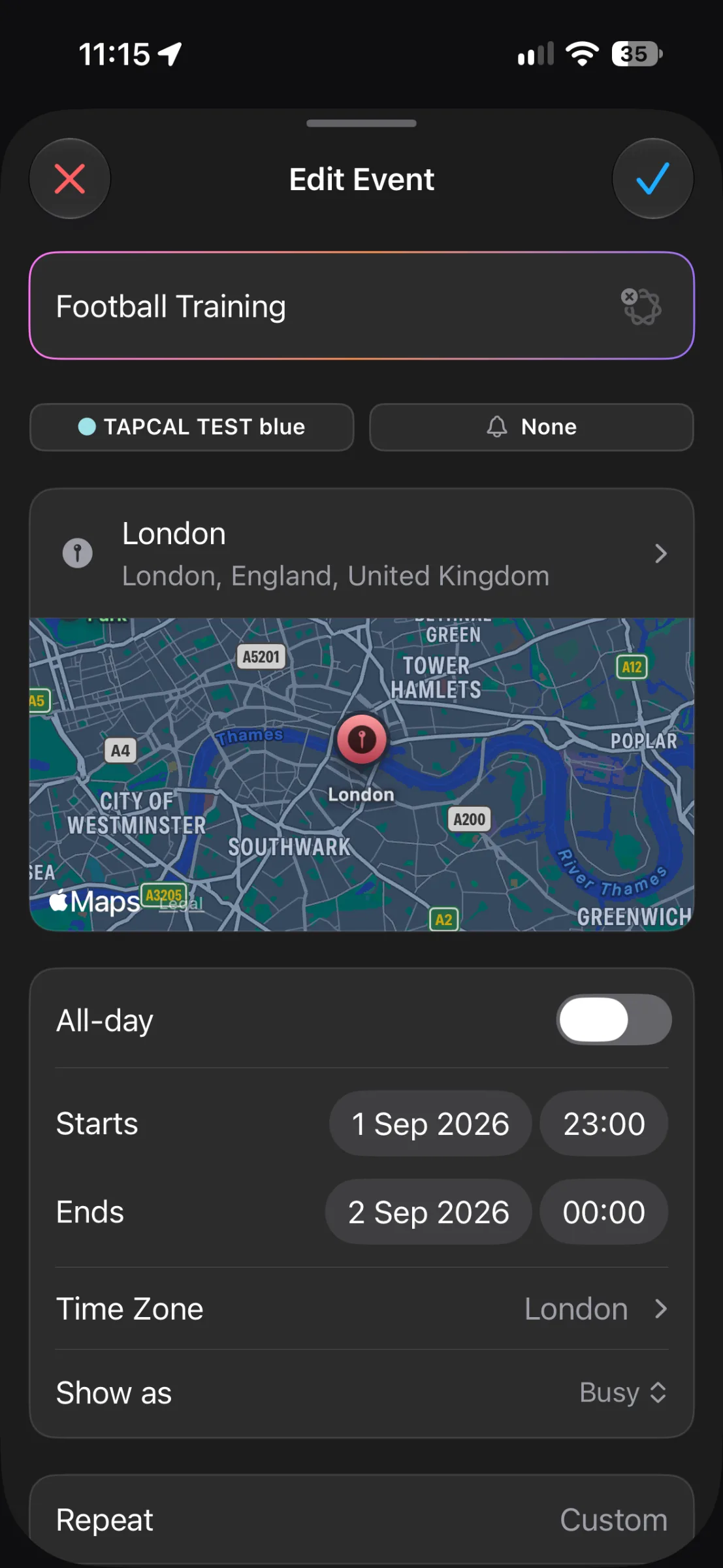
The TapCal screen above shows a real example: “Football Training” is set for 23:00 on 1 September 2026, with its event time zone set to London. That field is the useful clue. It tells you which time zone the event’s start and end times refer to, even if you’re checking the event from somewhere else.
First, decide what time the event should mean
There are two common cases. A video call with someone in another country is usually tied to a particular moment: if it starts at 9am in London, you need to join at that same moment from wherever you are. A haircut, class or appointment booked for 9am at a local venue is usually tied to the venue’s local clock. The distinction matters because changing a time zone can change how an event appears without changing the underlying moment it represents.
Apple Calendar displays events according to the current location’s time zone by default. It also lets you set a different time zone for an individual event, or use Time Zone Override to display Calendar in a chosen zone. Apple notes that this override changes what Calendar displays, rather than changing the iPhone’s system clock. The exact labels and paths can differ by iOS version; on current versions, the Calendar option is under Settings > Apps > Calendar. Apple’s guide to scheduling and displaying events in another time zone explains both settings.
Check the event’s time zone
Open the event and look for its time-zone setting. In Apple Calendar, you can edit an event and select a time zone for its start and end times. In TapCal, open the event to review or edit its details; the event form includes a Time Zone field, as the London example shows. If the event is meant to follow a meeting host’s local time, set it to the host’s city or time zone. If it is a local appointment, check that it reflects the location where the appointment takes place.
Be careful not to change the event’s time zone just because the displayed hour looks unfamiliar. Suppose a call is booked for 9am London time. When you’re in a city several hours behind London, the event may appear earlier on your local calendar. That can be correct: it is still the same call at the same moment. Changing the event to your current zone without adjusting the time could move the call rather than fix its display.
Check the calendar display setting
If the event’s time zone looks right, check whether Apple Calendar has a display override switched on. On current iOS versions, go to Settings > Apps > Calendar > Time Zone Override. If it’s enabled, Calendar can keep showing events in the chosen zone even after you travel. That can be useful for following a work calendar at home-office time, but confusing if you expect the app to follow your current location.
Also check the iPhone’s actual time zone if the clock itself is wrong. Go to Settings > General > Date & Time and check that Set Automatically is enabled, if you want the phone to update its time zone automatically. This is a separate setting from Calendar’s Time Zone Override. If your labels differ, search Settings for “Time Zone” or “Date & Time”, since Apple may change the menu layout between iOS versions. Apple’s Date & Time guide has the current steps.
Reviewing time zones in TapCal
TapCal supports setting and viewing time zones on individual events. When you’re travelling, open an event that looks out of place and inspect its Time Zone field before editing the start or end time. This helps you check whether the event was created for London, your home time zone or the place you’re visiting. TapCal works with calendars connected to iOS, so an event’s available details can depend on the calendar account and the event itself.
The screenshot shows the event set to London, but it does not show the same event displayed in a second time zone. So use the field to confirm what zone the saved time refers to; don’t assume a particular display conversion from the screenshot alone. If you need to know exactly how an event will appear in a different zone in your current TapCal version, check the event while your iPhone is using that zone before relying on it for a journey or a meeting.
For a quick travel check, open the events you most need to get right: flights, hotel check-ins, remote meetings and appointments with a fixed local start time. Confirm the date as well as the hour. Crossing the International Date Line or travelling far enough can make the local date differ too. A month or agenda view that shows event titles can make it easier to spot what needs checking, but the event details are where you should confirm its time zone.
If the time still looks wrong
Check the event’s saved time zone and confirm what city or place the start and end times are meant to refer to.
Check Calendar’s Time Zone Override if you’re using Apple Calendar, and confirm the iPhone’s Date & Time settings if its clock is also wrong.
Check the event date, start time and end time after making a change. For a shared event, confirm that any edit is intended to change the event for its other attendees too.
The key is to distinguish a wrong display from a wrongly scheduled event. Check the event’s time zone first, then the calendar’s display setting; only edit the event time when you’re sure the appointment itself has been set incorrectly. To try reviewing event time zones alongside your schedule, find TapCal on the App Store.