
Published 14 October 2026 · By JonsTech
Which iPhone Calendar View Should You Use?
A practical guide to choosing month, week, agenda, upcoming-list or Month & List view, depending on what you need to plan.
Choose the view that answers the question in front of you. Use month view to see how commitments are spread across the month, week view to make a workable plan, agenda view to inspect one day in sequence, upcoming list to check what’s next, and Month & List when you want a calendar overview beside a running list. You do not need to pick one forever. In TapCal, you can switch views as your planning task changes.
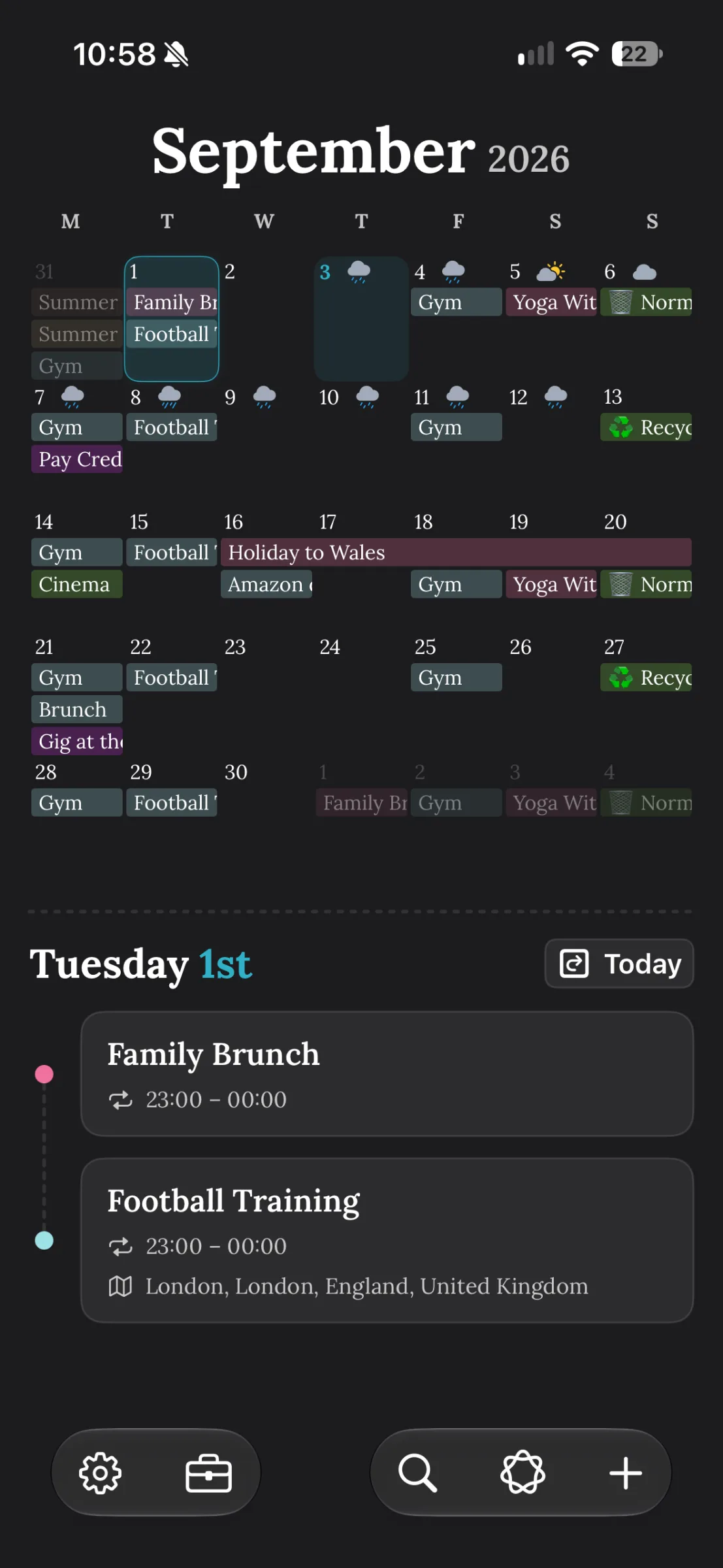
The same schedule can look very different depending on the view. A month grid makes clusters of plans easier to notice; a list makes event names and sequence easier to follow. That difference matters if you are balancing work, appointments, family plans and reminders, or if a screen full of tiny markers leaves you unsure what is actually happening.
Use month view to see the shape of your month
Month view is the right starting point when you are deciding where something could fit. It puts days in context, so you can spot a week already packed with meetings, see where a trip sits alongside ordinary commitments, or notice that several appointments have landed close together. TapCal’s month view can show event titles in the grid, giving you more context than dots alone.
It is an overview, not a detailed timetable. If a day has several events, the grid may not be the easiest place to check their exact order or details. Select the date and move to its timeline or another closer view when you need that level of detail.
Use week view to make a realistic plan
Week view is useful when the month is too broad and today is too narrow. It helps you compare neighbouring days and see how fixed commitments affect the space around them. For example, if you have a work meeting on Tuesday, an appointment on Wednesday and a school pick-up on Thursday, the week gives you a practical frame for deciding when to handle errands or focused work.
This view is also handy when plans change. Check the surrounding days before moving an event, so you can see whether the new time creates a clash or leaves a gap that is too short for travel. A week view shows the layout; it will not decide how much breathing room you need. That judgement is still yours.
Use agenda view to read one day in order
Agenda view is a good choice when you want to know what a particular day contains and what comes first. Instead of scanning a grid, you can read events as a sequence. That makes it easier to check the order of appointments, see where a break might fit, and review the day’s commitments without jumping between event details.
If you find it helpful to keep tasks alongside appointments, TapCal can show Apple Reminders in its calendar timeline too. A dated reminder can sit with the relevant day’s plans, making it easier to review both what is scheduled and what you meant to do. A reminder without a date will not belong to a specific day’s timeline.
Use upcoming list to check what’s next
An upcoming-list view is for a quick, forward-looking check: what is coming up, and in what order? It is often more useful than a month grid when you are about to leave, waiting for the next appointment, or checking the next few days without needing to compare the whole week.
The trade-off is that a list gives less of a visual sense of how events are distributed across the calendar. Choose it for sequence, not for spotting a busy patch several weeks away. If a long list feels overwhelming, narrow your check to the next few items rather than trying to plan everything at once.
Use Month & List when you want both views together
Month & List combines a compact month with a list of upcoming items. It is a useful middle ground if you want the wider calendar picture without giving up the detail of a list. You can check what is ahead while keeping dates in view, rather than treating your month and your next appointments as separate questions.
This combined view will not give as much room to either section as viewing each one on its own. If you need to compare exact timings across several days, switch to week view. If you need to inspect the whole month, give the month grid your full screen.
A simple way to switch between views
Try matching the view to a small planning routine. At the start of the month, scan month view for busy stretches and open dates. At the start of the week, use week view to place work around existing commitments. Each morning, use agenda or upcoming list to see what is next. When you need both the month and near-term detail, choose Month & List. Then switch again when the question changes.
If you organise work and personal events in separate calendars, check that the calendars you need are visible before you plan. TapCal’s calendar sets can help you switch between groups of calendars, such as Work and Personal, without changing the events themselves. The view controls how you look at your schedule; the calendar set controls which calendars are included.
TapCal currently offers month, week, agenda, upcoming-list and Month & List views. You can see the view names in the current TapCal guide to viewing Reminders and calendar events. The best one is not the view with the most information on screen; it is the one that makes your next decision easier. Download TapCal on the App Store if you want to try switching views around your own schedule.
Editor: Please supply screenshots of the same realistic sample schedule in month, week, agenda, upcoming-list and Month & List views. Keep the events and dates consistent across images so readers can compare what each view makes easiest to spot.