
Published 27 September 2026 · By JonsTech
How to See Apple Reminders and Calendar Events Together on iPhone
See scheduled reminders beside calendar events in TapCal, choose the lists you want to show, and add a widget for a quick glance at what is coming up.
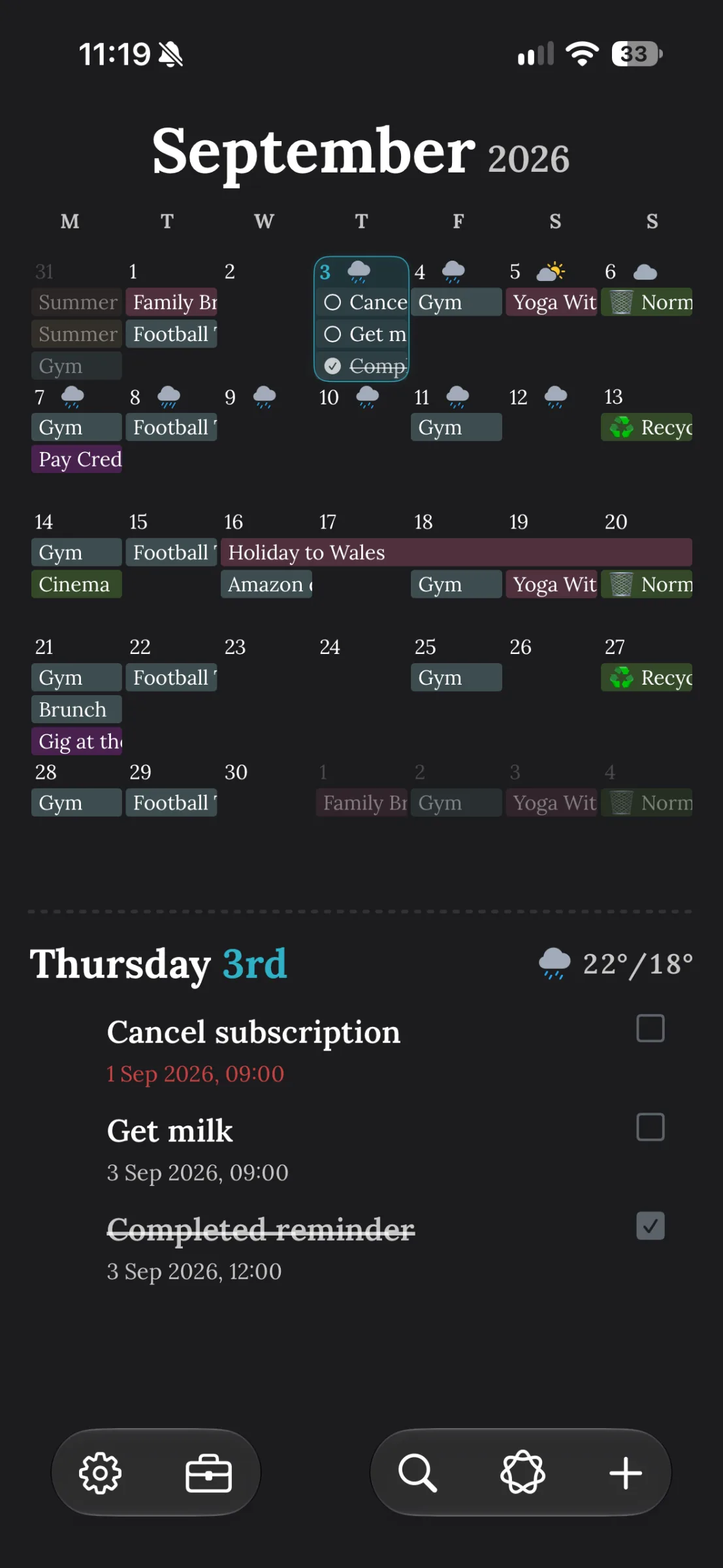
To see Apple Reminders alongside calendar events on iPhone, give TapCal access to your calendars and reminders, then choose which reminder lists to display. TapCal brings both into its calendar timeline and supports widgets that show them together. In the example below, a September month view includes events such as “Gym” and “Football”, with “Cancel subscription” and “Get milk” in the selected day’s reminder list. On supported widgets, you can also mark a reminder complete without opening the app. It’s a handy way to cut down on app-switching, not a promise of instant productivity.
Set up Reminders access
TapCal reads calendar and reminder data already available on your iPhone. The first time it needs access, iOS asks you to allow it. If you declined the prompt or want to check access later, open TapCal’s Settings and choose “Check Permissions”. You can also review app access in iPhone Settings under Privacy & Security, then Calendars or Reminders. Apple explains how to review and change those permissions in its guide to controlling app access.
TapCal uses the calendar accounts connected to iOS, so check that the account and calendars you expect to see are enabled on your phone as well. If you use several reminder lists, you don’t have to display every one in TapCal.
Choose the reminder lists to show
In TapCal, open “Calendars & Lists”.
Switch from Calendars to Reminders.
Select the reminder lists you want included. For example, you might keep “Shopping” visible while leaving a reference or shared list out of your everyday schedule.
Return to your calendar view and select a date. Its timeline can show scheduled events and reminders together.
A reminder needs a scheduled date to belong in a particular day’s calendar timeline. A dated, timed reminder can sit alongside appointments; an all-day reminder can appear with that date’s all-day items. If something is missing, check its date and the selected reminder lists first. TapCal’s help guide also lists the settings paths for visible calendars and reminder lists.
Pick a view that answers the question you have
The month view helps you spot busy days and see event titles across the month. Tap a date to inspect its timeline, including that day’s reminders. It’s useful when you’re deciding where to fit something, or trying to notice that a week already has several commitments.
For a closer look at what’s next, try a week, agenda or upcoming-list view. TapCal also has a Month & List view, combining a compact month with a list of upcoming items. Which one feels clearest depends on whether you’re planning broadly or checking the next few tasks. The available views and widgets are described in the current TapCal Help guide and App Store listing.
Put the schedule on your Home Screen
If you’d rather check your schedule without opening TapCal, add a TapCal widget from the iPhone Home Screen widget gallery. Choose a format that suits the glance you want: a month-oriented widget for dates ahead, or a list-style option for upcoming events and reminders. Some widgets and layouts show more detail than others, so check the preview and settings after adding one.
TapCal’s supported widgets can show reminders with events, and supported interactive widgets let you complete a reminder from the widget. That can be useful for a quick tick-off while you’re looking at your Home Screen. It does not mean every TapCal widget has a completion control: the widget type and iOS support matter. If you can see events but not reminders, check TapCal’s visible reminder lists and widget settings, including which calendar set the widget uses.
Keep separate parts of life separate
A combined view does not have to mean mixing every commitment together. TapCal’s calendar sets let you switch which calendars and reminder lists appear in the app and widgets. You could, for instance, use a Work set for work calendars and a Personal set for home plans and errands. The “Calendars & Lists” screen shows which sources are included in each set; check the active set if a widget looks different from the app.
What’s included, and what may need Pro
TapCal is free to use with practical limits, while Pro unlocks additional features, including some advanced reminder and widget controls. Location alerts for reminders require TapCal Pro and location access set to Always. Because the exact feature split can change, check the current in-app plan details before subscribing. You can use the basic combined calendar-and-reminder view without treating every advanced reminder option as included.
For a straightforward start, allow calendar and reminder access, select the lists you actually want to see, then add a widget and check that it reflects the same set of calendars and lists. Download TapCal from the App Store if you’d like to try that setup on your iPhone.