Published 12 November 2026 · By JonsTech
How to Fix Calendar Not Syncing on iPhone
Find out whether a missing iPhone calendar event is caused by account settings, a hidden calendar or the calendar app itself, then take the right next step.
If a calendar event is missing on your iPhone, check three things in order: make sure the right account is connected and calendar syncing is enabled in iOS; confirm the specific calendar is selected to display; then look for the event in the provider’s own app or website. That comparison tells you whether to investigate the account’s sync or the calendar app’s display. If the event is missing from the provider too, changing calendar-app settings probably won’t bring it back.
1. Check the account and its calendar settings
On current iOS versions, open Settings > Apps > Calendar > Calendar Accounts. Check that the account where you expect the event to live is listed. Tap it and check that its calendar access or syncing is enabled. The wording and switches vary by provider: for iCloud, calendar syncing is managed in your Apple Account’s iCloud settings; for other accounts, look for the calendar option within the account settings. Apple’s current instructions for adding calendar accounts use Settings > Apps > Calendar > Calendar Accounts. On iOS 17 or earlier, the Calendar settings are accessed directly from Settings > Calendar.
If you use iCloud, also check Settings > [your name] > iCloud and make sure Calendar is enabled for this iPhone. If you use Google, Microsoft Exchange, Yahoo or a CalDAV account, confirm that the correct account is present and its calendar data is available to iOS. A mail account can be connected without its calendar being enabled, so seeing an email address in Settings does not by itself prove that its calendars are syncing.
2. Make sure the calendar is visible
An account can be connected and syncing while one of its calendars is hidden from view. Open Apple Calendar and tap Calendars. Check the list under each account and make sure the calendar you need is selected. This is easy to overlook if you have separate calendars for work, family, travel or a shared schedule.
A useful distinction: hiding a calendar from view does not mean its events have been deleted. If the missing appointment belongs to a calendar that is unchecked, select it and return to the calendar view. For iCloud calendars, Apple also recommends checking that the relevant calendars are selected in the Calendar app.
3. Compare with the provider’s app or website
Now check the event in the service where that calendar is managed: for example, Google Calendar on the web, Outlook, or iCloud.com. Use the same account and look for the same date, title and calendar. This comparison is the quickest way to narrow down where the problem sits.
If the event is missing from the provider’s app or website as well, check that you are signed into the right account and viewing the right calendar there. The event may have been saved to another account, moved, deleted or not saved successfully. Contact the provider if its own service is not showing the event.
If the event is present with the provider but missing from Apple Calendar, check the account’s iOS calendar settings, then give it a moment to update. For accounts that use Fetch rather than Push, updates may not appear immediately; check the Fetch New Data settings under Settings > Apps > Calendar > Calendar Accounts.
If the event appears in Apple Calendar but not in another calendar app, check that app’s calendar permission and its own visibility or filter settings.
For instance, imagine a meeting appears in Google Calendar on the web but not on your iPhone. That points you towards the Google account’s calendar settings in iOS, rather than the meeting itself. If it appears in Apple Calendar but not in another app, the next check is that app’s access and display settings. This is a way to diagnose the issue, not a guarantee that a particular provider is at fault.
Check whether it was saved to a different calendar
If you can find the event on your iPhone but it is not reaching your other devices, open its details and check which calendar it belongs to. With more than one account, a new event can be saved to a different calendar than you intended. Check Settings > Apps > Calendar > Default Calendar too: that setting determines where new events go by default, but it does not move events that already exist.
For shared calendars, check that the event is in the shared calendar rather than a private one, and that the other person has access to that calendar. If the event is visible to you in the provider’s service but not to someone else, their account permissions or calendar selection may be the issue.
If you use TapCal, check its calendar list too
TapCal displays calendars connected to iOS, so first check that the account and calendar are available there. Then open TapCal’s Calendars & Lists settings and confirm that the calendar is selected. If you use a calendar set, check that it includes the calendar you’re looking for: a set can show only some of your calendars and reminder lists.
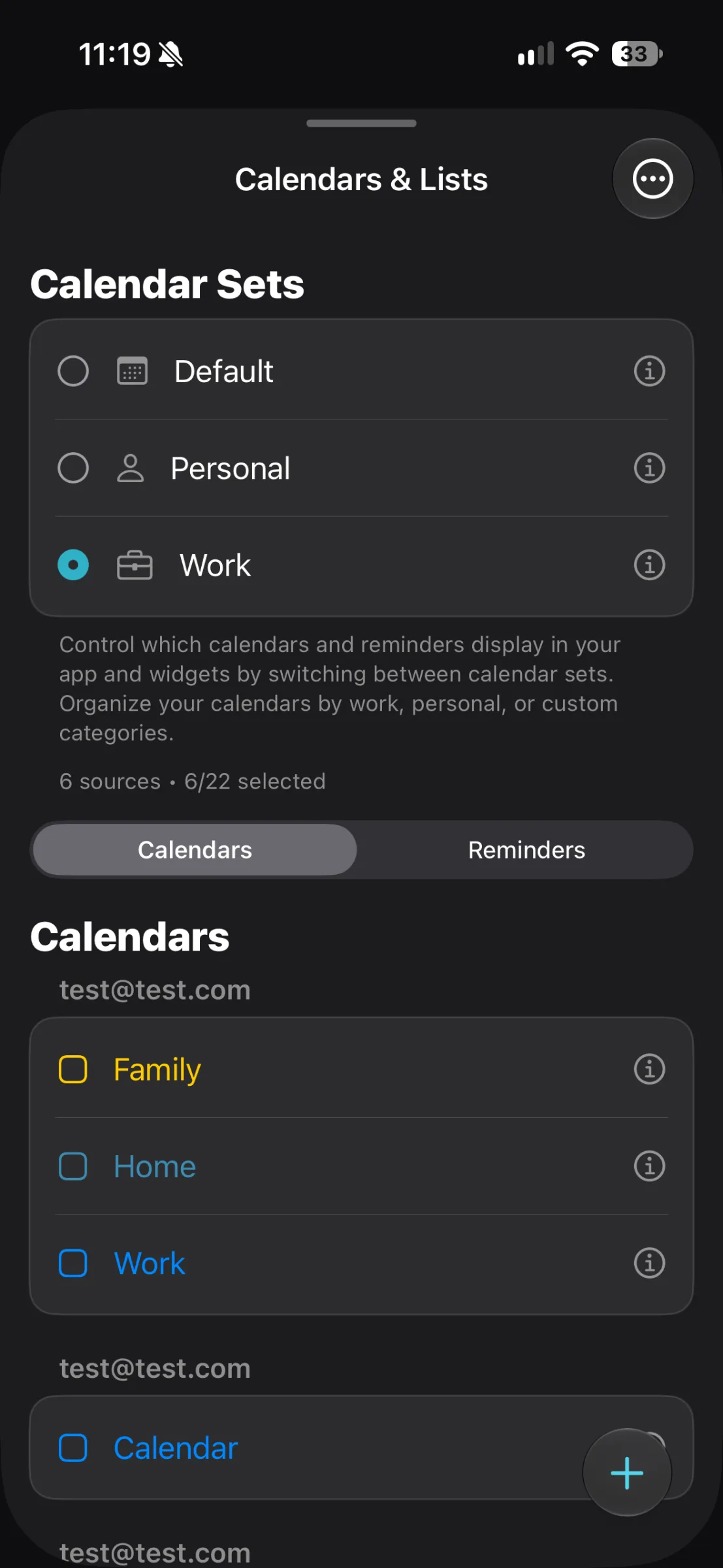
TapCal works with calendars made available to iOS, including iCloud, Google, Outlook or Exchange, Yahoo and CalDAV. It doesn’t store your calendar data on TapCal’s servers, and it can’t repair a provider-side syncing failure. For a Google or Outlook calendar managed by iOS, TapCal’s guidance is to add the account in iOS Settings > Apps > Calendar > Calendar Accounts, allow calendar access, then choose what to display in Calendars & Lists.
If you have checked the account, the visible calendar and the provider’s own service but still cannot see the event in TapCal, TapCal’s Help page has further guidance on calendar visibility and account setup.
A sensible order for troubleshooting
Start with the account, then check whether the calendar is selected, then compare the event with the provider. Only after that should you investigate an individual app’s permissions, calendar sets or display filters. It keeps the checks focused, and helps you avoid changing settings in the wrong place.