
Published 8 November 2026 · By JonsTech
How to Edit One Occurrence of a Recurring Event on iPhone
Need to move or cancel just one date in a recurring iPhone calendar event? Here’s how to check the edit scope in TapCal, avoid changing the whole series, and confirm what happened.
Suppose your Thursday appointment usually happens at 10am, but next week it needs to move to Friday. To keep the rest of the Thursdays unchanged, open the date you want to change and check the edit scope before saving. Choose an option that clearly applies only to that occurrence. If TapCal doesn’t show a clear choice, cancel the edit rather than risk changing the whole series.
First, be clear about what should change
A recurring event has a schedule, such as every Thursday, and individual dates belonging to that schedule. Changing one occurrence means making an exception for a particular date. Changing the series means altering the repeating schedule, which may affect other dates too.
That distinction matters whether you’re moving one appointment, changing its time or cancelling just that date. Before you edit, decide which dates should remain as they are. For the example above, the answer is simple: the Friday appointment should replace next Thursday’s, while the usual Thursday schedule should continue after that.
Open the date you want to change in TapCal
In Month view, select the date of the occurrence you want to edit.
Tap the event in the timeline below the calendar.
Review the event details and make only the change you need, such as moving the date or changing the time.
Before you confirm, check whether the screen asks which dates the change applies to. Continue only if the choice clearly limits the change to the single occurrence.
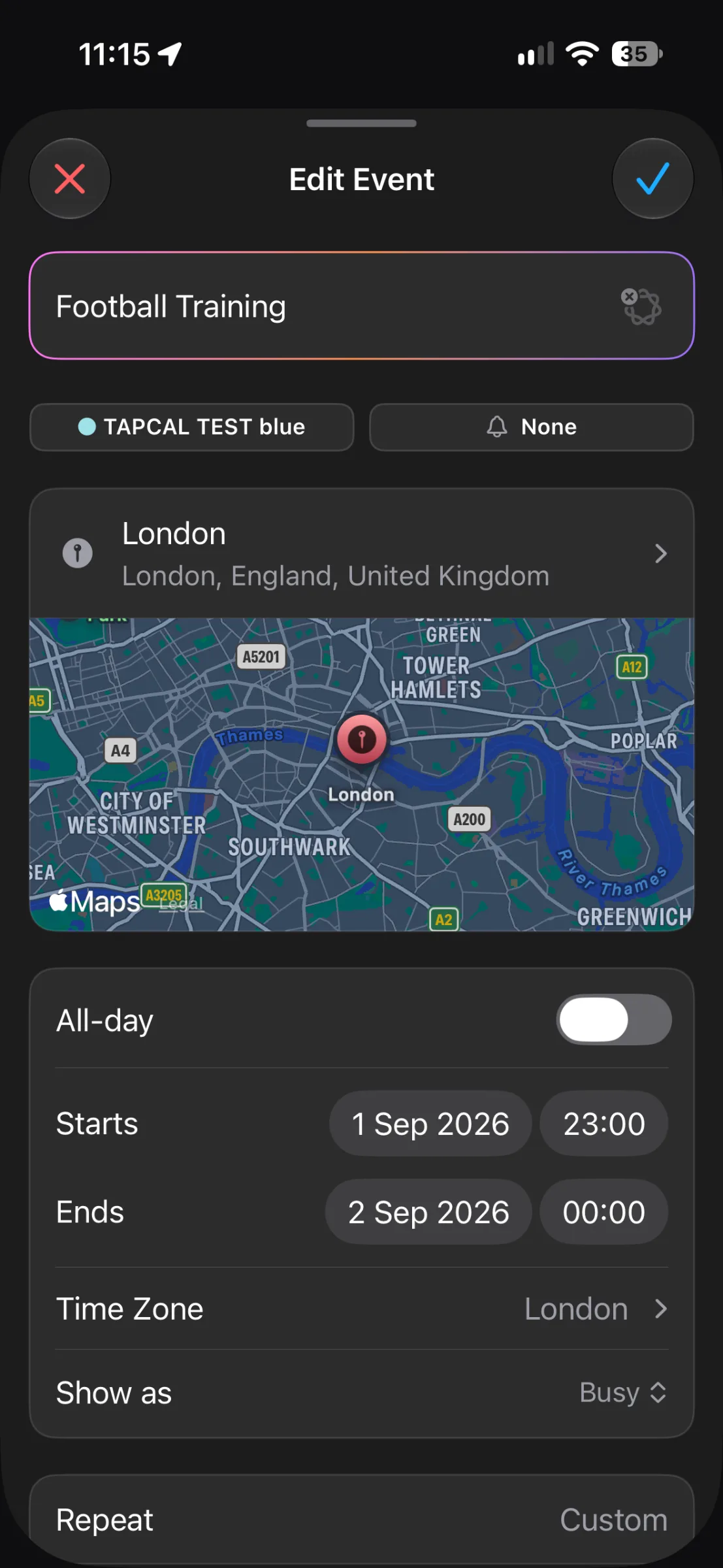
This screenshot shows TapCal’s event editor, including the date, time and Repeat field. It doesn’t show a prompt for choosing between one occurrence and the whole series, so it shouldn’t be used as proof of particular button names or options. The controls you see when saving your own event are the ones to check.
Check the scope before you save
TapCal’s public Help guide explains how to open an event from the month view, but it doesn’t document the exact wording or choices shown when editing one date in a recurring event. So don’t rely on a guessed button label. Read the confirmation screen carefully: it should make clear whether you’re changing just the selected date or the repeating series.TapCal Help.
If the choice is explicit and matches what you want, select it and save. If the screen doesn’t offer a clear single-date choice, or you’re unsure what an option means, cancel out without confirming. Then try editing the event in the calendar account that owns it, such as iCloud, Google or Outlook, or ask the calendar’s organiser if it’s an invitation. TapCal displays calendars connected to iOS, and a calendar’s editing rules can depend on its account and access.
To cancel one date, check the delete scope too
Deleting an occurrence is a separate action from editing its time or date, so check the scope again if you choose to remove it. Only proceed when the confirmation clearly says the selected date will be deleted and the other occurrences will remain. If it appears to remove the series, or the options aren’t clear, cancel.
Also check that the event is editable. TapCal’s Help guide notes that subscription calendars are read-only. If the event comes from one of those feeds, you may need to contact its publisher or add a separate personal event for the changed plan instead.
Verify the result in the calendar
After saving, look at the changed date and at a later date in the series. For the Thursday appointment moved to Friday, check that the appointment appears on Friday and that the next usual Thursday still appears as expected. If you cancelled one date, check that it’s gone while the following occurrence remains.
This final check is especially useful when other people are invited or the calendar is shared. Confirm that the updated event appears in the calendar you expect, and don’t assume a local change has notified everyone involved. If anything looks wrong, avoid making more edits until you’ve checked the event in its source calendar.
The safe rule is simple: make the change on the intended date, read the scope before confirming, then check both that date and a later one. If TapCal doesn’t clearly offer the single-occurrence option you need, stop and make the change through the calendar account that owns the event.