Published 2 November 2026 · By JonsTech
How to Plan a Low-Energy Day with iPhone Calendar
A practical way to plan when energy or focus is limited: choose one or two priorities, schedule the essentials, leave room to recover and keep optional tasks flexible.
When your energy or focus is limited, make a smaller plan, not a tighter one. Pick one or two priorities, put essential commitments in the calendar, add breaks you can protect, and leave optional tasks visibly movable. In TapCal, a week or agenda view can help you see the shape of the day, while a Home Screen widget can keep event titles in view without opening the app. A calendar can make your plan easier to scan; it cannot decide what your energy will be like.
Start with what cannot move
Before adding tasks, check what is already fixed: a shift, appointment, school run, meal with someone, or a deadline that genuinely falls today. These commitments are the frame for your plan. If you have several calendars connected to your iPhone, make sure the ones you need are visible in TapCal before you plan around the space you see.
Then choose one main priority and, if it feels realistic, one smaller one. Make each specific enough to know when it is done. “Send the signed form” is easier to act on than “sort admin”; “prepare lunch” is clearer than “get organised”. If even one priority feels like a lot, choose just one. The point is to give the day a useful centre, not to fill every gap.
Schedule the essentials, then add breathing room
Place fixed commitments at their real times. Add the priority task as a calendar block only if a time will help you protect space for it. Leave a little room around appointments for getting ready, travelling, eating or simply switching tasks. A plan that assumes every minute will go smoothly can become stressful as soon as something takes longer than expected.
Put recovery breaks in the plan too. They might be a proper lunch, a short walk, a quiet half-hour after an appointment, or an open stretch with no task attached. Treat them as useful space, not a prize you have to earn by finishing everything else. If you need the break to stay visible, give it a clear title in the calendar.
Keep optional tasks flexible
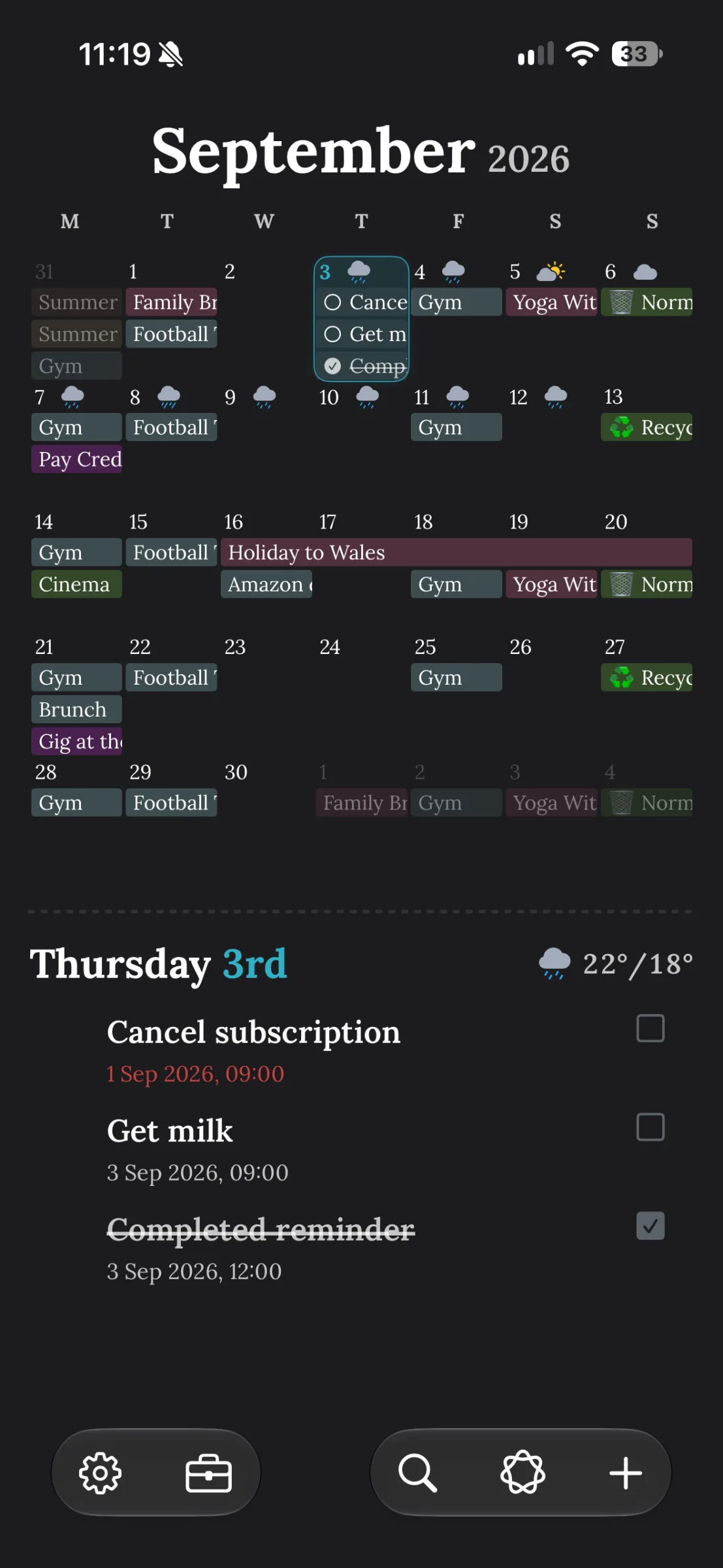
Separate “must happen today” from “would be useful if there is room”. Put the first group into the day’s plan. Keep the second in a short, visible list, or give an optional reminder a date without pinning it to a specific time. That keeps the task in view while making it easier to move without creating a run of overdue-looking calendar blocks.
Be honest about what counts as optional. If skipping it has a real consequence, it may belong with the essentials. If it can wait, let it wait. You do not need to turn every household job, message or personal errand into a timed appointment.
A hypothetical low-energy day
Imagine a Wednesday with a 10.00 dentist appointment and a 15.00 work call. You also need to send an important form. The following is a deliberately light example, not a template you need to copy:
10.00: Dentist appointment, with travel time left clear around it.
Afterwards: A recovery break and lunch, rather than an immediate run of errands.
13.00: Send the important form, as the day’s main priority.
15.00: Work call, already fixed in the calendar.
Optional: Pick up groceries, only if there is enough time and energy. Keep it flexible rather than giving it a fixed slot.
If the appointment takes more out of you than expected, the form is still the priority and the groceries can move. If you have more capacity, you can choose to do the optional task. The plan gives you a starting point without pretending you can predict exactly how you will feel.
Choose the view that makes today easiest to read
Use week view when you need to see how today sits beside the days around it, or to check whether a task could move. Use agenda view or an upcoming list when you want to read today’s commitments in order. Month view is useful for spotting a crowded patch or choosing a quieter day for something that can wait, but it is less suited to checking the exact sequence of one day. TapCal also offers Month & List, which keeps a compact month alongside upcoming items. The best view is the one that answers the question you have now, not necessarily the one with the most information on screen. For a fuller guide, see which iPhone calendar view to use.
On your Home Screen, a TapCal widget can bring event names into view, so you can scan what is coming up without opening the app. The available widget layouts include month, week, list and heat map; Month & List is also available. A widget’s size and layout affect how much detail fits, so event titles may be shortened in a smaller space. Check that the calendars and reminder lists you want are selected, too.
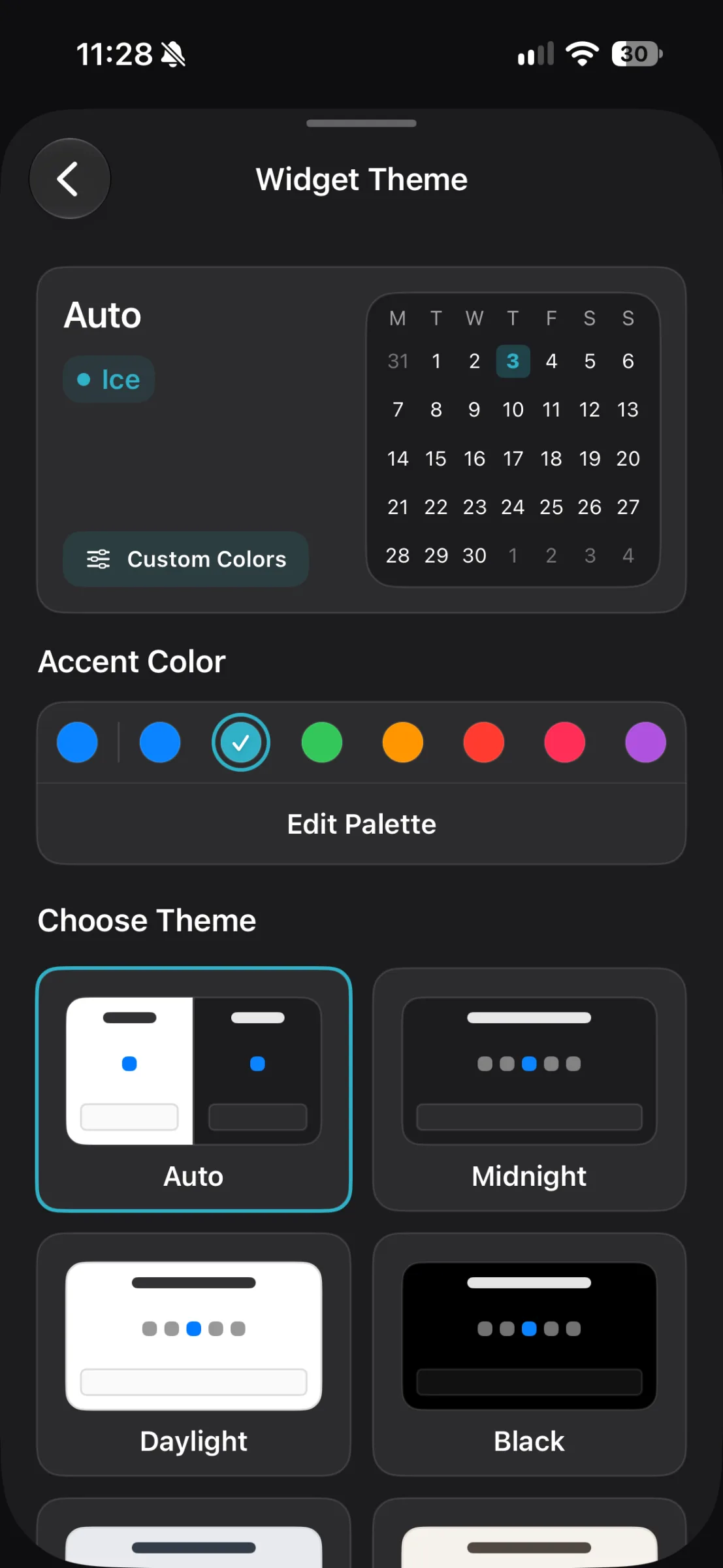
If you want to set one up, the TapCal widget guide explains how to add a widget and choose a layout. Its small-screen view is a prompt, not a substitute for checking event details in the app when you need them.
Make the plan easy to revise
A low-energy plan should be easy to adjust. If the day changes, move the flexible task first; keep the fixed commitments and the one priority in view. If the priority no longer fits, decide whether it can move too, rather than squeezing it into a break or pushing the rest of the day into a rush. The calendar is there to show your choices, not to judge them.
A useful next step is to block out tomorrow’s fixed commitments, choose one priority, and leave at least one recovery break open in your calendar. If you would like to try TapCal’s calendar views and widgets, find it on the App Store.