
Published 30 October 2026 · By JonsTech
What to Add to iPhone Calendar Event Notes
A practical guide to adding the location, links, preparation notes and alerts that make an iPhone calendar event useful when it starts.
Put the details you would otherwise have to hunt for into the event: the exact place, a useful link, a short preparation note and an alert that gives you enough time to act. For example, a project meeting might need the office address, the video-call link, the document to read and a reminder to leave. The aim is simple: when the event begins, you can get there or get started without searching through messages.
A quick checklist for a useful event
A clear title: what the appointment is, not just “Meeting”.
The location: a full address for an in-person appointment, or the relevant link for a remote one.
A useful link: the call, booking, agenda or document you will need.
Key notes: what to prepare, bring, ask or remember.
A suitable alert: early enough to help you prepare or travel, without becoming another notification to ignore.
You do not need to fill every field for every event. A haircut may need an address and an alert; a video call may need a link and one line of context. Add what will help your future self take the next step.
Example: a meeting you can join on time
Imagine a hypothetical meeting with a colleague at 10.30 am. Instead of saving it as “Project meeting”, give it a title that identifies the purpose, such as “Website review with Sam”. Then add the office address if you are meeting in person, or the video-call link if you are joining remotely.
Location: 24 Bridge Street, Bristol, BS1 2AB, if meeting in person.
URL: the video-call link or shared agenda, depending on the meeting format.
Notes: “Review homepage draft. Bring revised headline options. Ask about launch date.”
Alert: a reminder before the meeting, plus an earlier one if you need time to travel or prepare.
The address and video link are alternatives here, not details to cram into one event. If the meeting is online, use its link; if it is in person, use the address. Keep the note short enough to scan. A few prompts are more useful at the right moment than a full set of meeting minutes.
What belongs in the location, URL and notes fields?
Location: make the destination specific
For an appointment, enter the street address rather than only the venue name if there could be more than one branch. Add practical details such as the entrance, floor or reception desk in Notes. If you are meeting remotely, put the meeting link in the URL field instead of using the location for unrelated information. Apple says Calendar can use an event address with Maps to look up location and travel information; what appears can depend on your device and settings. See Apple's guide to creating and editing iPhone Calendar events.
URL: save the thing you need to open
Choose the link that will save you a search at the time: a video call, booking confirmation, shared agenda or file. Check that it opens the right destination before saving the event. In TapCal, event details can include URLs, and links in event notes are shown as tappable links in supported versions. TapCal's App Store notes list the event-detail and link behaviour.
Notes: write prompts, not a second inbox
Use Notes for information that does not have a better home elsewhere: what to bring, the question you want to ask, a booking reference or the name of the person you are meeting. Try a small structure: “Prepare”, “Bring” and “Ask”. For example: “Prepare: read the draft. Bring: printed forms. Ask: confirm next appointment.”
If a note starts turning into a long task list, keep the event note to the essentials and put the separate actions in Reminders. That leaves the appointment focused on what you need when it starts. Read more about when to use iPhone Calendar or Reminders for a task.
Alerts: choose one that changes what you do
Set an alert based on the action you need to take. A video call may need a short prompt to open the agenda; an appointment across town may need an earlier reminder to get ready and leave. If you use multiple alerts, give each one a purpose rather than repeating the same nudge. Also check that alerts are enabled for the calendar holding the event. In TapCal, event alerts are controlled at the calendar level as well as in the event editor.TapCal Help explains where to find event alert settings.
Adding these details in TapCal
TapCal's event editor shows the main scheduling details together: calendar, alert, location, date and time. Tap the plus button to create an item, or select a day and tap it again, then choose Event. Enter a clear title, set the time and calendar, and use Add location for an in-person destination. Open the event details to add or review its URL and Notes before saving.
TapCal's event editor brings the place, alert and timing into view while you set up an appointment.
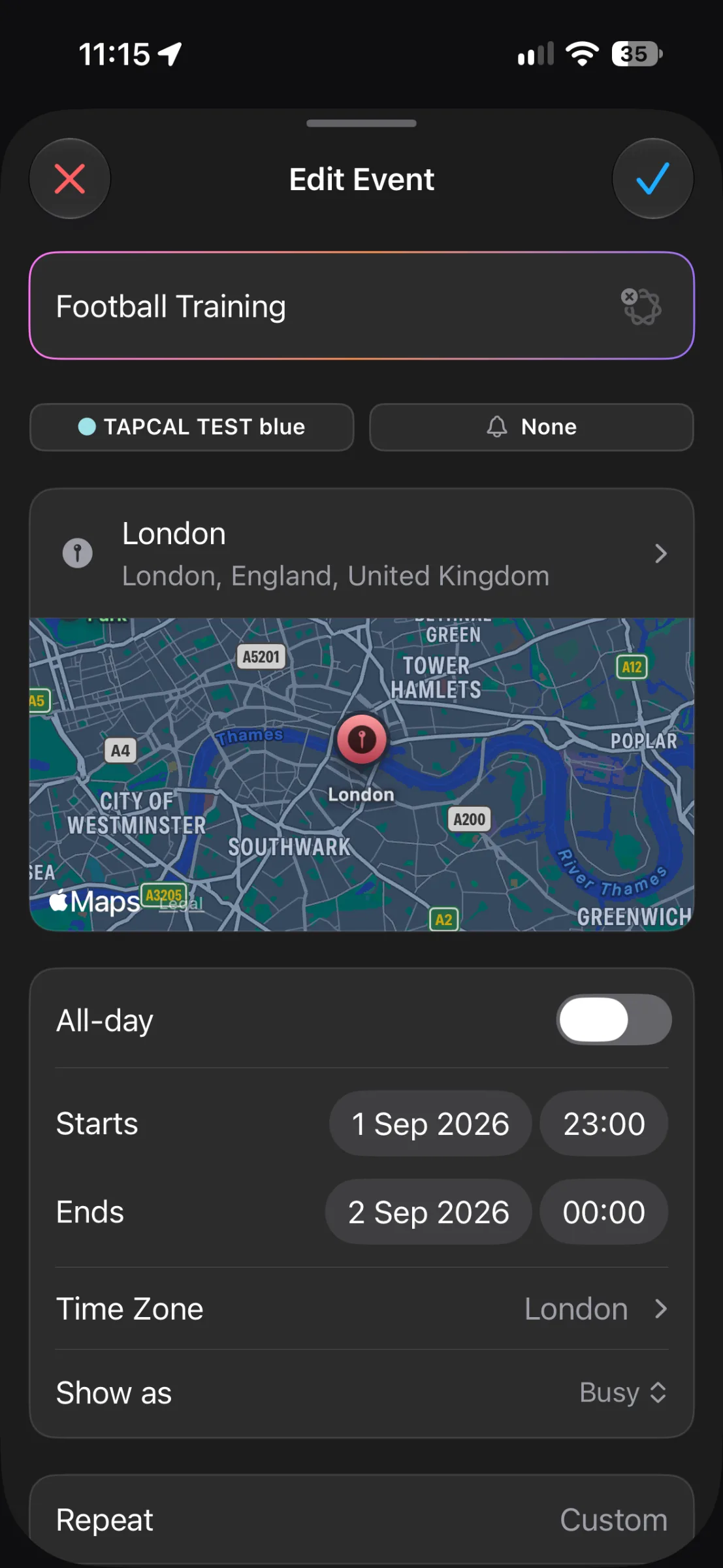
The form can extend beyond the fields shown on screen, so scroll through it to check for URL and Notes rather than assuming they are missing. Before you finish, look over the time, calendar and alert too. That last check matters if you have more than one calendar or are editing an event you copied.
A final check before you save
Can I tell what this event is from its title?
Have I added the address or the joining link I will actually use?
Do the notes tell me what to prepare, bring or ask?
Will the alert arrive early enough to help, and is the event on the right calendar?
If those answers are clear, the event has what you need. Start with the next appointment on your calendar and add only the details that will make it easier to show up ready.