
Published 27 October 2026 · By JonsTech
How to Move a Calendar Event to Another Day on iPhone
Reschedule an iPhone calendar event without creating it again. See how to use TapCal’s move action, what to check afterwards, and where recurring or invited events need extra care.
To move an event in TapCal, open its context menu, choose **Move**, then select the new date. That changes the existing event rather than creating a second booking, so you don’t have to re-enter its title, location and other details. TapCal’s current App Store listing confirms that move and duplicate actions are available from an event’s context menu. The listing doesn’t spell out every screen or what happens to recurring events and invitations, so check those details before confirming a change to a series or a shared event. TapCal’s App Store listing
Move an event in TapCal
The exact menu can vary with the event and the calendar it belongs to. Start with the event you want to reschedule, rather than making a new one from the destination day.
Open TapCal and find the event in the calendar. In month view, select its date; the day’s timeline appears below the calendar. TapCal’s help guide describes opening an event by selecting its day and tapping the event in that timeline.
Open the event’s context menu and choose **Move**. If you’re looking at the event in a different view, use its context menu there.
Choose the new date and confirm the move. Check the event appears on the intended day and hasn’t been duplicated.
The move action is different from **Duplicate**. Move when the original appointment is happening on a new day and should no longer appear on the old one. Duplicate when you need an additional appointment and want to keep the original too.
Check the time and details
A new date doesn’t always mean the same time still works. If a dentist appointment moves from Tuesday to Friday, for example, check its start and end times, then review the location, calendar, alerts and notes. If the event has a time zone, make sure the displayed time still matches what you agreed. TapCal’s event editor includes these kinds of details, so you can review the booking without rebuilding it.
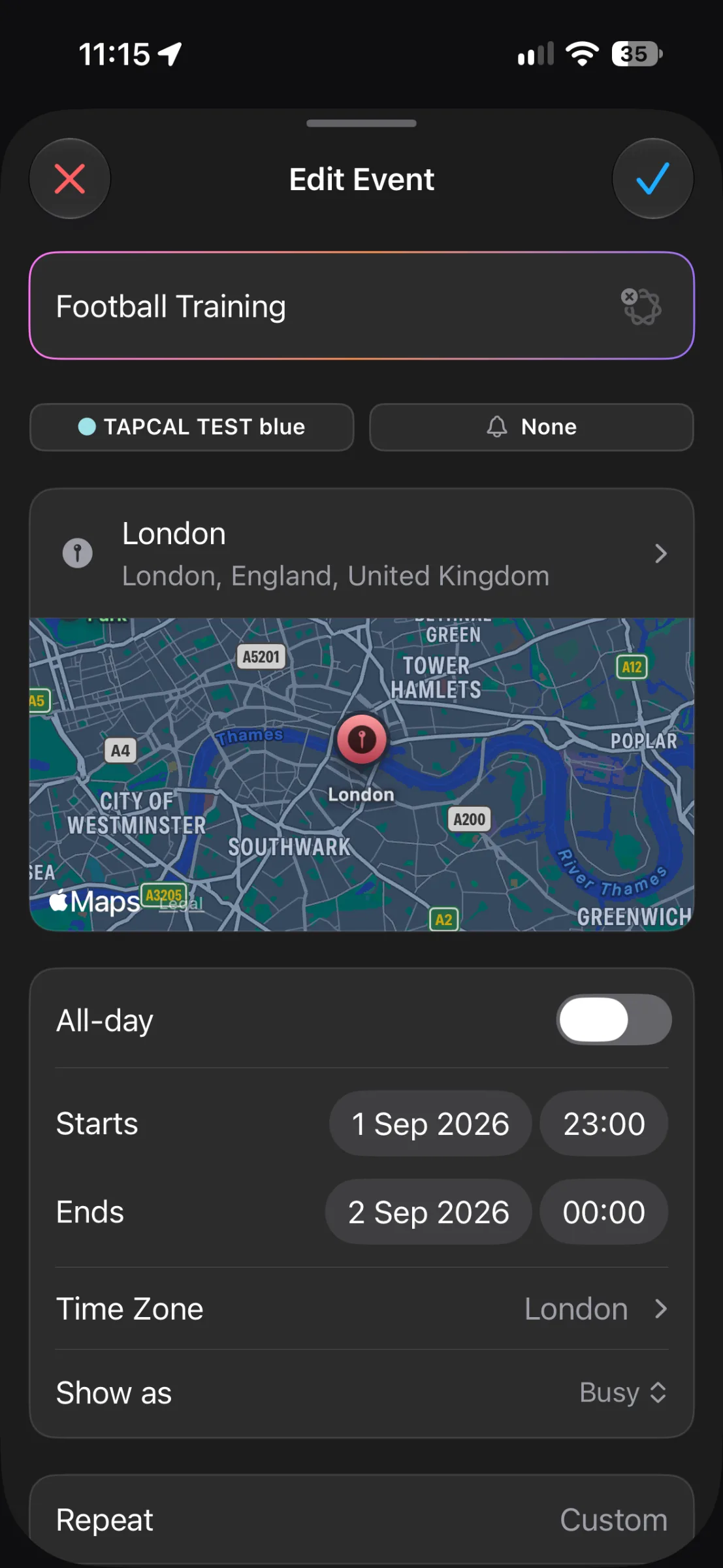
This TapCal edit screen shows an event’s date, times, time zone, location, alert and repeat setting. It illustrates the details worth checking after a move; it is not a screenshot of the move menu itself.
For an all-day event, check that it remains all-day on the intended date. For an event spanning midnight or several days, confirm both the start and end dates. These checks help catch a move that looks right in the calendar grid but leaves the actual appointment hours wrong.
What about alerts, recurring events and invitations?
Moving an event is intended to reschedule it, not make you type its details from scratch. Still, TapCal’s published feature notes don’t confirm exactly how alerts are handled in every case. Check the alert field after moving, especially if you rely on it to leave on time or prepare beforehand. TapCal schedules its own notifications, and event alerts are also controlled at the calendar level, so check that alerts are enabled if one doesn’t arrive as expected. TapCal’s Help guide to alerts
Take extra care with an event that repeats. Before confirming, check whether you’re moving one occurrence or changing the whole series. The available choice can depend on the event and its calendar account; don’t assume all future dates will stay as they were, or that every occurrence will move. If you only need to change one appointment in a regular series, verify the result in the calendar before moving on.
For an invitation, also check the event afterwards to see whether the date has updated and whether an invitation response or update is needed. TapCal supports responding to calendar invitations, but its public feature notes don’t describe the exact update behaviour for every calendar provider. If other people are attending, make sure they have the new date through the event’s shared calendar or invitation, rather than assuming a local change has notified them.
If you can’t find the Move action
Check that you’re opening a calendar event, not an Apple Reminder, and that it isn’t from a read-only subscribed calendar. TapCal’s help page says subscription calendars are read-only. Events in shared calendars or calendars connected through another provider can also have different editing rules, so you may need to make the change in the calendar that owns the event. TapCal reads calendars made available to iOS, including iCloud, Google, Outlook/Exchange, Yahoo and CalDAV.See TapCal Help for calendar and account guidance.
TapCal requires iOS 18 or later. If it’s installed and you still can’t move an event, check whether the event’s calendar allows edits, then open the event’s menu again. For a simple one-off change, moving the existing event is the right choice; use Duplicate only when the old booking should remain in place.Download TapCal from the App Store