
Published 25 October 2026 · By JonsTech
How to Organise a Travel Itinerary in iPhone Calendar
Keep flights, accommodation and activities together in your iPhone calendar with one event per plan, useful booking details and a dedicated travel calendar.
Keep each flight, hotel stay and activity as its own calendar event, then put them in a dedicated Travel calendar. Add the address, booking link and the details you will need on the day. That gives you one place to check what is happening next, while a calendar set can show your trip alongside personal commitments when you need the wider picture. In TapCal, month and agenda-style views and widgets help make those plans easier to scan without opening every booking email.
The itinerary below is hypothetical, to show how you might structure a short trip. TapCal does not automatically import bookings: add each event yourself, using the confirmation email or travel provider’s app to check the details.
Start with a separate Travel calendar
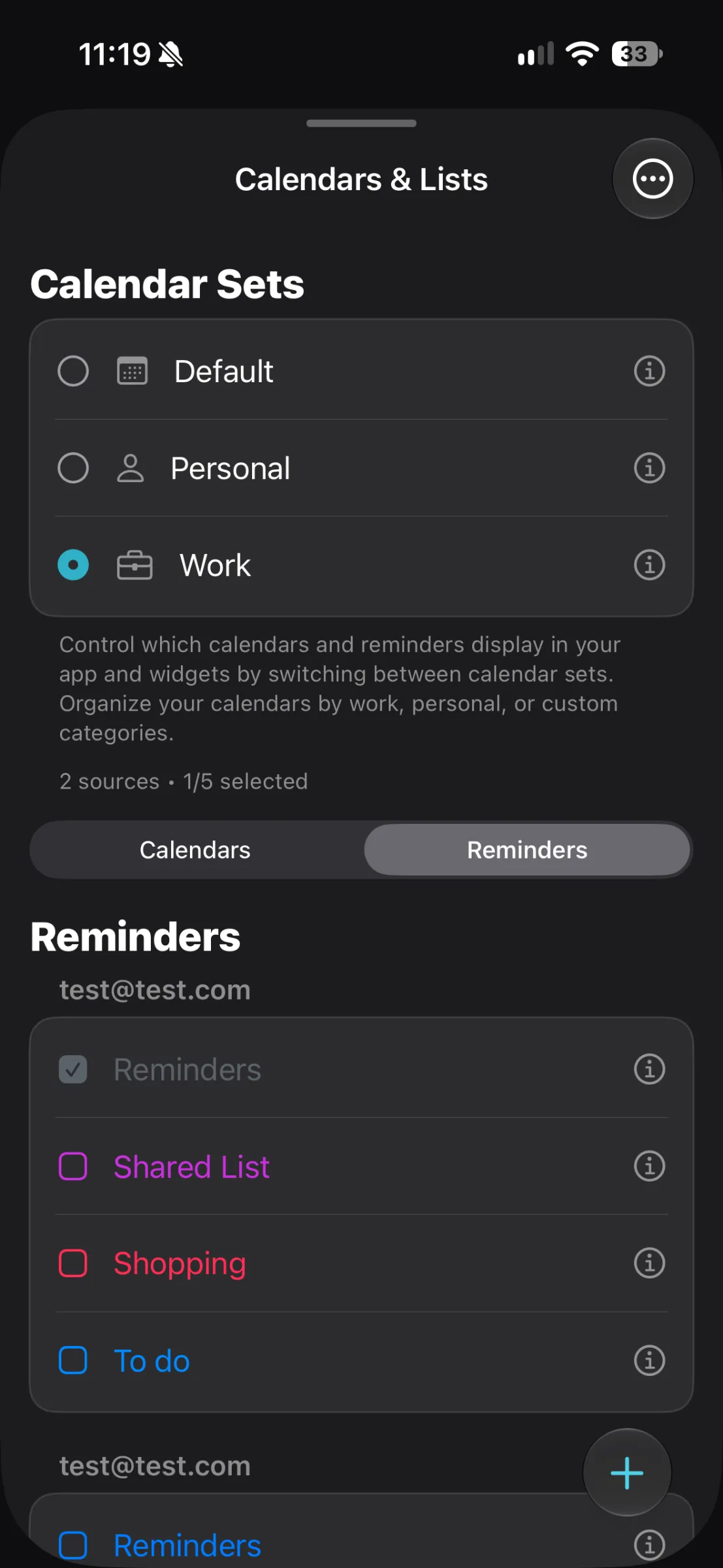
A dedicated calendar keeps travel plans distinct from work meetings, school dates and everyday appointments. Create a calendar called Travel through an account already connected to your iPhone, then make sure it is visible in TapCal. Your events remain in the calendar account you use with iOS; TapCal reads calendars available on your device rather than creating a separate booking inbox.
If you want to see a trip alongside your usual plans, make a calendar set that includes both Travel and Personal. When you want a simpler trip-only view, switch to a set that shows Travel without the extra calendars. A set changes what you see in TapCal; it does not move or duplicate your events. TapCal’s help guide explains calendar sets and where to manage visible calendars.
Make one event for each booking or plan
Avoid putting an entire trip into one all-day event. It may mark the dates you are away, but it will not tell you when to leave for the airport or where to find your hotel. Separate events make the sequence clearer and let you open the details for the next leg of the journey.
For example, a hypothetical three-night city break could be laid out like this:
Friday, 08:30: Train to the airport. Add the departure station or terminal as the location, and note the ticket reference.
Friday, 11:00: Flight to Edinburgh. Put the airport in the location field and the airline, flight number and confirmation details in the notes.
Friday to Monday: Hotel stay. Make this an all-day, multi-day event if you mainly need to see the dates at a glance; include the hotel address and check-in information in its details.
Saturday, 14:00: Museum visit. Add the venue address, entry time and ticket link.
Monday, 16:00: Return flight. Record the flight number and airport, then check the departure time against your booking.
Use the times and dates shown in your confirmation, not estimates from memory. For flights that cross time zones, check which time zone the event uses and whether the booking shows departure and arrival times in their respective local times. TapCal supports event time zones, so you can review that setting when you create or edit an event.
Put the useful details where you can find them
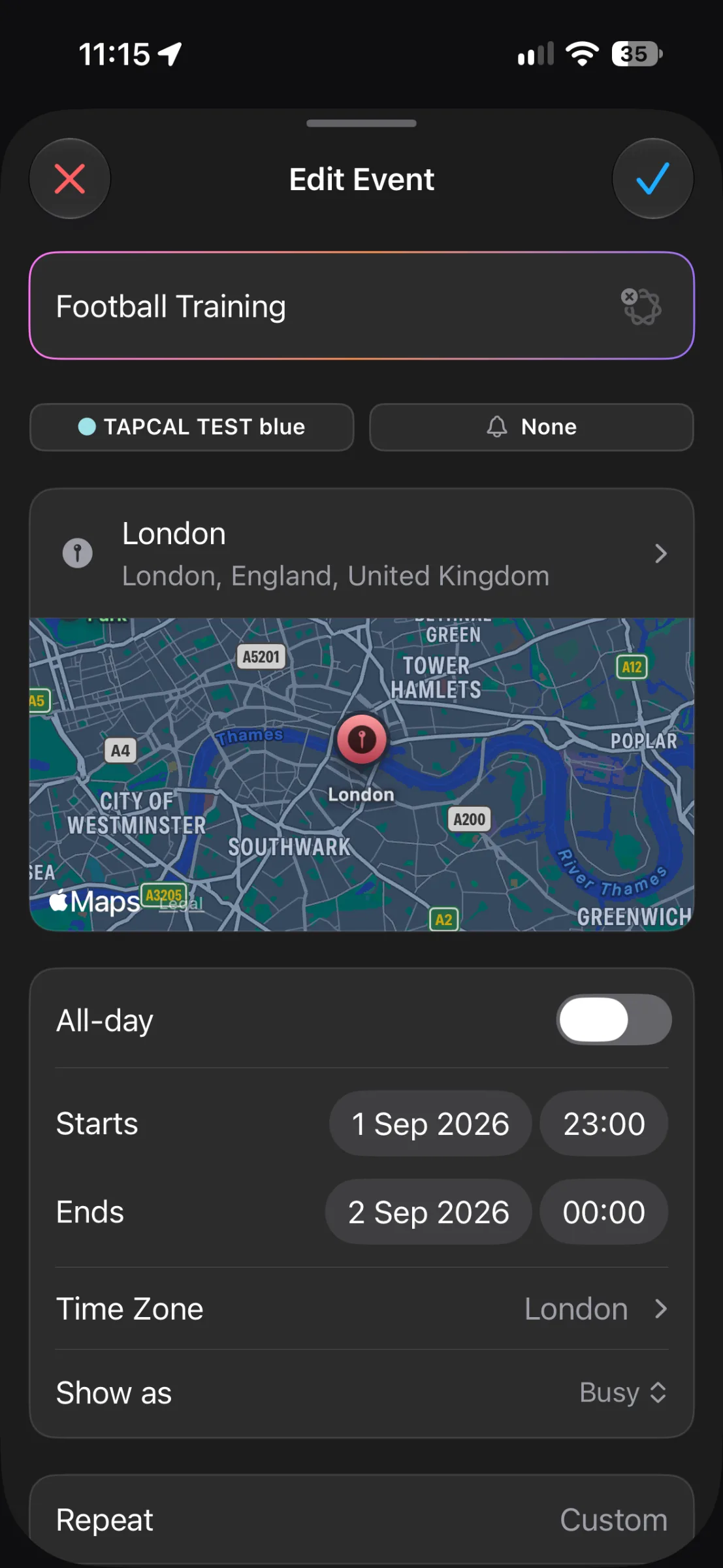
Give events specific names, such as “Flight BA123 to Edinburgh” rather than “Travel”. A clear title is easier to recognise in a month view or widget. Add the address in the location field so you can use it for directions, and put details such as a confirmation code, check-in instructions or ticket link in the event’s notes or URL field.
Keep notes practical. Include the booking reference and the detail you are likely to need at the moment you open the event. If an email contains lots of terms and conditions, leave those there; the calendar is most useful when the essentials are quick to spot. For sensitive information, consider whether you want it stored in a calendar event that may appear in notifications or widgets.
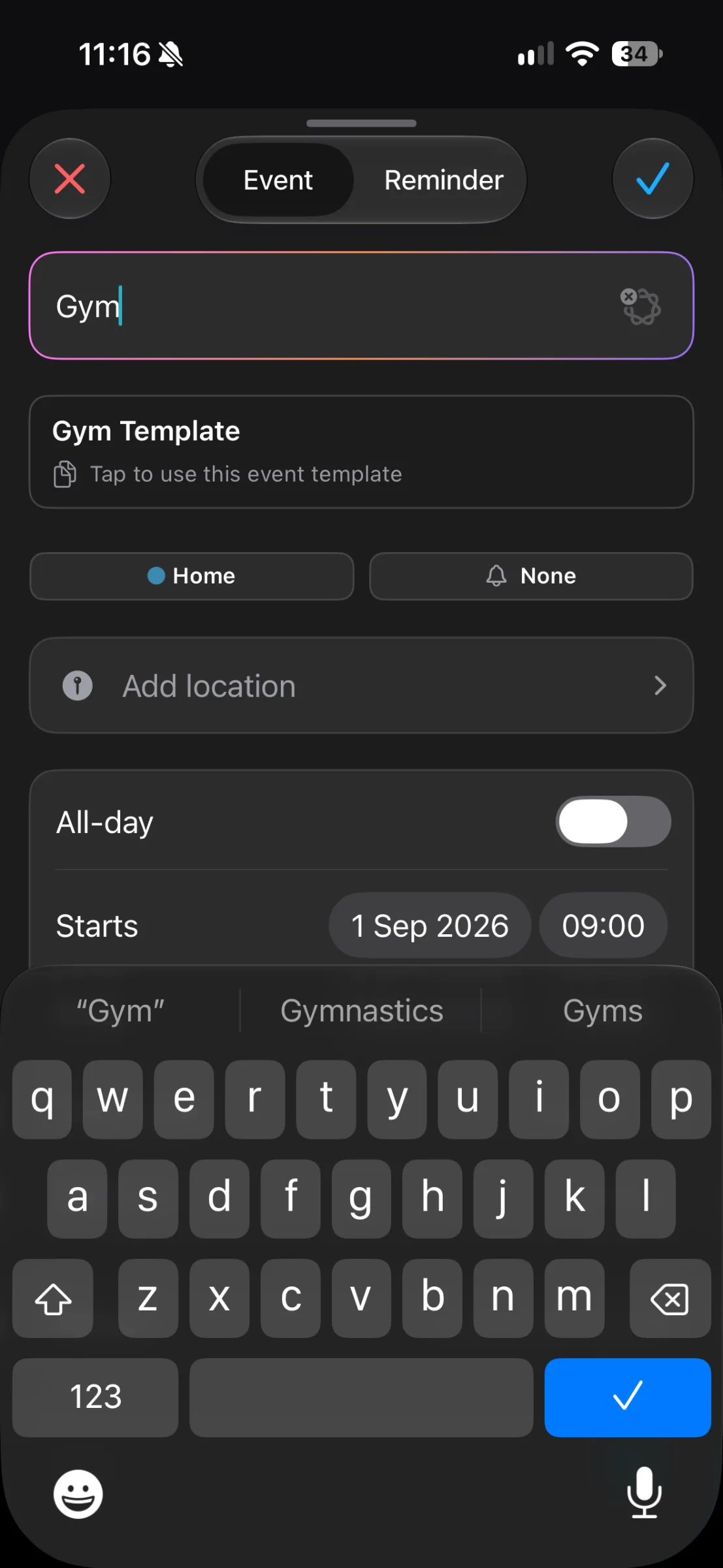
In TapCal, tap the plus button to add an event, choose the Travel calendar, and fill in its title, date and time. Add a location and any notes or link you need, then save. The event screen includes a location field; the exact details you see depend on the event you create and the calendar account you use.
Check the itinerary in the right view
The month view is useful before you travel: it shows how the trip fits around the rest of the month and helps you spot dates with several plans. TapCal displays event titles in its month view, so you can see more context than a dot alone provides. For the order of events on a particular day, switch to an agenda or list-style view and check the times, locations and gaps between activities.
A Home Screen widget is handy for a quick glance at what is coming up. Choose a view that suits how you plan: a month widget gives broader context, while a list or agenda-style widget brings upcoming events closer. A widget is a reminder of the schedule, not a substitute for opening the event when you need a booking reference or full address.
Do one final itinerary check
Before you leave, open the trip-only calendar set and scan the itinerary in date order. Check that every flight, stay and timed activity has the right date, time and destination. Then switch to the set that includes your everyday commitments: it can reveal a clash or a busy day that was easy to miss when viewing the trip on its own.
That is the basic system: one event per plan, details attached to the event they belong to, and a Travel calendar you can show or hide as needed. If you want to try that workflow, download TapCal from the App Store.