
Published 23 October 2026 · By JonsTech
How to Track Bill Due Dates on iPhone Calendar
Set up recurring bill dates on iPhone with calendar events or reminders, choose alerts that give you time to act, and see the month ahead in TapCal.
The simplest way to track recurring bills on iPhone is to create one repeating item for each bill, give it a specific title and set an alert early enough to do something about it. Use a calendar event when you want the due date visible in your schedule; use a reminder when you want a task you can tick off. For a bill that matters, put the due date in the title and check that the repeat and alert settings are right before relying on them.
Choose an event or a reminder
A calendar event is a good fit for a deadline you want to see on a particular day, such as “Rent due” or “Council tax due”. You can add one or more alerts before the date. An event does not have a completion box, so it is better for marking when something is due than for tracking whether you have paid it.
There is no need to force every bill into the same format. You might put a rent deadline in the calendar and keep utility and card payments as reminders. The useful test is: do you mainly need to see the date, or do you need to remember to complete a task?
Set up a bill that repeats
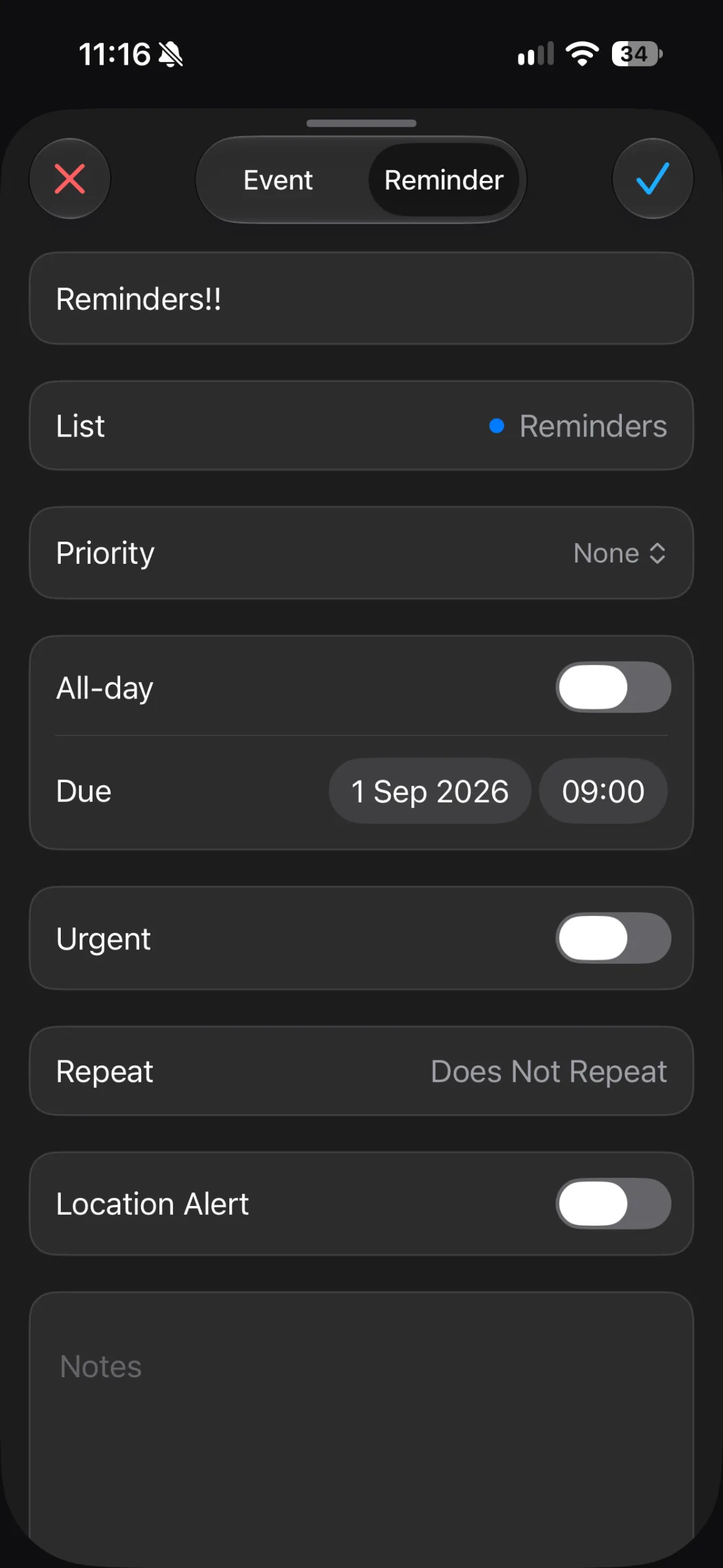
The reminder editor includes a Repeat field. After selecting a rule, check the next date it creates, especially for a bill due near the end of the month. February and shorter months can make a date such as the 31st awkward; do not assume a repeating item will land on the date you intend. If the next occurrence looks wrong, choose a different monthly pattern or make separate dated items.
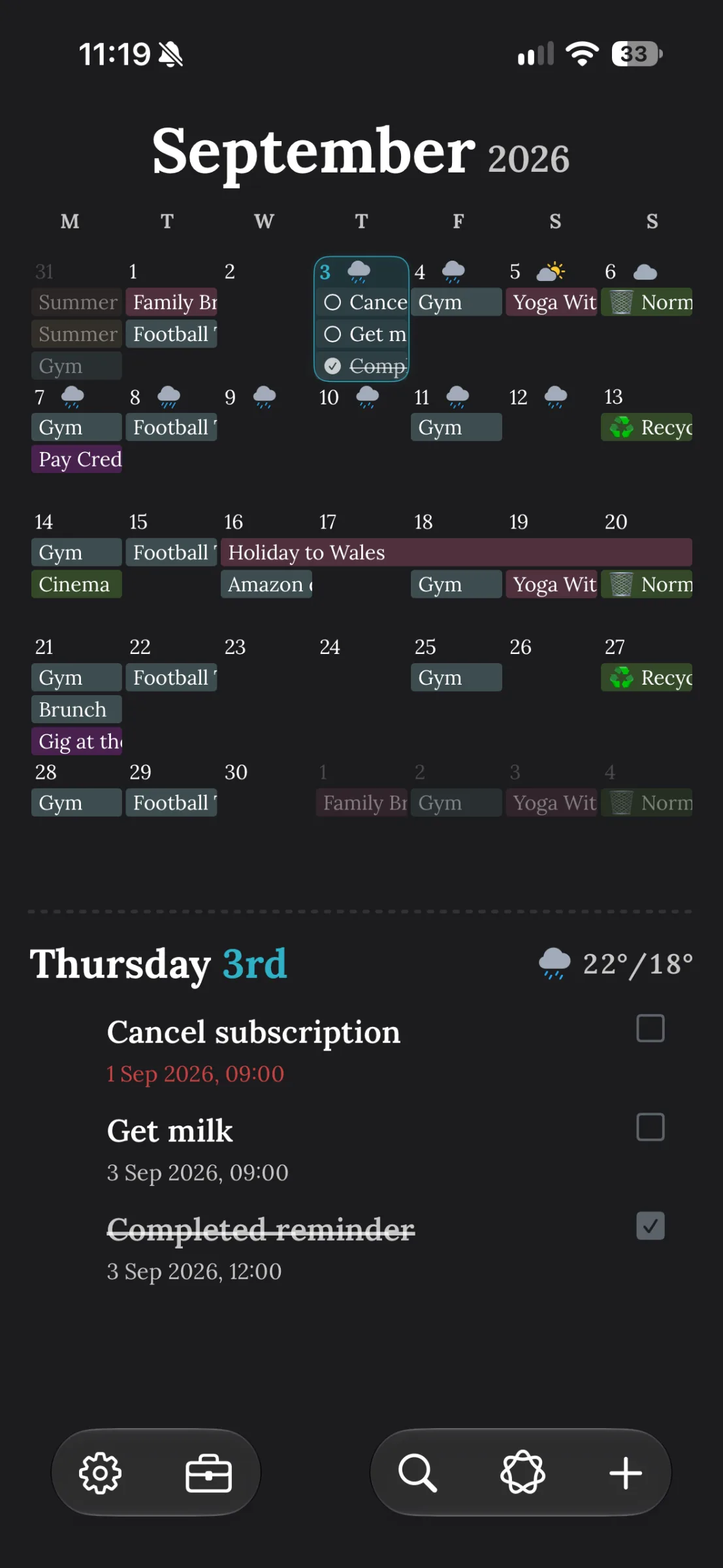
If you use a reminder, also check that it is in a visible list. In TapCal, reminders can appear alongside calendar events in the timeline and calendar views. A reminder hidden in a list you do not normally look at is easy to overlook, even if its date is correct.
Use alerts that leave time to act
A practical rule: choose an alert time based on the action you need to take. If you pay a bill manually, a prompt a day or two before the deadline may give you room to deal with it. If payment is automatic, a reminder to check that it has gone through may be more useful than several alerts about the same payment. Avoid stacking notifications without a clear purpose; too many can become easy to dismiss.
A sample month of bill reminders
Here is a hypothetical setup for someone with three regular bills. The dates and lead times are examples, not a suggestion to use the same schedule for your own payments:
1st: “Rent due” as a monthly calendar event. Set an early alert so there is time to check the payment, then add a second alert on the day if a final prompt helps.
12th: “Pay phone bill (due 12th)” as a monthly reminder dated for the 10th. That makes the reminder an action prompt while keeping the actual deadline in the title.
25th: “Check card payment (due 25th)” as a monthly reminder dated for the 23rd. Complete it after checking that the payment has been made.
With a combined calendar and reminders view, those deadlines and action prompts can sit alongside appointments and other plans. TapCal’s month view and timeline help you scan what is coming up, rather than keeping the bills in a separate list you have to remember to open.
Make the system easy to check
Keep titles plain and distinct. “Electricity bill due” tells you more at a glance than “Bill”. If you are using reminders for different kinds of tasks, put bills in a dedicated list and make sure that list is visible in the TapCal view or calendar set you use. You can complete a reminder when you have dealt with it, while the next repeat remains part of your routine.
Once you have created the first few, review the coming month. Confirm the due dates against your statements, check that each repeated item lands on the right day and make sure its alert is early enough to be useful. For more detail on adding separate prompts to an event, see how to set multiple alerts for calendar events on iPhone.
Start with one bill, check its next occurrence and alert, then add the rest. Download TapCal on the App Store if you want to see calendar events and reminders together on your iPhone.