
Published 21 October 2026 · By JonsTech
How to Duplicate Calendar Events on iPhone
Need to repeat a one-off appointment without typing it all again? Here’s when to duplicate an iPhone calendar event, when to use a template or recurrence, and what to check before saving.
For a one-off appointment that’s similar to one already in your calendar, use TapCal’s event-duplication action rather than re-entering every detail. It gives you a copy to adjust for the new date, which is often quicker than setting up a recurring series or rebuilding the event from scratch. Before saving, check the date and time, and review the other details: the exact TapCal steps and fields carried over should be confirmed in the current app version.
When duplicating is the right choice
Think of duplication as a shortcut for a one-off event that resembles an existing one. Perhaps you have another dentist appointment to book, a second school meeting with the same people, or another training session at a different time. The old event gives you a starting point; the new one can then have its own date and any details that need changing.
This is different from moving an event. A move changes when the existing appointment happens. A duplicate is intended to give you another event, so the original remains in place. That distinction matters when the first booking still needs to stay in your calendar.
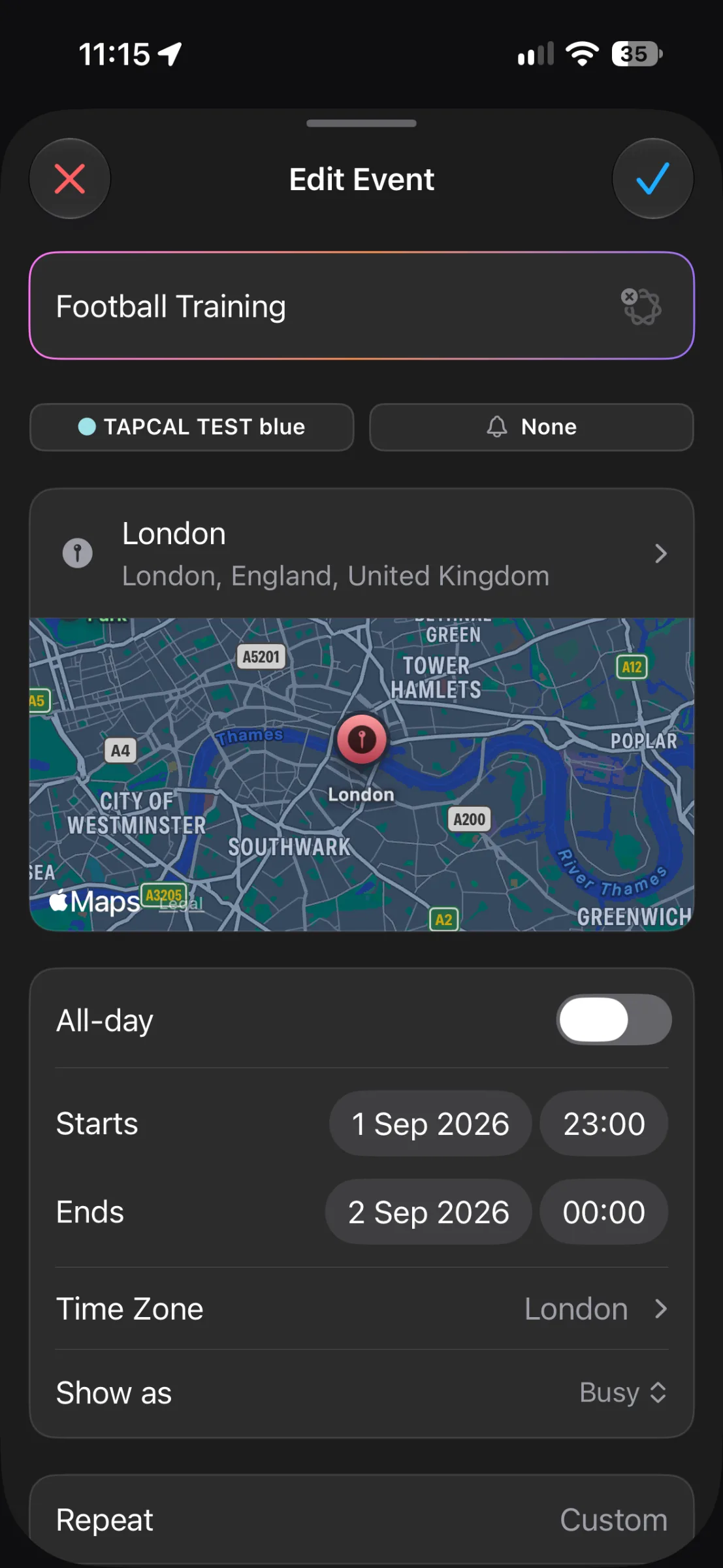
This TapCal edit screen shows the sorts of details you may need to review on an event, including its calendar, alert, location, start and end times, time zone and repeat setting. It is an example of an event form, not a screenshot of the duplication action.
Duplicate, repeat or use a template?
These options solve different problems. Choose the one that matches what you’re actually planning, rather than using a recurring event just because the details look familiar.
Duplicate an event when you want another separate booking, usually on a different date, and the old one should stay unchanged.
Use recurrence when the same appointment genuinely repeats on a schedule, such as a weekly class or a regular monthly check-in. Recurrence keeps the events connected as a series; it is not just a shortcut for making an unrelated one-off copy.
Use a reusable template when you often create the same kind of event from scratch, such as a regular work session or a routine appointment. A template is useful when you want a saved starting point without relying on an older calendar entry as your example.
TapCal supports event duplication, recurrence and reusable event templates. If you’re not sure which to pick, ask: “Do I need another separate appointment, a repeating series, or a saved setup I can use again?” For more on the last option, see how to use event templates for recurring routines on iPhone.
A quick check before you save
A copied event is a starting point, not a reason to skip the final check. Change the date first, then look over anything that could make the new appointment wrong or confusing. In particular, check:
The title and date, including the year if you are booking well ahead.
Start and end times, and whether the event should be all-day.
The calendar it belongs to, such as Work or Personal.
Location, alerts and any notes, links or attendee information that may not apply to the new booking.
Whether it should repeat. A one-off appointment should not accidentally become part of a recurring series.
The exact fields TapCal carries into a duplicate, and the current position of the duplication control, should be checked in the latest app version before following a fixed set of tap-by-tap instructions. A quick review of the new event is sensible either way, especially if the original had a location, multiple alerts or a repeat setting.
Why a duplicate can be easier than retyping
Re-entering an appointment means remembering every small choice as well as the obvious ones: which calendar, what alert, where it is, and whether you added useful notes. Starting from an existing event can save that repeated setup. It can also make planning feel less fiddly when you’re already juggling several dates or switching between work and personal schedules.
That does not mean every detail should stay the same. An alert set for the original appointment may be too early or too late for the new one. A location might have changed. And if the source event was part of a recurring series, check that the new event is separate in the way you intended. The useful shortcut is avoiding unnecessary re-entry, not carrying forward details without looking.
Keep the new event easy to find
Once saved, make sure the appointment is visible in the calendar view you actually use. TapCal brings calendar events and Apple Reminders together, and offers month, week and agenda-style views, so you can check a booking in the context of the rest of your plans. Its widgets can also show event titles on the Home Screen, which may help you spot what the day contains without opening the calendar each time.
If you want to see what else is included, download TapCal on the App Store.