
Published 18 October 2026 · By JonsTech
How to Change the Default Calendar on iPhone
Choose where new events go on iPhone, check TapCal’s separate default setting, and use calendar sets to switch between work and personal schedules.
To change where new events go on your iPhone, open Settings > Apps > Calendar > Default Calendar, then choose the calendar you want to use most often. This helps keep, for example, a new work meeting out of your personal calendar. If you use TapCal, it has its own default event calendar setting too. TapCal’s calendar sets can help you switch between work and personal schedules, but they change what you see, not where new events are saved.
Set the default calendar in iPhone Settings
On iOS 18, follow this path:
Open Settings.
Tap Apps, then Calendar.
Tap Default Calendar.
Choose the calendar where you want new events to be added automatically.
Apple says new events are added to this calendar by default, and you can move an event to a different calendar afterwards. For the official instructions, see Apple’s guide to Calendar settings.
Choose a calendar you actually use and can find again. If your work schedule lives in an Outlook or Google calendar, select that calendar for work events. If you mainly use iCloud for personal plans, choose the relevant iCloud calendar instead. The default is a starting point, not a rule: when an event belongs somewhere else, select its destination while creating it or move it later.
TapCal has its own default event calendar
If you create events in TapCal, check its setting as well. In TapCal, go to Settings > General Settings > Default calendar and choose where new events should be saved. You can also check or change the calendar in the event form. This is separate from the default you set in iPhone Settings, so don’t assume changing one automatically changes the other.TapCal Help lists the current in-app path and explains how to set the default destination for new items.
That distinction is useful if you use more than one calendar app. You might set iPhone’s default to Personal for events added through Apple’s Calendar, while setting TapCal’s default to Work because that is where you create most of your weekday appointments. The important check is the calendar shown in the event form before you save.
Use calendar sets to switch what you see
A default calendar answers, “Where should a new event be saved?” A calendar set answers, “Which calendars and reminder lists do I want to see right now?” In TapCal, you can make sets such as Work and Personal, each showing a chosen combination of calendars and lists. Switch sets when you want a clearer view of one part of your schedule, then use a combined view when you need to check for clashes.
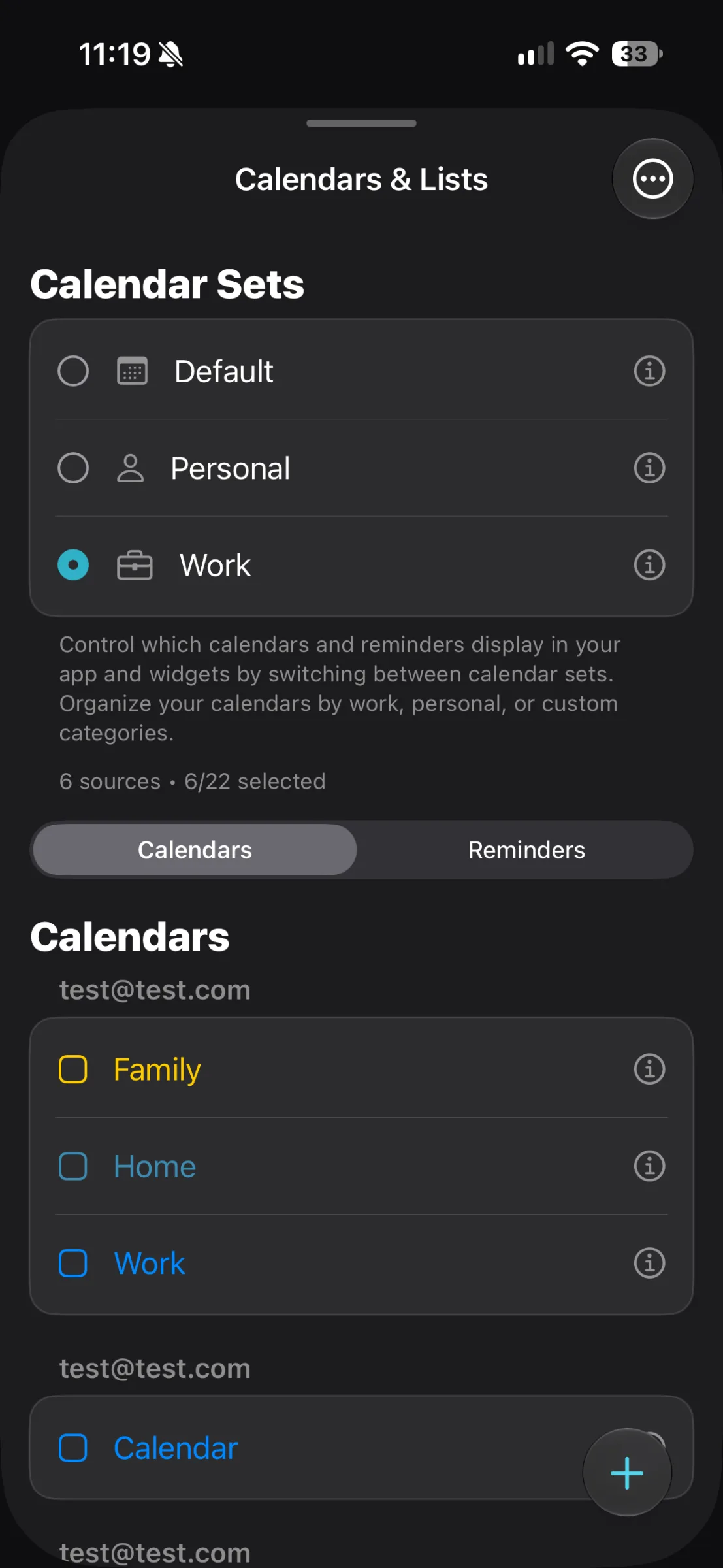
The screen above shows TapCal’s Calendar Sets, with Work selected, alongside the calendar list. A set controls which calendars and reminders appear in TapCal and its widgets. It does not change the default destination for a new event, move existing events, or alter your iPhone’s system default.
A quick check before saving
Imagine you usually add work meetings in TapCal but keep family plans in iCloud. Set TapCal’s default to your work calendar if that is the destination you want most often. When you add a family appointment, check the calendar field in the event form and choose the family calendar before saving. Then switch to your Personal set when you want to focus on that schedule. The event stays in its chosen calendar; the set simply changes what TapCal displays.
If the calendar you need is missing from the iPhone’s Default Calendar list or TapCal’s event form, first check that its account is connected and the calendar is available on your device. TapCal uses calendars connected to iOS, including iCloud, Google, Outlook/Exchange, Yahoo and CalDAV. Once the right destination is available, set it as the default if you use it most often, and check the event’s calendar field whenever an exception matters.
For a simpler way to see work and personal plans separately without losing the option to review them together, read how to switch between work and personal calendars on iPhone.