
Published 28 September 2026 · By JonsTech
How to Switch Between Work and Personal Calendars on iPhone
Keep work and personal events in their existing calendars, then use TapCal calendar sets to focus on one schedule or see both together.
Keep your work and personal events in their existing calendars, then switch between calendar sets when you want to focus on one. In TapCal, a set controls which calendars and reminder lists appear in the app and its widgets. If you need to check for clashes or plan the whole day, show both schedules instead. Sets change what you see; they do not stop events happening or guarantee you will not miss one.
For example, a Work set might show your office calendar and work tasks, while Personal shows family plans, appointments and personal reminders. Your original events stay in their connected calendars; you are choosing a view, not moving or copying them.
First, make sure your calendars are on your iPhone
TapCal reads calendars already connected to iOS, including iCloud, Google, Outlook or Exchange, Yahoo and CalDAV. If your work calendar is missing, first check that its account is connected and Calendar is enabled for that account. The current iPhone route is Settings > Apps > Calendar > Calendar Accounts. To add an account, choose Add Account and follow the provider’s sign-in steps. Your organisation may have its own rules for setting up a work account.Apple’s iPhone guide explains the current account setup steps.
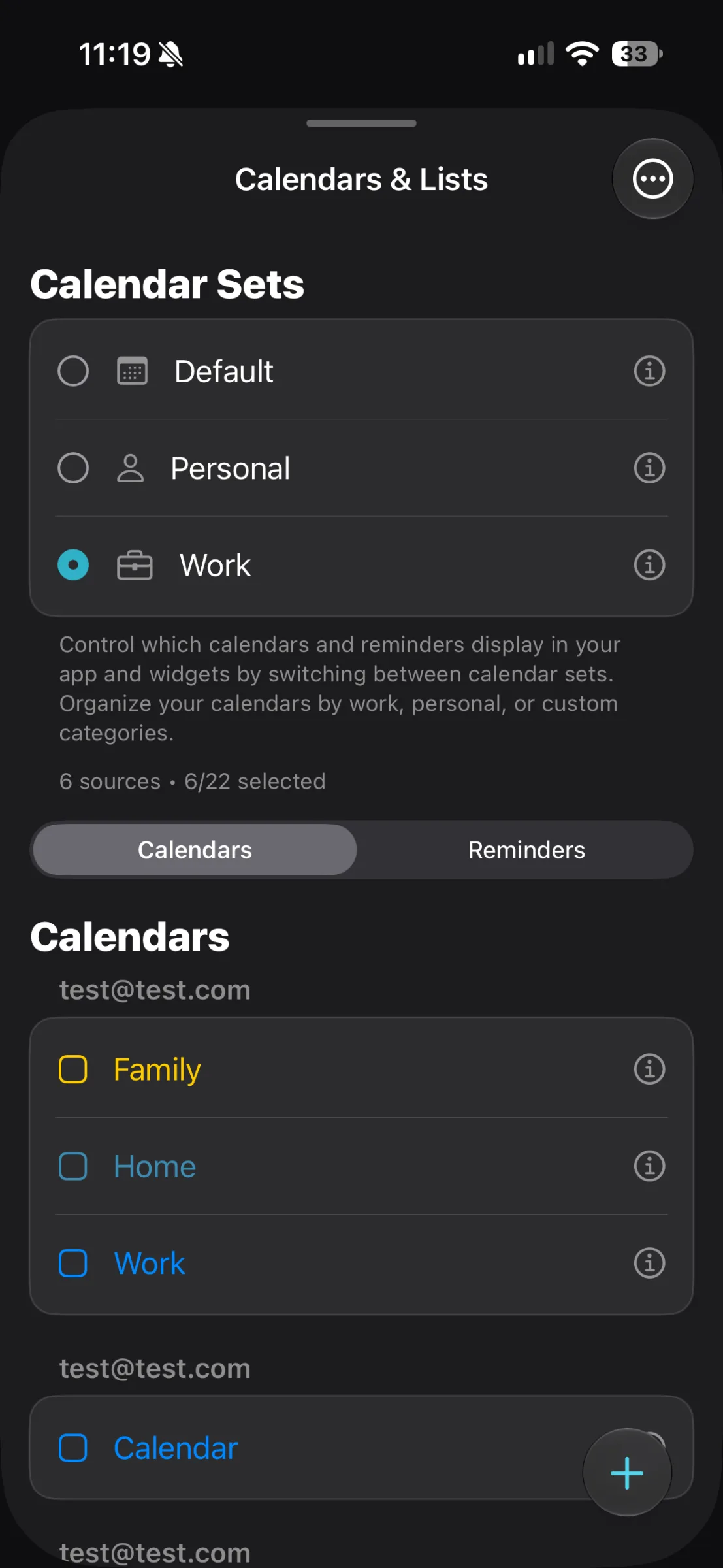
Then open TapCal and check Settings > Calendars & Lists > Calendars. Confirm the calendars you want to use are visible there. If an account or calendar still does not appear, check iOS account settings and TapCal’s calendar access before creating a replacement calendar. Adding another calendar unnecessarily can make the schedule harder to manage.
Create a Work set and a Personal set
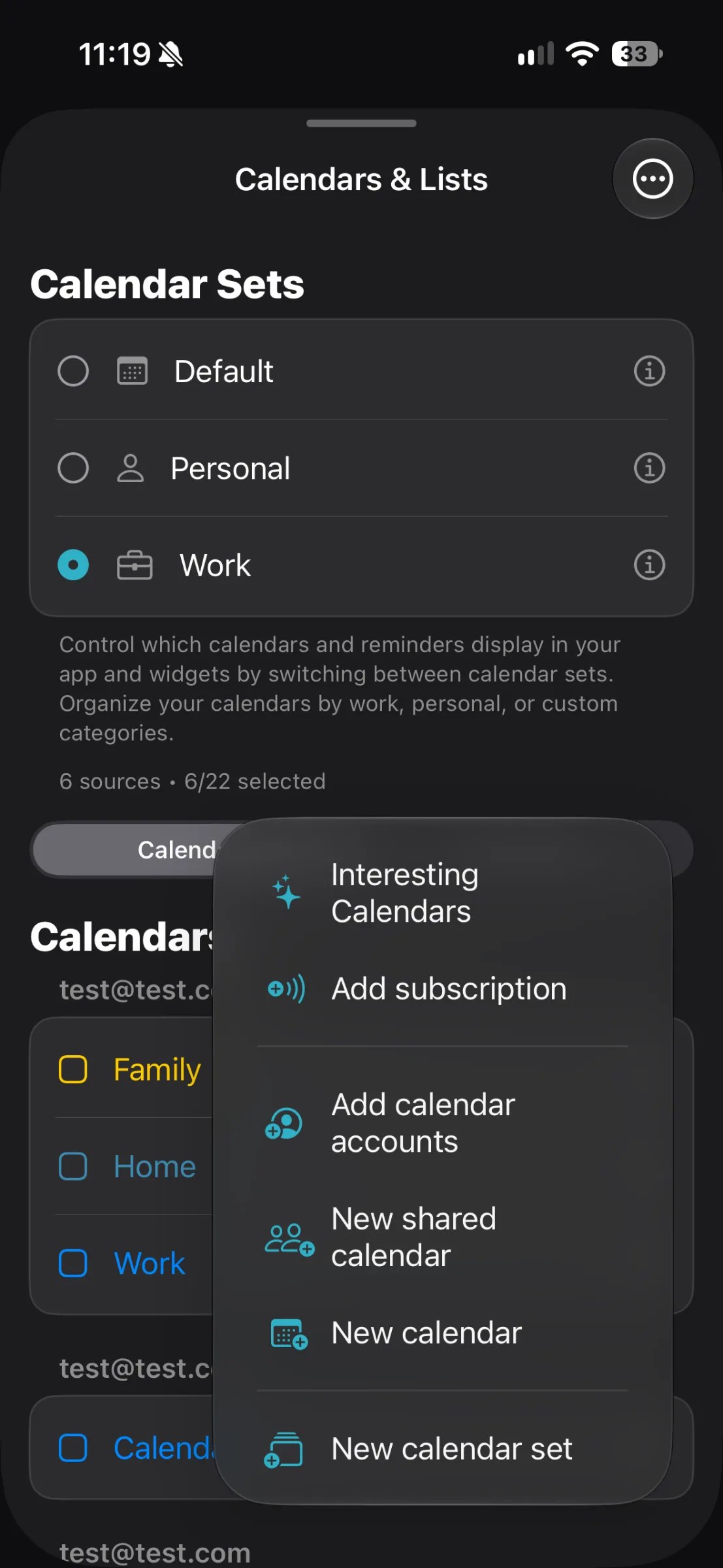
In TapCal, go to Settings > Calendars & Lists, then use the add button and choose New calendar set. Give it a clear name, such as Work. Select the calendars and reminder lists that belong in that view, then save it. Repeat those steps for Personal, choosing the calendars and lists you want to see when you are in personal-planning mode.
Keep the contents practical rather than perfect. If a shared family calendar includes plans that affect your workday, you might keep it visible in both sets. If a work deadline should stay out of your personal view, leave that calendar out of Personal. Sets can include reminder lists as well as calendars, so you can choose whether work tasks appear alongside work events.
Switch sets when your focus changes
Once the sets are saved, choose one from TapCal’s main toolbar or from Calendars & Lists. Select Work when you want a quieter view of your work commitments; select Personal when you are planning around home, appointments or family plans. You can return to a broader view when you need to see everything together.
This can be useful if a long list of unrelated events makes it harder to spot the next thing that matters. A set narrows the visible calendars and reminder lists, but it is still worth switching back to a combined view when checking for overlaps, travel time or commitments that cross between work and home.
When to show both schedules
Separate views are useful for focus, but hiding a calendar can also hide information you need for a decision. Keep both work and personal calendars visible when you are arranging a busy week, checking whether a meeting clashes with an appointment, or deciding whether you can accept an invitation. For a quick daily scan, a combined view may be the safer choice.
A simple habit helps: use the focused set while working through that part of your day, then switch to the combined view before making a new commitment. TapCal’s invitation response controls can also help you review meeting requests in the app, but the key is still to check the calendars that could affect the decision.
Use views and widgets to read the schedule at a glance
Calendar sets help decide what is shown; the view determines how you read it. TapCal offers month, week, agenda, upcoming list, Month & List, and heat-map views. A month view can help with the shape of the week ahead, while an agenda or upcoming list is better for reading events in time order. Choose whichever gives you the detail you need without adding more visual noise.
TapCal widgets can show real event titles, rather than relying only on dots that signal something is scheduled. That makes a glance at the Home Screen more informative: you might see “Project review” or “Dentist” and know what is coming up without opening the app. Set up a widget to show the calendar set that suits the way you use it, and check its settings so the displayed calendars match your intended view.
A note on set limits
TapCal’s current Help guide says you can save up to five combinations of visible calendars and reminder lists, and open them from the main toolbar or Calendars & Lists. It does not specify on that page how many sets are included in the free version or which set controls require Pro. If you are deciding whether to subscribe, check the in-app Pro details for the current limits rather than assuming you need Pro just to try calendar sets.See TapCal Help for the latest set and calendar instructions.
Start with two sets, give them names you can recognise quickly, and keep a combined view available for checking clashes. If you want to try TapCal, you can find it on the App Store.