Published 4 November 2026 · By JonsTech
How to Customise iPhone Calendar Widgets for Your Routine
Choose iPhone calendar widgets that fit your real routines: a readable list for busy days, a wider view for planning, and visual settings that help you spot what matters.
Start with the question you want your Home Screen to answer. For a packed workday, use a list-style widget with event titles and times. For a weekend, a month or heat-map view may be more useful for seeing how plans are spread out. Give each widget enough room to be readable, show only the calendars you need, then adjust its colours and font to suit the screen you look at most.
That is the practical advantage of a calendar widget: a glance can tell you “school pick-up at three” or “two appointments before lunch”, rather than asking you to remember what a coloured dot means. TapCal offers several calendar widget views, including month, week, list and heat map, plus Month & List. Its widgets can show event titles, with the amount of detail depending on the layout and space available.
Choose a view for the routine
There is no single best widget for every person or every day. Choose the one that makes your next decision easiest. If you mainly need to know what happens next, start with a list or agenda-style view. If you are organising several days ahead, a week view gives you more context. A month grid is useful for spotting dates that already have plans, while a heat map gives a quick sense of which days are busier. Month & List combines a compact month with upcoming items.
Here is a practical starting point for two different routines:
Workdays: try a larger list or agenda-style widget. It can put meeting names and times in view, so you can check the next commitment without opening the calendar. Include a reminder list if you want dated tasks alongside appointments.
Weekends: try a month or Month & List widget if you want to see family plans, errands and free days together. If you mostly need to know which dates are already busy, a month grid may be enough.
These are starting points, not rules. If a monthly view feels too dense, swap it for a week view. If a list hides the shape of your week, try a wider layout. The best choice is the one you can understand quickly, including on a rushed morning.
Add the widget and check its size
On an iPhone running iOS 18 or later, touch and hold an empty area of the Home Screen until the icons begin to move. Open the widget gallery, search for TapCal, then swipe through the available styles and sizes. Choose one, add it, and position it where you will naturally see it. The wording and location of the add-widget control can differ between iOS versions.
Widget sizes are not a universal menu of fixed choices: what appears depends on the widget and your iPhone’s screen. Preview the options offered on your own device rather than expecting every layout to come in every size. As a rule, start with enough room for the information you need. A compact widget takes up less space, but may show fewer event titles or shorten them. If you cannot read the schedule at a glance, try a larger size or a simpler view.Apple’s widget setup instructions explain how to add a widget and, where supported, edit its options from the Home Screen.
Make the schedule easy to scan
Once the view is right, tune the appearance. In TapCal, open Settings > Appearance to choose a font, app theme, accent colour and widget theme. A calm background with one clear accent can make the important details easier to pick out. If you prefer a dark Home Screen, a matching widget theme can help the calendar feel at home; if contrast or text size is the main concern, try the available font and colour options and check the result on the actual widget.
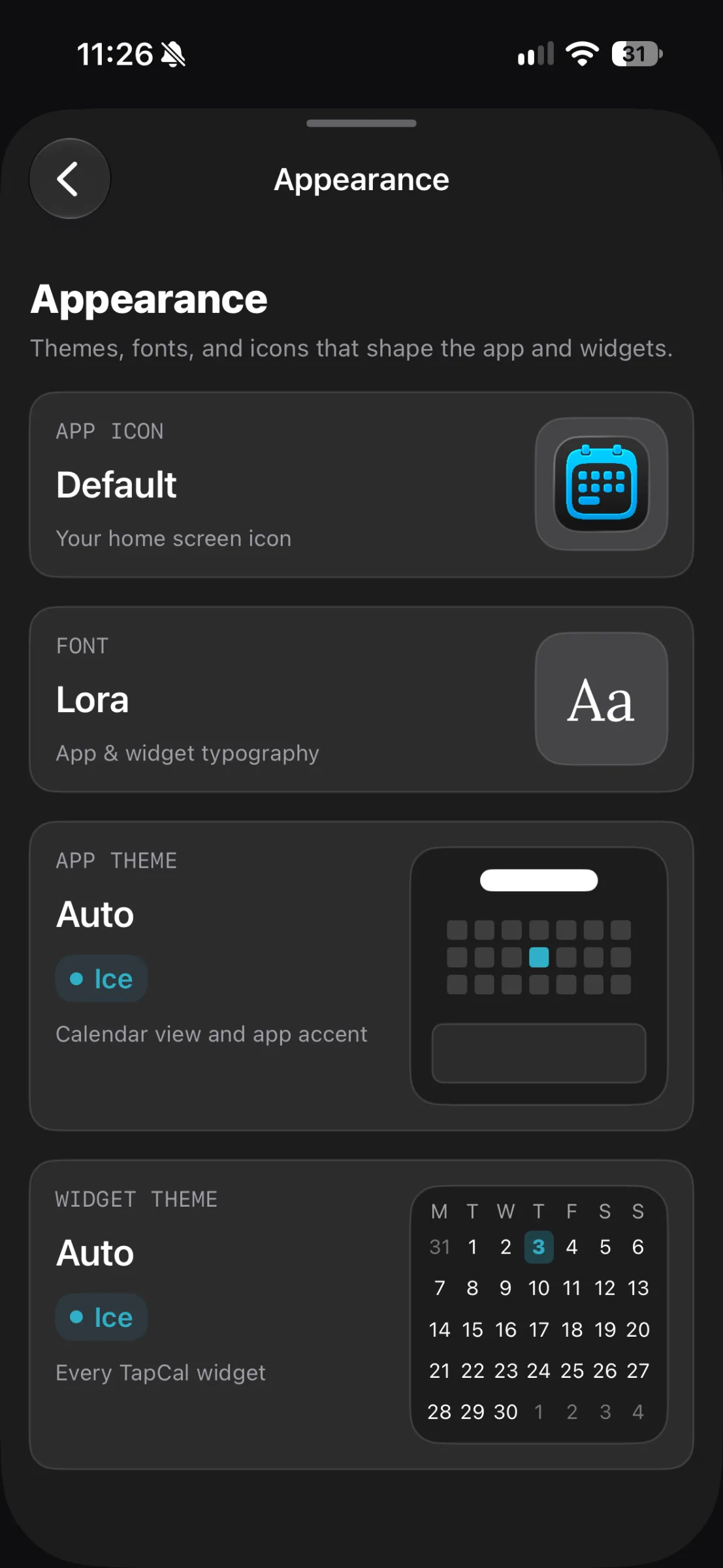
The image shows TapCal’s Appearance settings, including separate controls for the app and widget themes. It is a settings screen, not a Home Screen widget preview. For the layout itself, open Settings > Widget Settings and use the options and previews available for the widget you have chosen. Some layout controls differ between widget types.TapCal Help explains where to find appearance and widget settings.
Separate work and personal plans
A widget is only useful if it is showing the right calendars. Before adjusting the layout, open TapCal’s Calendars & Lists screen and check which calendars and reminder lists are visible. A Work calendar set can keep professional appointments together; a Personal set can show family plans and errands instead. Calendar sets are useful when you want to switch the combination of calendars and lists you see without changing the calendars themselves.
For example, you might put a week widget on a work-focused Home Screen page and a month widget on a personal page. If the widget’s available configuration lets you choose a calendar set, select the matching one there; otherwise check how it reflects the calendars currently selected in TapCal. The settings you see can vary by widget, so confirm the selection in its own options rather than assuming every widget is configured in the same way.
If you want a more detailed walkthrough of using sets and widgets together, see how to plan a week on iPhone with calendar sets and widgets.
Know what a widget can and cannot do
A widget is a quick view, not a full event editor. TapCal’s supported interactive widgets can let you complete reminders without opening the app, but reminder completion is not available in every widget. Choose a layout with a visible completion control if that matters to your routine. To edit event details or see information that is not shown in the widget, open TapCal.
The same caution applies to event titles: a widget may show useful names, but available space and configuration affect how many fit and whether longer names are shortened. If your screen looks crowded, hide calendars you do not need in that context or use a simpler layout. A short, recognisable title such as “Dentist” is easier to scan than a long note squeezed into a small space.
Make one small change at a time
After adding the widget, live with the setup through a normal workday or weekend. Notice what you keep trying to see: the next appointment, the whole week, or whether a date is already full. Then change one thing, such as the view, size, calendar set or accent colour. Changing one setting at a time makes it easier to tell whether the new layout is genuinely clearer.
For a straightforward first setup, try a readable list widget for your busiest days and a month or Month & List widget for broader planning. Check the available sizes and edit options on your iPhone, then keep the version that makes your routine easiest to understand at a glance. Download TapCal from the App Store if you want to try the views and widget settings yourself.