Published 3 November 2026 · By JonsTech
How to See Family Calendars from Different Providers on iPhone
Connect each family calendar account to iOS, then choose the calendars you want to see together in TapCal. Here’s what to set up, and what to check when a shared calendar is missing.
You can see family calendars from different providers together on your iPhone by adding each account to iOS, then selecting those calendars in TapCal. For example, connect your iCloud account and a Google account, make sure the shared calendars are available to those accounts, and turn on the calendars you want to view. TapCal displays calendars already connected to your iPhone; it does not host or create the family sharing arrangement for you.
First, connect the calendar accounts to your iPhone
On current iOS versions, open Settings → Apps → Calendar → Calendar Accounts → Add Account. Choose the provider, such as Google or Microsoft Exchange, and follow its sign-in steps. If prompted, make sure Calendar is enabled for the account. For an account type that isn’t listed, iOS offers options such as CalDAV; the details you need depend on the provider or organisation.Apple’s iPhone guide covers the current account setup options.
If your iCloud calendar is already in use on the iPhone, you may not need to add another account. The important thing is that the account containing each family calendar is connected and its calendars are available to iOS. Adding an account to your phone does not, by itself, give you access to another person’s private calendar.
Check that the shared calendars are available to you
Calendar sharing is managed by the provider. Ask the calendar owner to share with the account you’ve connected to your iPhone, and check that the invitation has been accepted if one is required. The owner’s sharing controls determine what you can do: you might be able to view events only, or also add and edit them. Those permissions, and the steps for accepting an invitation, vary between providers.
For example, imagine one parent keeps a “Family” calendar in iCloud and another shares a Google calendar called “School & Clubs”. The iPhone user needs access to both calendars through the relevant accounts. For the Google calendar, the owner needs to share it with the Google account connected to that iPhone; signing into Google alone does not guarantee that every calendar the owner can see is also shared with you. Google explains how to make Google Calendar available in Apple’s calendar apps and what account setup involves.Google’s instructions for using Google Calendar with Apple Calendar.
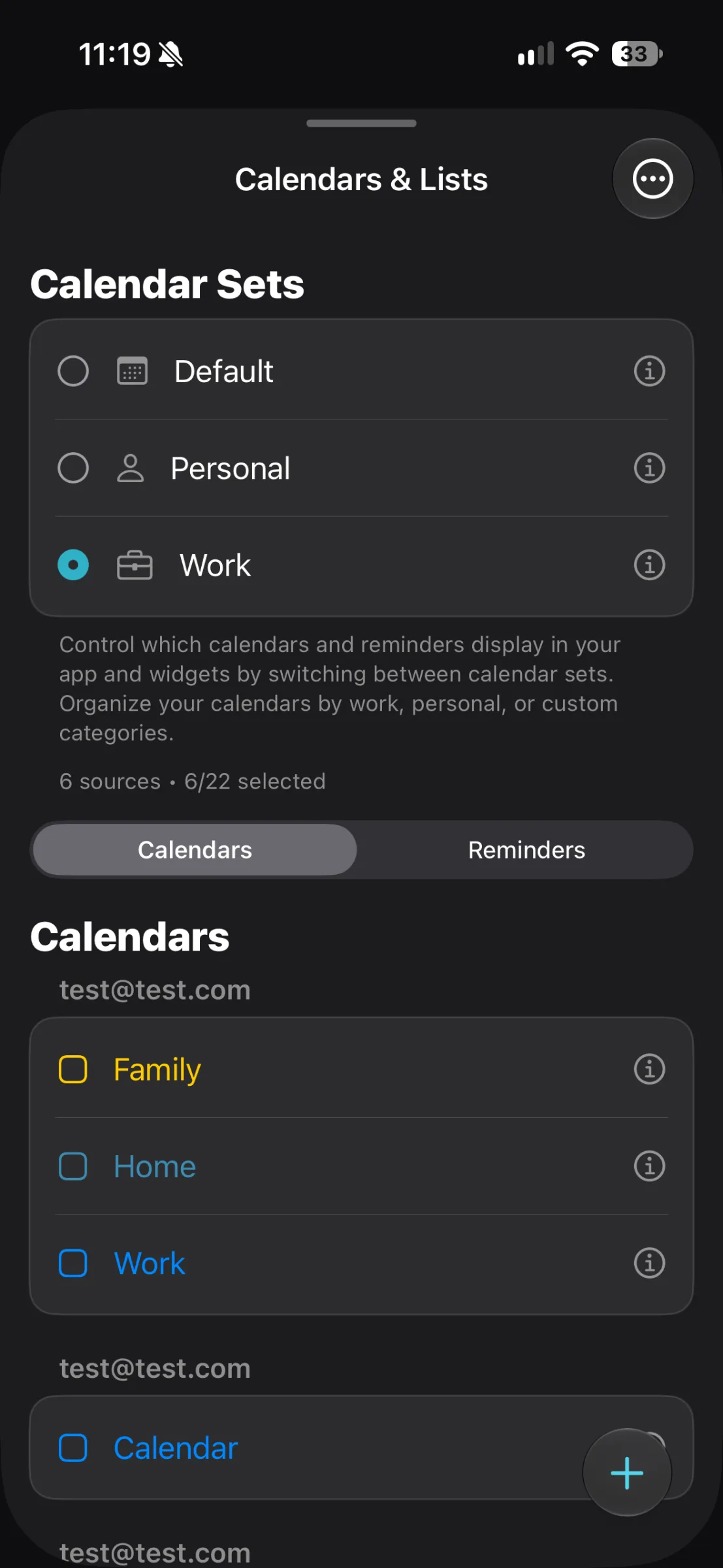
In TapCal, the Calendars & Lists screen groups calendars under their account headings. The example above shows several calendar names and account sections; it’s a useful place to check whether the calendars you expect are available before choosing what to display.
Choose which family calendars appear in TapCal
Open TapCal and go to Calendars & Lists.
Select the Calendars tab if it isn’t already selected.
Find each family calendar under its account heading and switch on the calendars you want to see. You can leave work or personal calendars off if they make the family view harder to scan.
Return to the calendar view. Events from the selected calendars can now appear together, with each calendar’s name and colour helping you tell them apart.
For the example household, you might select “Family” under the iCloud account and “School & Clubs” under Google. The month view can then give you a view of the family’s appointments, pick-ups and activities in one place, without switching between provider apps to see what is happening on the same day. This is a hypothetical setup: the actual calendar names and sharing options depend on the accounts your household uses.
If one calendar is missing
Check the problem in this order:
In iPhone Settings, confirm the relevant account is present and Calendar access is enabled.
Confirm that the calendar owner shared the calendar with the correct email address, and that you accepted the invitation if required.
In TapCal’s Calendars & Lists screen, look under the right account heading and make sure the calendar is selected.
If you have just changed account or sharing settings, allow time for the provider and iOS to update. If it still does not appear, check the provider’s own calendar app or support guidance; the issue may be with account access or syncing rather than TapCal’s display.
Also check whether you have a subscribed calendar feed rather than a shared calendar account. A subscription may be read-only, so you may be able to see events without having permission to change them. How updates and permissions work depends on how the calendar was shared.
One view, without changing where calendars live
The practical advantage is that each person can keep using the calendar provider they already rely on, while you select the relevant calendars to view together on your iPhone. TapCal reads calendars connected to iOS; it does not move them to a new service or replace the provider’s sharing and permission settings. If you want to try this setup, start by connecting the accounts and confirming access, then download TapCal from the App Store and choose the calendars you want in Calendars & Lists.