
Published 31 October 2026 · By JonsTech
How to Hide Calendars on iPhone Without Deleting Events
Hide a calendar from view without removing its events. Learn the iPhone Calendar steps, then use TapCal calendar sets to switch between work and personal schedules.
To hide a calendar on your iPhone without deleting its events, turn off its visibility rather than deleting the calendar or unsubscribing from it. In Apple Calendar, open your calendar list and tap the tick beside the calendar. In TapCal, you can switch between saved calendar sets, so you might view personal commitments while leaving your work calendars available for when you need them. The events stay where they are; you’re simply choosing what to see.
Hiding is not the same as removing a calendar
Calendar apps often offer a few similar-looking ways to tidy up a busy list, but they do different things. Hiding a calendar changes what appears in your view. Its events remain on that calendar, and you can show it again later. Deleting a calendar removes the calendar itself, while unsubscribing stops displaying a subscribed feed. If you only want a quieter screen for a while, hide it rather than choosing either removal option.Apple’s current instructions distinguish hiding from deleting or unsubscribing.
A practical example: imagine your iPhone has separate Work, Personal and Family calendars. You’re planning a weekend and want to see your plans, but not meetings and project deadlines. Hide Work for now. Don’t delete its calendar or move its events. When you need to plan your working week again, turn it back on.
Hide a calendar in Apple Calendar
Open the Calendar app on your iPhone.
Tap the Calendars button to see your calendar list.
Tap the tick beside the calendar you want to hide. Its events should disappear from the current view.
To see those events again, return to the list and tap the empty circle beside that calendar.
The list may show calendars from more than one account. Check the calendar’s name before changing its visibility, especially if you have similarly named calendars such as “Home” or “Work”. The steps above hide a calendar from your view; they are not a way to revoke someone else’s access to a shared calendar.
Use TapCal calendar sets for quicker switching
If you regularly switch between combinations of calendars, changing visibility one calendar at a time can become a small chore. TapCal calendar sets let you save combinations of visible calendars and reminder lists, then switch between them from the main toolbar or the Calendars & Lists screen. For instance, a Personal set can show your home and family plans, while a Work set shows the calendars you use during the working day. TapCal’s help guide currently says you can save up to five sets.See TapCal’s current calendar and visibility instructions.
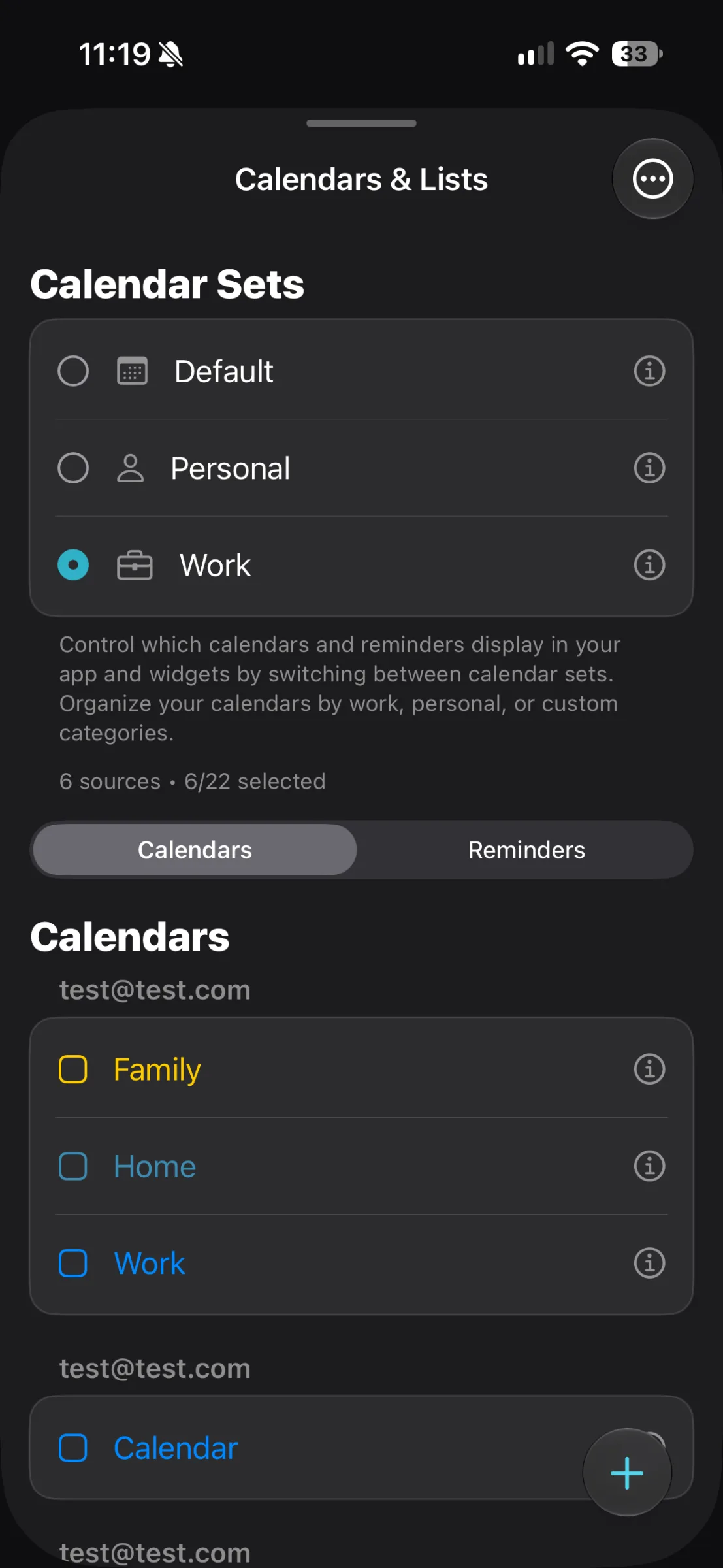
The screenshot shows the Calendars & Lists screen, with Personal and Work sets above the calendar list. The selected set is Work, and the screen indicates how many calendar sources are selected. That gives you a quick way to check which group is active before you scan your schedule.
Set up a focused view
In TapCal, open Settings, then Calendars & Lists.
Choose a set, such as Personal, or create a new one from the add menu if you want a separate combination.
In the Calendars tab, select the calendars you want included in that view and leave the others unselected. For a personal-planning set, that might mean keeping Family and Home visible while leaving Work out.
Switch to another set when your focus changes. Choose Work to see your work schedule, then return to Personal when you want to plan outside work.
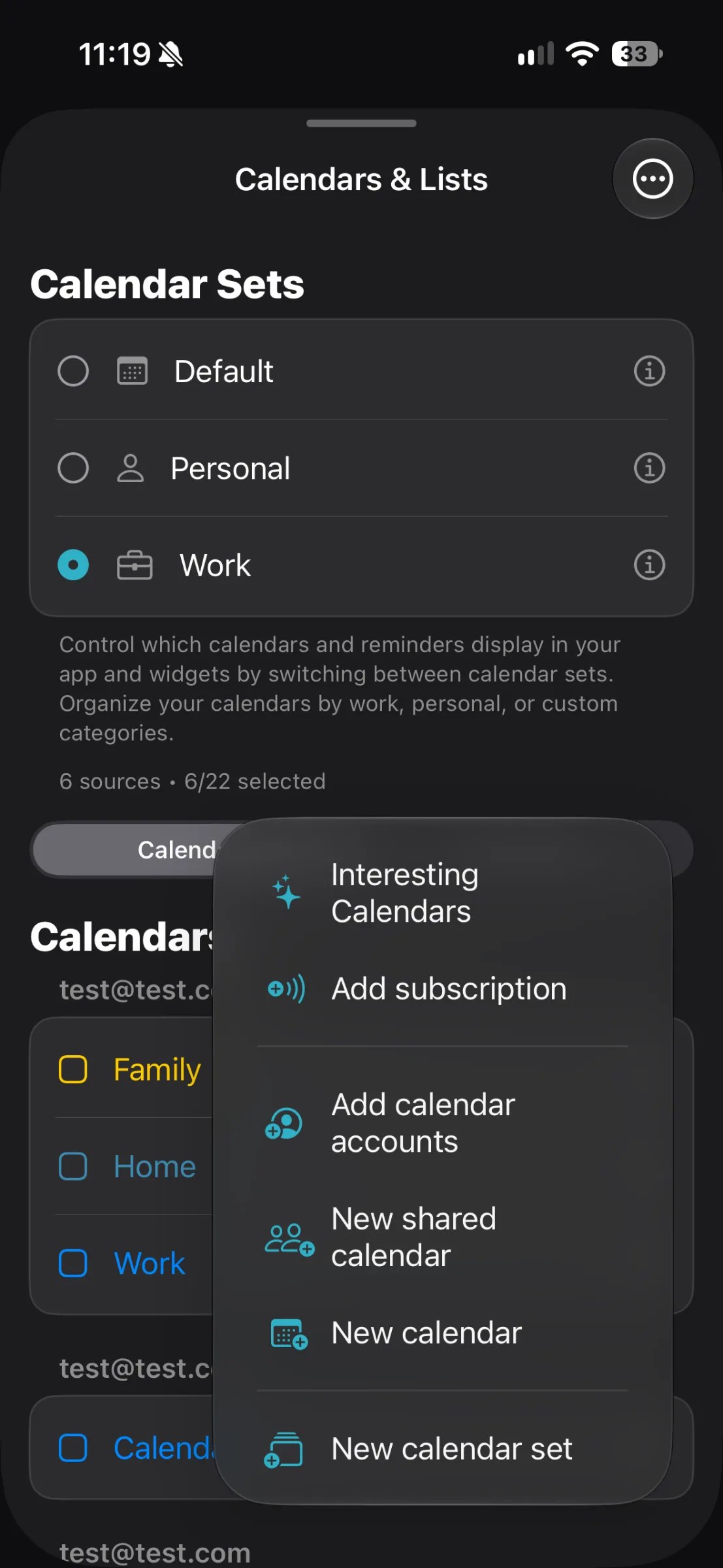
Here, the add menu includes the option to create a new calendar set. TapCal sets also control which calendars and reminder lists appear in the app and its widgets, so a focused set can help keep a Home Screen view aligned with the schedule you’re checking. If you rely on a widget, check it after switching sets to make sure it’s showing the information you expect.
A few things to check before you hide one
If an event seems to have vanished, check the active calendar set or visibility list before assuming it has been deleted.
In TapCal, calendar visibility and reminder-list visibility are separate choices. If a reminder is missing, check the Reminders tab as well as the selected calendar set.
Hiding is a display choice, not a change to the event’s calendar. If you want an event moved to a different calendar, edit or move it instead.
For a one-off tidy-up, untick the calendar in Apple Calendar. If you repeatedly move between work and personal planning, save those combinations as TapCal calendar sets instead. You can keep every calendar and its events available, while choosing a clearer view for the task in front of you. Download TapCal on the App Store to try calendar sets alongside your existing iPhone calendars.