
Published 28 October 2026 · By JonsTech
When to Use iPhone Calendar or Reminders for a Task
A simple rule for deciding where a task belongs, plus how to see dated Apple Reminders alongside calendar events in TapCal.
Use Calendar when a task needs a specific time or you want to protect space for it in your day. Use Reminders when it needs doing but can happen whenever you find a suitable moment. For example, put a client call at 10:00 in Calendar, but keep “buy milk” as a Reminder. The useful bit is being able to see both while you plan, without pretending every task is an appointment.
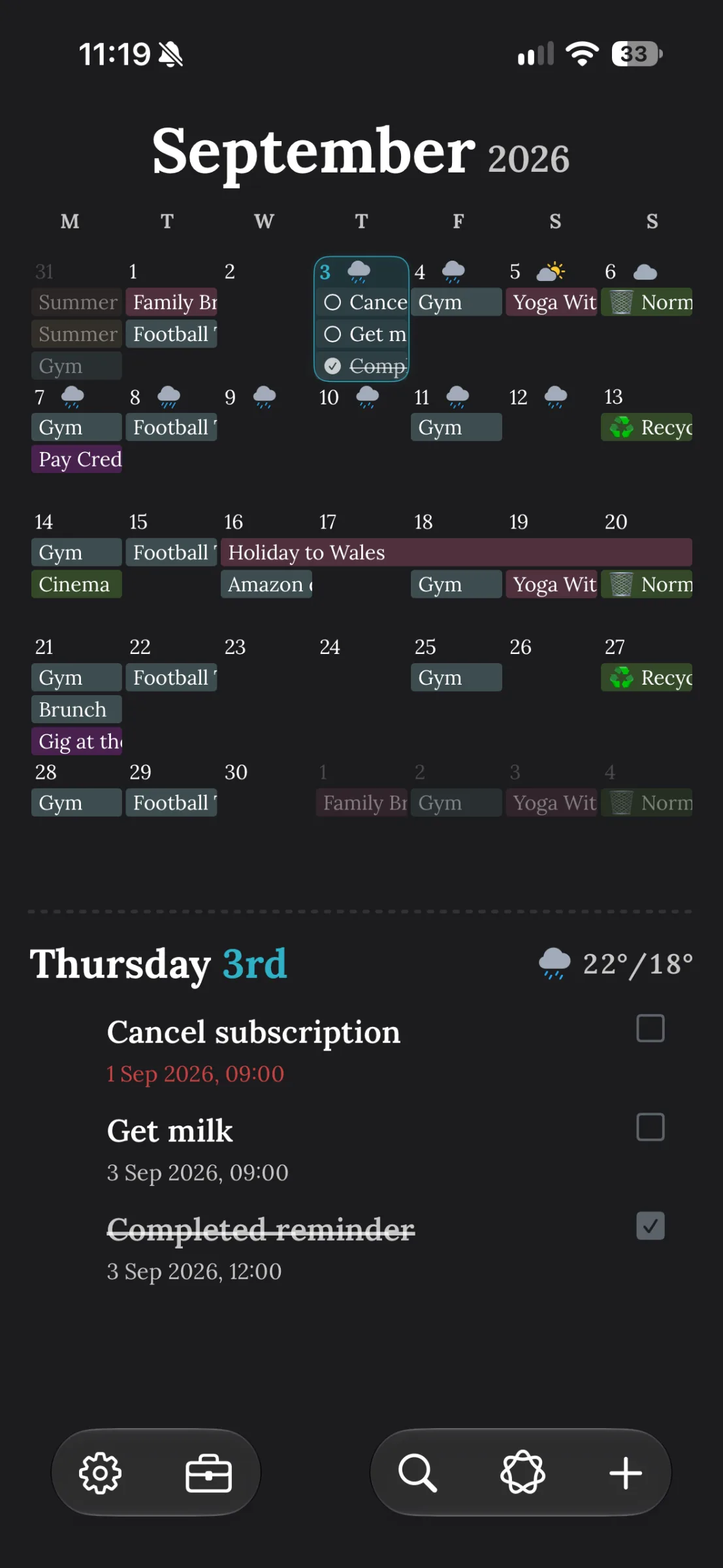
The TapCal screenshot above shows the distinction in practice: event titles appear across the month, while the selected day’s timeline includes reminders such as “Cancel subscription” and “Get milk”. A reminder does not need to become a calendar event just so it is visible while you check your schedule.
Calendar is for time; Reminders is for intention
A calendar answers, “When am I doing this?” It is the right home for meetings, appointments, classes, and tasks you have deliberately given a place in the day. If you need to focus on a report from 2:00 to 3:00, putting that block in Calendar makes the time commitment visible beside everything else.A reminder answers, “What must I remember to do?” It suits jobs with a deadline or a useful prompt, but no fixed start time: send a form, pick up groceries, or check the boiler. You can know something is due today without having to decide that it will happen at 11:15.
The distinction is about how you intend to use your time, not how important the task is. A high-priority job can still be a reminder if you have flexibility. A short call can still belong in Calendar if someone is expecting you at a particular time.
Try this three-question check
Has somebody agreed to meet, call, or expect you at a particular time? Put it in Calendar.
Do you need to make room for a piece of focused work? Give it a calendar block if you want that time protected.
Does it simply need doing, with some choice about when? Put it in Reminders, and add a due date if it needs to be done by a certain day.
If you are still unsure, start with a reminder. Add a calendar block later if you decide the task needs a reserved slot. That keeps the calendar from filling up with every small action, while leaving room to plan larger jobs properly.
A client call and a grocery run are different kinds of commitment
Imagine your Tuesday includes a client call at 10:00 and a grocery shop you need to fit in before dinner. The call has a set time and another person involved, so create a calendar event. You can see it alongside travel, other meetings, and the rest of the day.The groceries are different. If you can go after work, at lunch, or on the way home, make “buy milk and bread” a reminder. Give it Tuesday as a due date if it must be done that day, but do not assign it a made-up appointment time. If you later decide to shop at 17:30, you can choose to block that time in Calendar.
This is especially useful when a long list starts to make the day look impossibly full. A reminder means the task is on your mind; it does not automatically mean you have booked time for it. Calendar blocks are a separate decision about when you will do the work.
See events and dated reminders together in TapCal
TapCal brings calendar events and Apple Reminders into its planning views, so you can check appointments and dated tasks together. You choose which reminder lists to show rather than having to include every list you have. That can keep a work-planning view focused, while a personal view includes shopping or home jobs.
To set it up, allow TapCal access when iOS asks. If you need to check permissions later, open TapCal Settings and choose “Check Permissions”; iPhone’s app permissions are also under Settings > Privacy & Security. In TapCal, open “Calendars & Lists”, switch to “Reminders”, then select the lists you want visible. The current TapCal Help guide has the settings paths and setup details.Tap a date in the month view to inspect its timeline. To add something from TapCal, tap the plus button and choose “Event” or “Reminder”. The App Store listing currently says TapCal requires iOS 18 or later. TapCal Help · App Store compatibility.
A few limits are worth knowing
For a reminder to appear on a particular day’s timeline, it needs a scheduled date. If it is missing, check its date and whether its list is selected in TapCal.
What you see can differ between views and widgets. Available space, widget type, and the active calendar set affect what is displayed, so do not assume every reminder appears in every view.
TapCal supports completing reminders in the app, and some supported interactive widgets let you complete one without opening the app. That control is not available in every widget.
TapCal’s calendar search covers events in visible calendars, not reminders. To find a task, check its reminder list rather than relying on event search.
The short version is still the most useful: use Calendar when time is the commitment; use Reminders when the task is the commitment. Then look at both while planning, so you can see the real appointments and the flexible jobs competing for your attention.
If you want to try that combined view, download TapCal from the App Store.