
Published 26 October 2026 · By JonsTech
How to Plan Backwards from a Deadline in Your iPhone Calendar
Turn a far-off deadline into milestones, focused work sessions and follow-up reminders you can see in your iPhone calendar.
Start with the deadline, then work backwards: choose a handful of milestones, block time to make progress on them, and add reminders for follow-up actions. In TapCal, the month view helps you see the runway; week and agenda views help you check what needs doing next. You create the plan yourself: TapCal displays your events and reminders, but it does not automatically turn a deadline into a project plan.
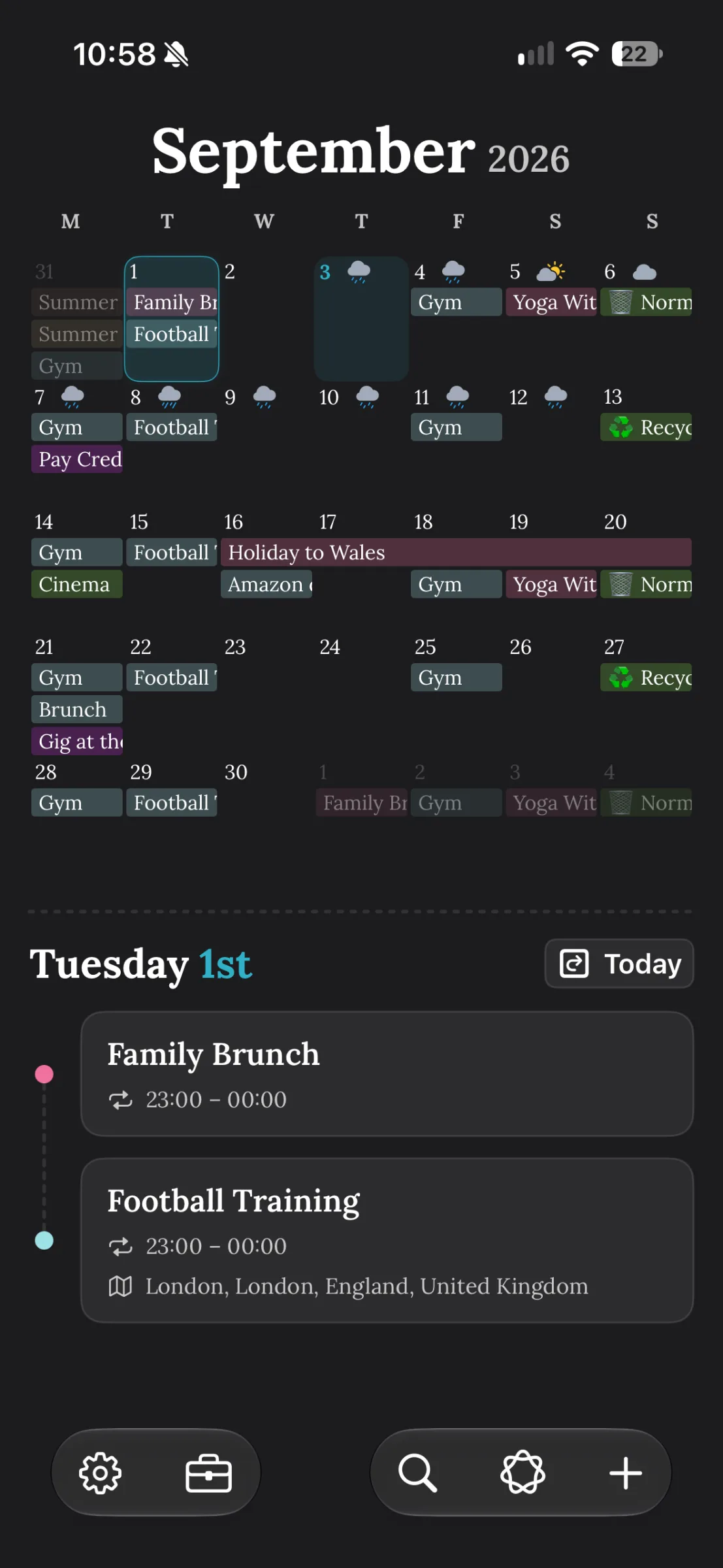
This real TapCal screenshot shows a month grid with an agenda underneath. The presentation plan below is a separate hypothetical example; those milestones are not shown in the screenshot.
1. Put the deadline in first
Add the final due date to your calendar before you plan the work around it. If there is a presentation, appointment or submission time, create a timed event and include the exact time. If the deadline is simply “by the end of Friday”, an all-day event may be clearer. Give it a direct title, such as “Submit final presentation”, rather than a vague label like “Deadline”.
A clear deadline is your fixed point. It also helps prevent a common planning mistake: filling the available dates with work sessions before accounting for other commitments. Once you have added it, check the month view to see how much time you actually have.
2. Choose a few milestones by counting backwards
Start from the finished result and ask what needs to be true just before it is due. Then step back again: what must be ready for that, and what needs to happen before that? Stop when you reach a manageable first action. Three to five milestones are often easier to scan than a calendar full of tiny stages.
For example, imagine you have a presentation on Friday 20 November 2026 at 10:00. A possible backwards plan might be:
Thursday 19 November: rehearse and check the final file.
Tuesday 17 November: finish revisions.
Friday 13 November: have a complete first draft ready for review.
Monday 9 November: finish research and settle the outline.
These dates are an example, not a formula. A presentation you know well may need less lead time; an unfamiliar topic or several reviewers may need more. Leave space between milestones for feedback, delays and changes of plan. If you schedule every day as if nothing unexpected will happen, one setback can make the whole calendar feel unusable.
3. Turn milestones into actual work sessions
A milestone says what should be ready; a work session gives you time to make it ready. Add a few realistic blocks in the weeks before each milestone. For the example presentation, that could mean a research session on 2 November, an outline session on 4 November, and two drafting sessions on 10 and 12 November. Choose durations that fit your task and your available time, rather than copying a schedule that looks tidy on screen.
Make each event title tell you what to start: “Find three sources for section two” is more actionable than “Presentation work”. If a task feels hard to begin, make the first block short and specific. You can add another session once you know what is left.
In TapCal, tap the plus button, or select a day and tap it again, then choose Event or Reminder. Use an event for work you intend to do at a particular time; set its start and finish so you can see how it fits around appointments. TapCal’s Help guide lists the current steps for creating and editing events and reminders.
4. Keep actions and appointments distinct
Not every step needs a time slot. “Ask Priya to review the slides” or “send the handout to print” may be better as a dated reminder than a calendar event. Give it a due date if it needs to appear with that day’s plans. If it requires a real appointment, such as a booked review meeting, put that meeting in the calendar instead.
This distinction can be useful if your task list already feels long. A reminder records an action to follow up; an event reserves time. TapCal can show Apple Reminders alongside calendar events in its timeline, so you can review both without treating every task as a fixed appointment.
5. Use each view for a different planning question
A month grid answers, “Where does this deadline sit among everything else?” Scan it for busy stretches, gaps and nearby commitments. TapCal’s month view can show event titles in the grid, so you can recognise what is planned without having to interpret dots alone.
Week view is for checking whether the next set of work sessions can fit around your existing schedule. Agenda view is useful when you want to read one day in order: what is fixed, what is due, and where you have room. Switch views as the question changes. The full runway and the next action are different things, and one screen does not need to answer both.
6. Review the plan, then adjust one step at a time
Set a short review point once a week, or after each milestone. Check whether the next piece of work still makes sense, whether a session needs moving and whether you have left enough time for review. If a session slips, reschedule the affected block and check the dates around it. You do not have to rebuild the entire plan just because one part changed.
Keep the schedule forgiving. A missed block is information about the plan, not proof that you have failed. Shorten a session, move it to a genuine opening, or reduce the scope if the deadline is getting close. Protect the essential milestones and leave less important polish flexible.
Make the deadline visible before it feels urgent
Backwards planning works best when the calendar shows both the destination and the next step: deadline first, then a few milestones, focused sessions and reminders for follow-up. TapCal is available for iPhone running iOS 18 or later. See TapCal on the App Store if you want to try the month, week and agenda views with your own schedule.