
Published 4 October 2026 · By JonsTech
How to Plan a Week on iPhone with Calendar Sets and Widgets
Bring work, personal events and reminders into one weekly view on iPhone. Connect your calendars, organise what you see with TapCal calendar sets, then add a widget for a quick check of the week ahead.
To keep work, personal commitments and reminders organised in one weekly view, start with the calendars already connected to iOS. Then use TapCal calendar sets to choose which calendars and reminder lists appear together, and check the result in the week view and a Home Screen widget. The events stay in their original calendars: a set changes what you see, not where an event lives.
Here’s a hypothetical example: your work calendar has team meetings, your personal calendar has a dentist appointment, and Apple Reminders holds errands such as picking up a prescription. A combined set can bring those items into one weekly picture. A separate Work set can hide personal items when you want to focus on the working day, without deleting or moving anything.
Connect the calendars you already use
TapCal reads calendars available through iOS, including iCloud, Google, Outlook or Exchange, Yahoo and CalDAV. If one is missing, first check that the account is connected in iPhone Settings under Calendar Accounts, then check calendar access and visibility in TapCal. There’s no need to move your existing events into a new TapCal account.
Reminders need their own check. In TapCal’s Calendars & Lists screen, open the Reminders tab and make sure the lists you rely on are selected. If you only want scheduled or time-sensitive tasks in your week, begin with a small number of lists rather than turning on every list you have.
Make a set for each context
In Calendars & Lists, create a calendar set and choose the calendars and reminder lists you want included. A simple starting point is three sets:
Work: your work calendar and any work-related reminder list.
Personal: family, appointments and personal tasks.
Everything: the calendars and reminder lists you want to check for clashes or plan the whole week.
Keep the names short and recognisable. When you’re deciding whether to accept a meeting or book an appointment, switch to Everything first. A focused set is useful for looking at one area of life; it is not a substitute for checking the other calendars before you make a commitment.
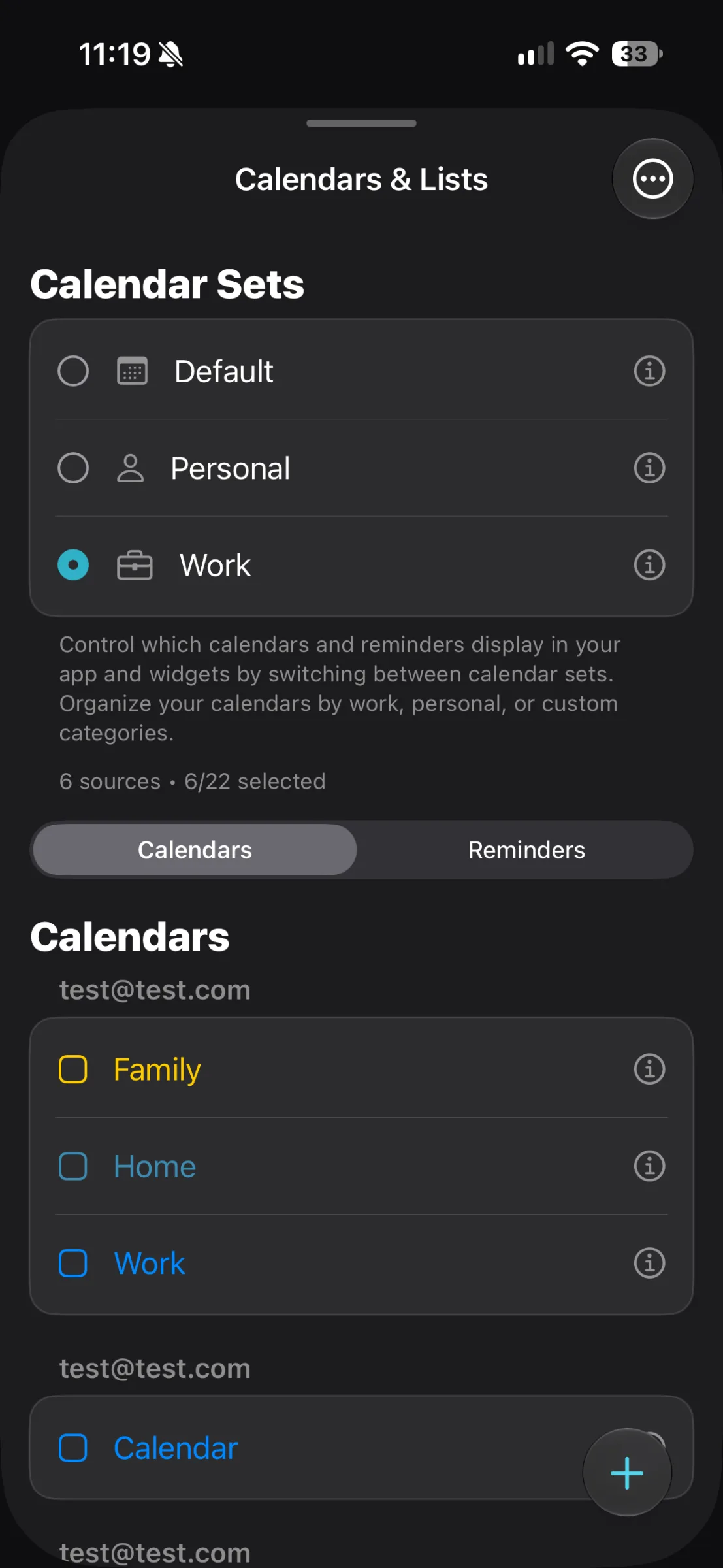
The screen above shows the set switcher with Work selected, alongside the calendar sources included in that view. Tap a set to change which calendars and reminder lists appear in TapCal and its widgets. It does not transfer or make another copy of your events.
Read the week, then add a widget
Open TapCal’s week view and select the set that fits the question you’re asking. For a weekly overview, use Everything. For a quieter look at work commitments, switch to Work. Calendar events appear on their scheduled dates, while reminders appear from the selected reminder lists. A reminder is a task, not automatically a timed appointment, so use a due date or time when you want it placed against a particular part of the week.
For instance, a hypothetical week might show a project check-in on Monday, a lunchtime appointment on Tuesday, a reminder to collect a parcel on Wednesday and a family plan on Saturday. The week view helps you see how those commitments sit together; the reminder list keeps tasks visible alongside events without turning each one into a calendar appointment.
Then add a TapCal week or list widget to your Home Screen. Choose a layout that gives you enough detail to answer “What’s next?” without crowding the screen, and check its calendar and reminder settings. If you switch sets in the app, check the widget too so you know which sources its preview is showing. TapCal’s widgets can display event titles, and supported widgets also show reminders; some allow reminder completion directly from the widget.
A widget is a quick preview, not a replacement for checking details. Open the app when you need to inspect an event, see more of the week or confirm which set is active. TapCal’s Help guide lists the current paths for calendar sets, visible reminder lists and widget layout.
Keep the routine light
A useful weekly check can be brief: look at Everything to spot overlaps, switch to the relevant set to review a particular part of life, then leave your preferred widget on the Home Screen for quick checks during the week. If the view feels crowded, remove less useful reminder lists or calendars from that set rather than hiding information you still need elsewhere.
A note on availability: the App Store listing currently requires iOS 18 or later. TapCal’s public Help guide says you can save up to five combinations of calendars and reminder lists, but it does not clearly spell out which set limits, if any, depend on Pro. TapCal is free with limits and Pro unlocks additional features, so check the current in-app plan details before relying on a particular allowance. The App Store listing has the current compatibility information.
If you want to set this up, begin with one combined set, one Work set and the reminder lists you genuinely use. Then add a week widget and check that its sources match the view you intend to see.