
Published 1 October 2026 · By JonsTech
How to Reorganise a Changing Week on iPhone
A practical way to handle a changed appointment on iPhone: review the week, move or duplicate events, check reminders and make any work or personal calendar changes visible.
When an appointment moves, take a minute to reset the week rather than changing one event and hoping the rest still fits. Review the week in TapCal, move or duplicate the affected event, check reminders tied to the old plan, then look at the agenda for clashes and gaps. If the change crosses work and personal time, switch to a calendar set that shows the calendars you need. TapCal helps you see and edit the schedule; it does not automatically reschedule everything around a change.
Start with the whole week
When plans change, it is tempting to edit the appointment straight away. First check what else is already around it. Open TapCal’s week view to see how the days are arranged, then use the agenda or upcoming list to read the events in time order. One view gives you the shape of the week; the other helps you spot a practical conflict, such as a meeting that now runs into a school pick-up or a short gap that is no longer long enough to travel across town.
This first scan is useful if you find a crowded calendar hard to process. You do not have to solve every detail at once. Look at the affected day, the day before and after, and any fixed commitments that limit where the appointment can go. Keep the question simple: what has to move, and what might be affected?
Move the event, then check the knock-on effects
TapCal includes move and duplicate actions in an event’s context menu. Use Move when the original plan is being replaced. Choose Duplicate when you genuinely need a second copy, such as adding a follow-up appointment while keeping the original. A duplicate is another event, not a linked copy: check its date, time, calendar and alert before saving. The TapCal 1.7 notes describe these actions and where they were added.
Open the event that has changed and confirm which date and time are now agreed.
Use Move if the event is going elsewhere. Use Duplicate only if both the old and new event should remain in the calendar.
Check the destination calendar, duration, location, notes and alerts. If the appointment has a new location, allow for the travel time yourself rather than assuming the calendar will add it.
Return to the week and agenda views. Look for overlaps, too-short gaps and commitments that now sit on either side of the moved event.
For example, imagine a dentist appointment shifts from Tuesday afternoon to Thursday morning. Moving the event is only the first step. Check whether Thursday already has a meeting, whether the reminder still gives you enough notice, and whether a work block or journey now needs to change. This is a hypothetical example, but it shows why a quick scan of the surrounding days matters.
Check reminders separately
An event and a reminder are different items. Moving an appointment does not mean a separate task or reminder has changed with it. If you set a reminder to bring paperwork, leave home or call someone before the appointment, find that reminder and check its due date and time. Update it if needed, or remove it if the task no longer applies. TapCal can show Apple Reminders alongside calendar events in its timeline, so you can review both while planning.
Pay particular attention to repeating events and reminders. Before editing, make sure you are changing the intended occurrence rather than the whole series. The right choice depends on whether this is a one-off change or a permanent change to the routine. If you are unsure, pause and check the event details before saving.
Use a calendar set when the change crosses boundaries
Sometimes a moved appointment affects more than one kind of calendar. A work meeting might now overlap with a personal commitment, or a family plan might need space around a working day. TapCal calendar sets let you switch which calendars and reminder lists are visible together. Choose a set that shows the relevant work and personal schedules before deciding what needs to move. That makes it less likely you will rearrange one part of the week without noticing a commitment in another.
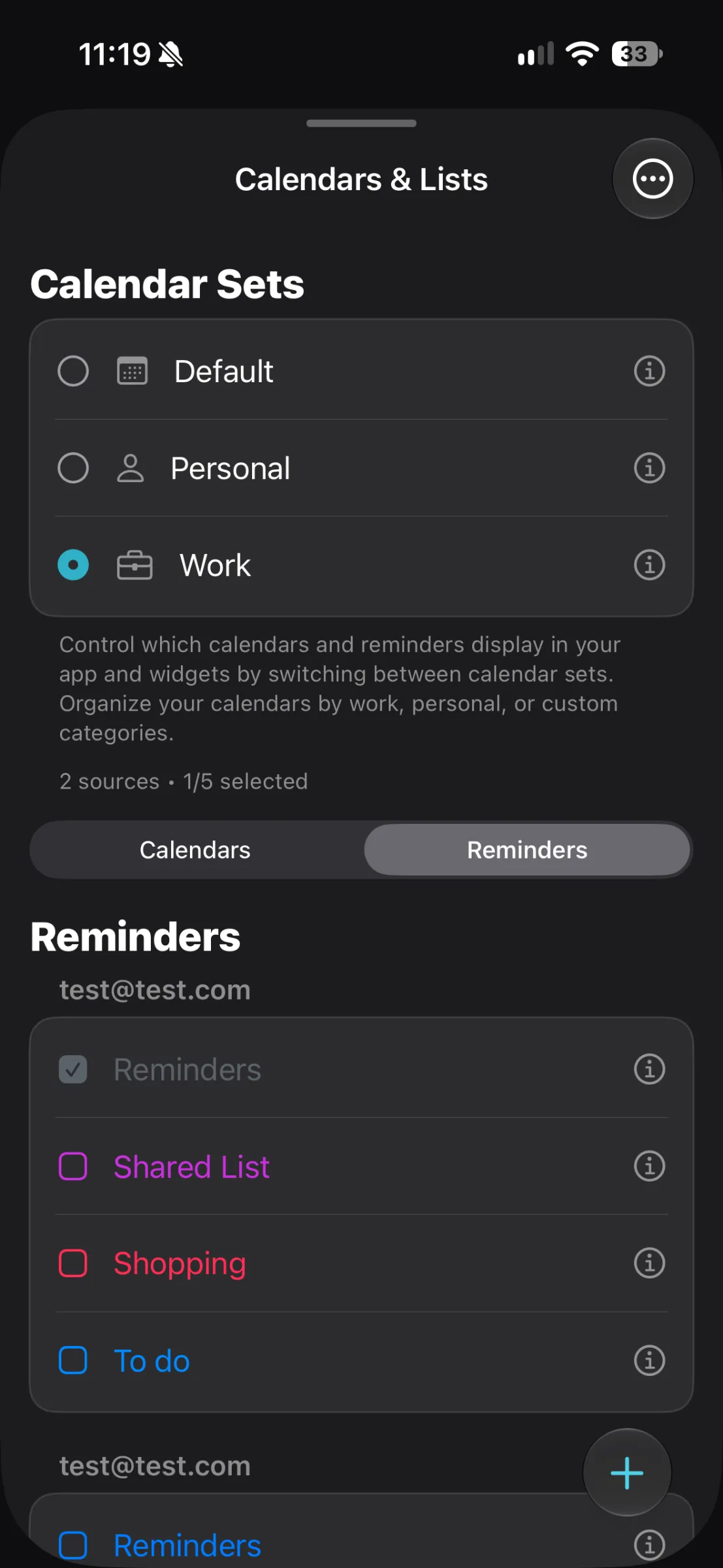
The Calendars & Lists screen shown here includes Work and Personal sets, plus controls for choosing visible calendars and reminder lists. A set changes what TapCal displays; it does not move events between calendars. If you need to change an event’s calendar, check that choice in the event itself. TapCal’s guide to switching between work and personal calendars has more on setting up that view.
Finish with a small, useful reset
Before you put your phone down, scan the agenda from the changed appointment through to the end of the week. Check that the event is in the right place, the relevant reminder is still useful, and the days around it remain workable. If the new plan affects something outside the calendar, such as transport or childcare, make a separate note or reminder for that too.
This is a quick review, not automatic schedule repair. TapCal does not know whether you can move a meeting, whether a journey is realistic or which commitment matters most. Its week and agenda views, event actions, reminders and calendar sets help you make those decisions with the surrounding schedule in sight.
TapCal requires iOS 18 or later. For the current feature and setup details, see the TapCal Help guide or view TapCal on the App Store.