
Published 2 October 2026 · By JonsTech
How to Use Event Templates for Recurring Routines on iPhone
Use an event template when the details stay similar but the date changes. Choose a repeating event for a fixed schedule. Here’s how to tell the difference and use TapCal templates thoughtfully.
If you often add the same kind of appointment but the date or time changes, use a reusable event template. If the appointment happens on a fixed schedule, make it a repeating event instead. The difference matters: a template helps you reuse details when creating an event; recurrence puts future instances on your calendar automatically.
Think of a weekly study session. If you always study at the same time and place, set one event to repeat each week. If your study time moves around, a template can help you start each new session with the same title and other details, then choose the date that suits that week. TapCal supports reusable event templates and suggests matching ones as you type an event title.
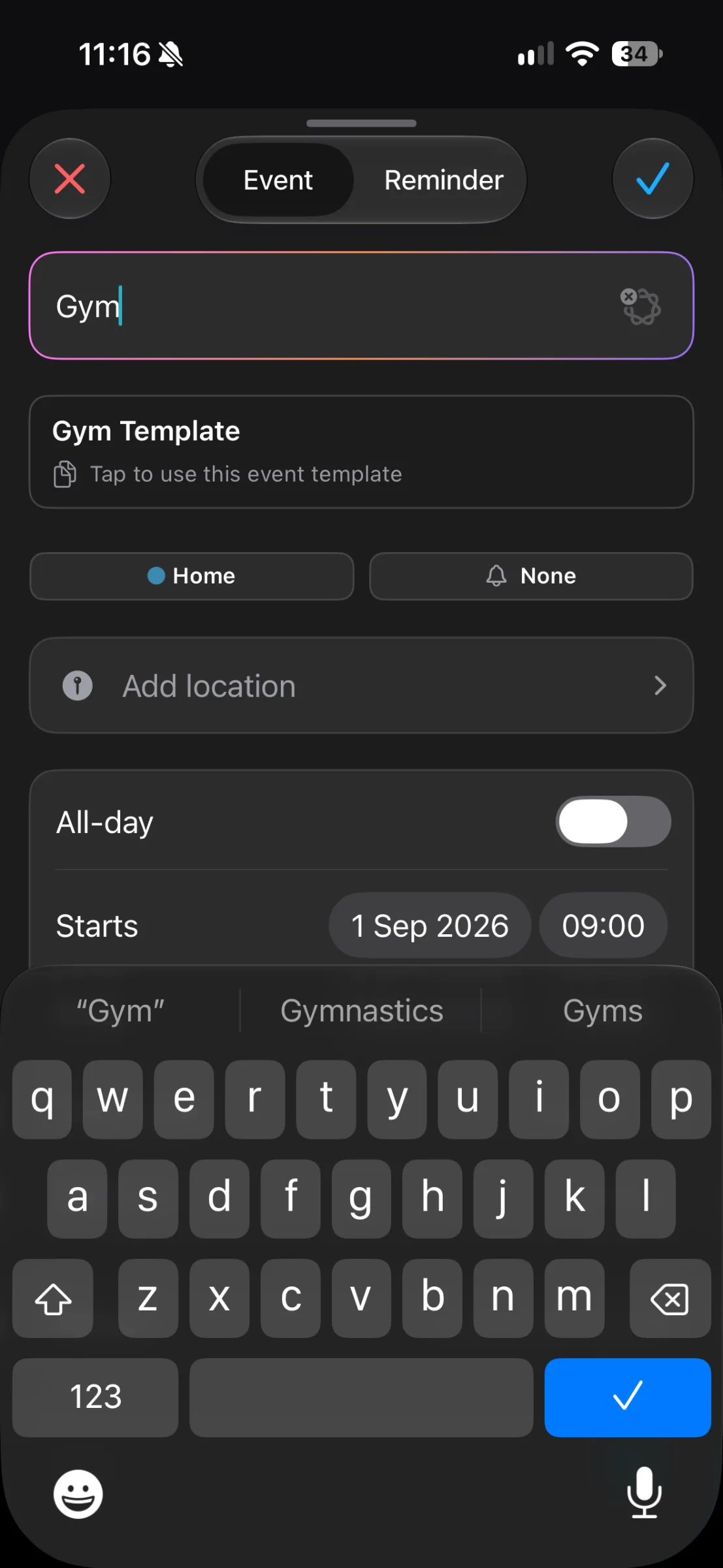
In the example above, typing “Gym” brings up a “Gym Template” suggestion. TapCal’s App Store listing says templates are managed under Settings → Calendar Settings → Event Templates, and matching templates can appear as you type. The listing doesn’t say that templates automatically create a recurring series, so treat them as a shortcut for creating an event, not as a substitute for choosing a repeat schedule.
Template or repeating event?
Use a template when you want to reuse a starting point but decide each time when the event happens. It suits appointments booked one at a time, study sessions that move around, or a regular routine that doesn’t land on the same day every week. You create the next event from the template, then check and set its date and time.
Use recurrence when the schedule itself is predictable: for example, a class every Tuesday at 18:00 or a standing check-in on the first Monday of each month. Set the event to repeat at the chosen interval. That creates a series, so you don’t need to add each occurrence separately. If one date changes, check carefully whether you’re editing just that instance or the whole series.
A quick rule: if you’re asking, “When is the next one?”, a template may fit. If you’re asking, “How do I get this on every Tuesday?”, choose recurrence.
Reuse the details, then check the date
Suppose you have a weekly study routine, but your sessions move around your other commitments. You might want each event to include the same title, a library location, a note such as “Bring reading list”, and an alert before you leave. Create a template for the details you want to reuse, then start the next event from that template and set the date and time for this week.
Before saving, review the fields that matter for that particular session. Is the location still right? Does the note need updating? Is the alert appropriate for this date? That small check helps prevent yesterday’s details from quietly following you into a different plan.
The exact fields a TapCal template carries over should be checked in the current app before relying on it for location, notes or alerts. The event form supports details such as location and alerts, but the available release information doesn’t specify which of those fields templates preserve. Apple’s Calendar guidance also recommends checking event details when adding or editing an event. See Apple’s guide to creating and editing events.
Find and use a template in TapCal
In TapCal, open Settings → Calendar Settings → Event Templates to create or manage templates. Those are the menu names given in the current App Store listing; labels may vary slightly by version.
When you create an event, type a title that matches a template. TapCal’s listing says matching templates are suggested as you type. Select the suggestion if it’s the template you meant to use.
Set the date and time for this occasion, review any carried-over details, and save the event. Don’t assume choosing a template has set a repeating schedule.
For a genuinely fixed weekly schedule, create or edit the event and set its repeat pattern in the event details instead. TapCal supports event recurrence; the precise control names can depend on the screen and app version. If your plans often change, keeping those sessions as separate events created from a template can make it easier to choose each date independently.
A note on TapCal Pro
TapCal’s current App Store listing describes reusable event templates but does not mark the feature as requiring Pro. It does identify some other features as Pro-only. Because access can change between app versions or offers, check the template screen in your installed version before promising that it is included in the free experience. View TapCal on the App Store.
The useful distinction is simple: recurrence is for the schedule that repeats; a template is for the details you don’t want to rebuild. If you’re setting up a flexible routine, try one template and check what it carries across before making it part of your weekly planning.
Editorial check before publication
Not for publication: please provide verified TapCal screenshots or a short recording showing how to create, save and reuse an event template, and confirm which template features require Pro. In particular, verify whether location, notes and alerts are carried into a new event. The current App Store listing confirms the settings path and title-matching suggestion, but doesn’t document those details.