
Published 16 November 2026 · By JonsTech
How to Use iPhone Calendar Sets for Context Switching
Set up separate Work, Personal and Family views in TapCal, then switch between them without moving or deleting your events.
To see only the calendars that matter for the moment, create a calendar set for each context, then select the one you need in TapCal’s Calendars & Lists screen. A set changes which calendars and reminder lists appear in TapCal and its widgets; it doesn’t move, delete or copy your events. For example, use Work for a focused look at meetings, Personal for appointments and errands, and Family for shared plans. TapCal’s current guide says two sets are free and up to five are available with Pro, so three separate sets require Pro.
That separation is useful when your calendar is busy, or when seeing every commitment at once makes it harder to decide what needs your attention. You can keep your work account, personal iCloud calendar and family calendar connected as they are, while choosing a clearer view for the task in front of you. If you’re using TapCal on iOS 18 or later, here’s how to set it up.
First, make sure your calendars are available
Calendar sets don’t create new accounts or replace the calendars you already use. They organise which of your available calendars and reminder lists TapCal displays. If a calendar is missing, check that its account is connected on your iPhone and that TapCal has calendar access. For calendars managed through iOS, the current path is iPhone Settings → Apps → Calendar → Calendar Accounts. Then open TapCal’s Calendars & Lists and check which sources are visible.
Reminders are selected separately from calendars. That means you can include a useful list, such as Work tasks or Shopping, in one set without displaying every reminder list everywhere. Start with the lists you actually use for that context; a long list of unrelated tasks can make a focused view feel crowded again.
Create a set for each part of your life
In TapCal, open Settings, then Calendars & Lists. Tap the plus button and choose New calendar set. Give the set a short name you’ll recognise quickly, such as Work. Select the calendars and reminder lists you want included, then repeat for Personal and Family. The available sources depend on what you’ve connected and granted access to.
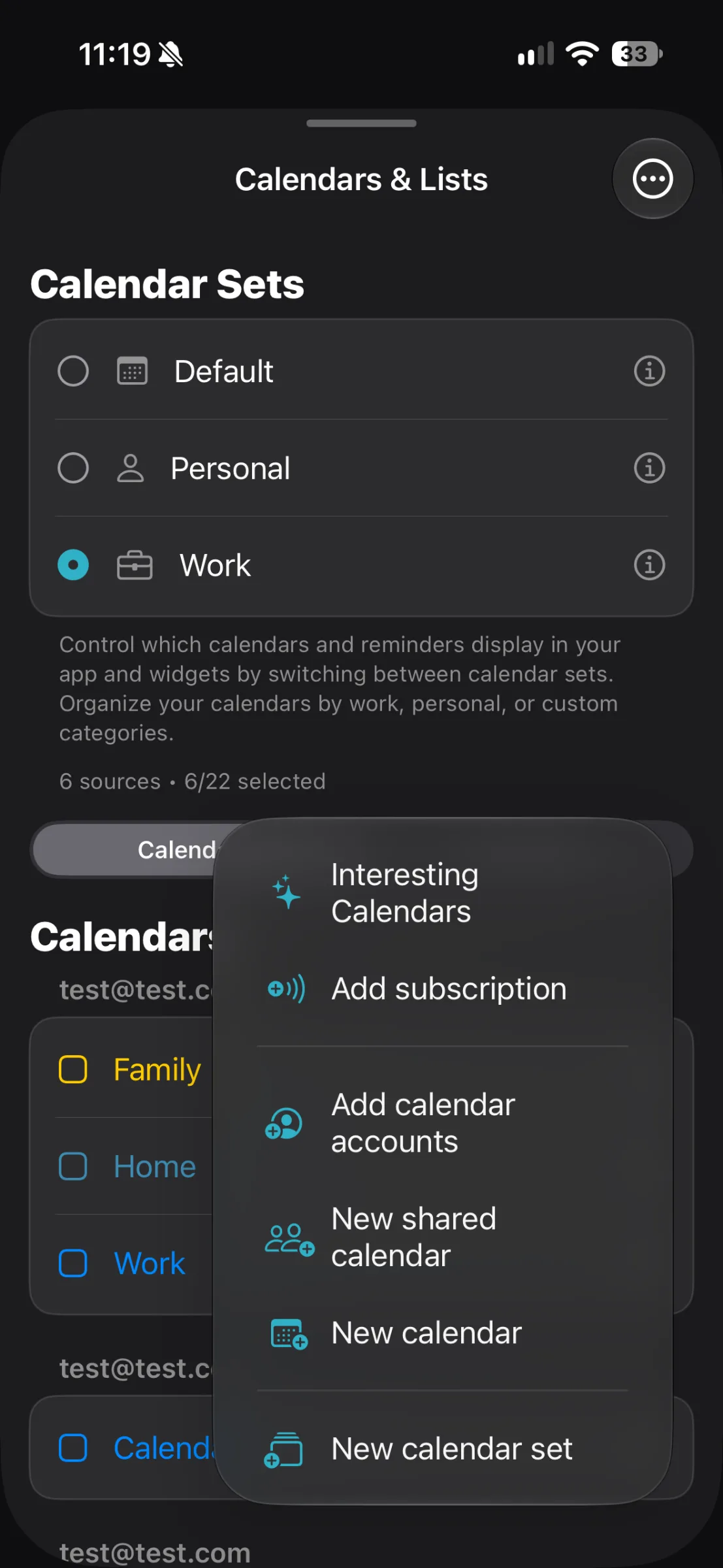
The plus menu shown here includes New calendar set. It’s a visibility choice, not a request to make a new calendar account. Once you open the set, choose the calendars and reminder lists that belong in that view.
A practical example
Imagine you use a work calendar for team meetings, a personal calendar for appointments, and a shared family calendar for school pick-ups and weekend plans. You also keep household errands in Apple Reminders. You could set up:
Work: your work calendar and the reminder list you use for work tasks.
Personal: personal appointments and the lists you use for individual errands.
Family: the shared family calendar and household lists such as Shopping.
These are hypothetical examples; choose the sources that fit your own routine. A set can include more than one calendar, so you might put family and personal appointments together if that’s more useful than keeping them apart. The point is to make the set answer a real question: “What needs my attention at work?” or “What have we planned as a family?”
Switch sets when your question changes
Return to Calendars & Lists and tap the set you want. The selected set is highlighted. In the example below, Work is selected, and the calendar list shows the sources available for that view. Tap another set when you’re changing context; TapCal updates which calendars and reminder lists appear in the app and widgets.
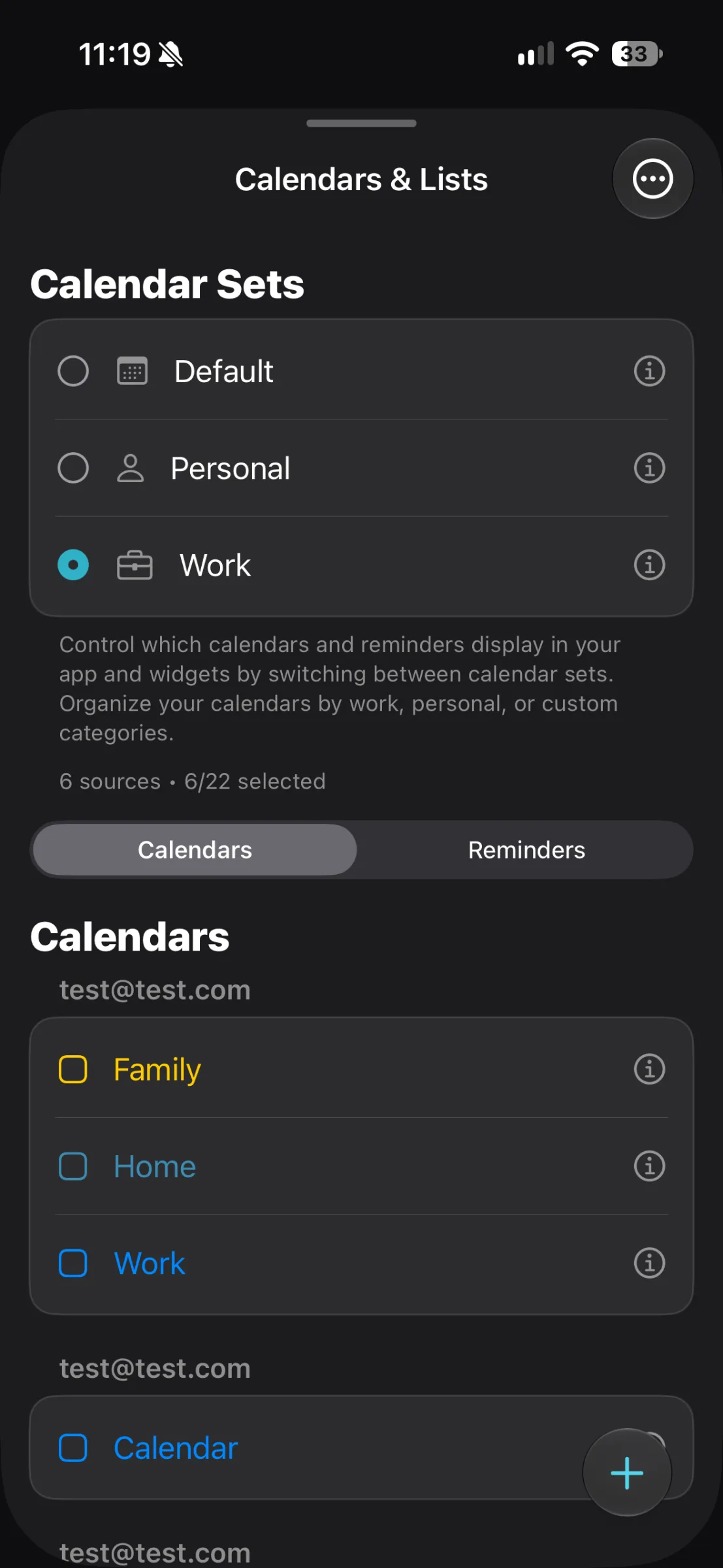
A simple routine is to use Work while reviewing your working day, switch to Family when checking pick-ups or shared plans, and use a combined view before accepting a new commitment. That last check matters: a quiet Work view won’t show a personal appointment that could clash with a meeting.
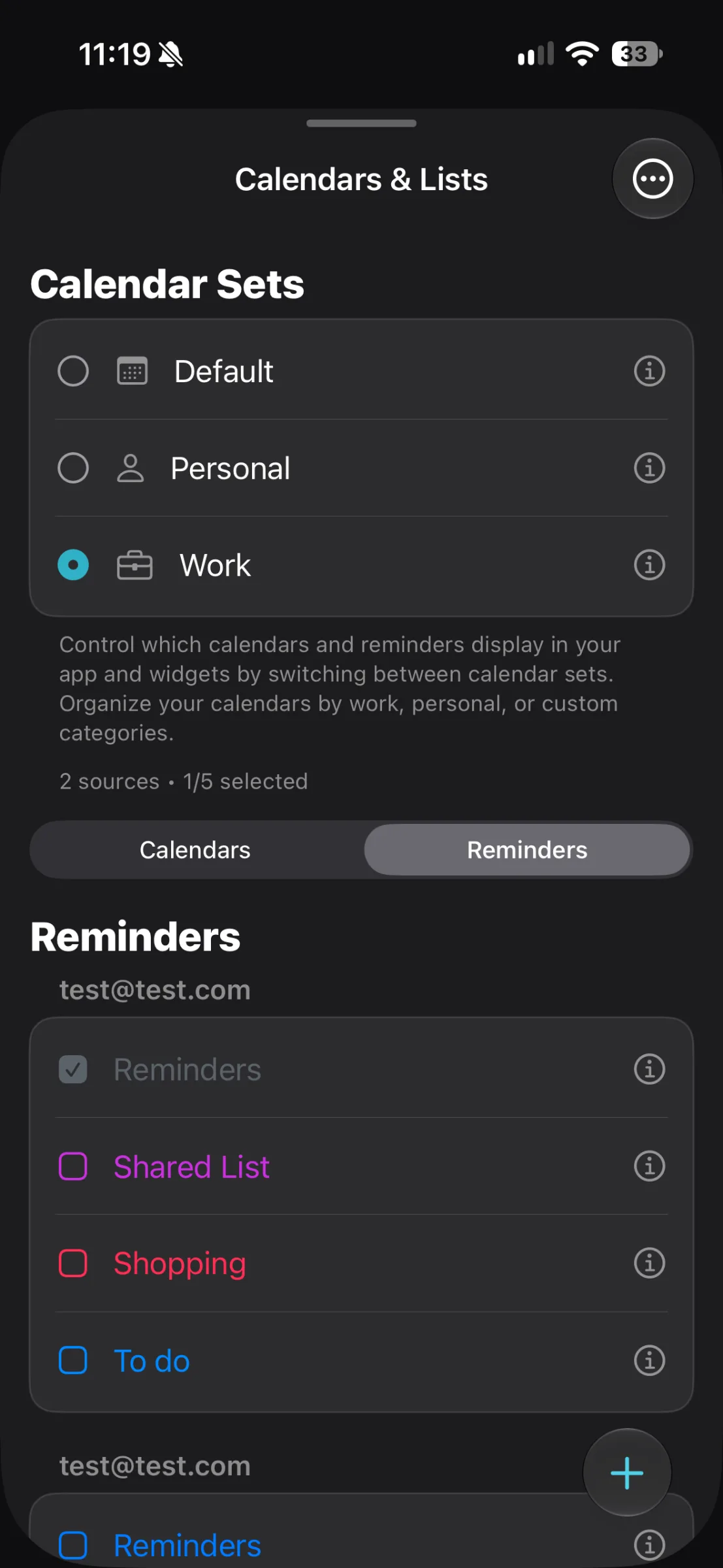
Use the Reminders tab on the same screen to review the lists selected for the active set. The example below shows reminder lists including Shared List, Shopping and To do. If a reminder you expect to see is missing, check whether its list is included in the selected set.
Make the active view easy to spot
For a less cluttered Home Screen, keep the widget focused on the context you check most often. When you’re making a decision that could affect another part of your life, switch to a broader set in TapCal and look for clashes before you book. A widget is a glanceable view, not a reason to skip that check.
What calendar sets don’t do
A set controls what you see in TapCal and its widgets. It doesn’t change which account owns an event or move that event to another calendar. If you want to hide a calendar in TapCal while keeping it available elsewhere, edit the set’s selection rather than deleting the calendar. For more on hiding calendars without removing events, see how to hide calendars on iPhone without deleting events.
For a first setup, make the two views you’ll use most, select each one in turn, and check that its calendars, reminders and widget display look right. If you need separate Work, Personal and Family contexts, review TapCal’s current plan details for the available set limit. Download TapCal on the App Store.