
Published 3 October 2026 · By JonsTech
How to Add an ICS Calendar Feed to iPhone
Learn what an ICS subscription does, how to add one in iOS 26 or TapCal, and what to know about visibility, updates and removal.
An ICS calendar subscription is a read-only feed of events that its publisher maintains, such as a school’s term dates or a council’s local events. Add its web address to Calendar on your iPhone, or use TapCal’s Add subscription option, and the feed can appear alongside your other calendars. It is not a one-off import: the publisher can update the feed, though changes are not necessarily visible straight away.
First, get the subscription link
Look on the organisation’s calendar or events page for a link labelled “Subscribe”, “iCal” or “ICS”. You need the calendar’s web address, not simply a downloaded .ics file. If the page offers both, choose the subscription link: importing a file adds a snapshot, while subscribing is intended to keep a calendar connected to its source.
For example, if your child’s school publishes a term-date feed, you could subscribe to it and keep those dates visible beside appointments and family plans. That example depends on the school actually providing a working feed. Not every event page offers one, and a feed may require access or use a format your calendar app does not accept. Only subscribe to sources you trust: a public calendar link may expose its events to anyone who has it.
Add the feed in Apple Calendar on iPhone
In iOS 26, Apple’s documented route is through the Calendar app:
Open Calendar and tap Calendars.
Tap Add Calendar, then Add Subscription Calendar.
Enter the feed’s web address and tap Find.
Choose a title and colour so it is easy to recognise, then finish adding it.
Apple’s current iOS 26 instructions describe this flow and note that you can also subscribe by tapping an .ics calendar link. Menu wording can differ on earlier iOS versions. If your iPhone shows different options, check Apple’s iPhone calendar subscription guide for the version-specific steps.
After subscribing, tap Calendars to check that the new calendar is selected. If it is switched off, its events will be hidden from the calendar view even though the subscription remains. Apple also lets you unsubscribe from a feed in this list: tap its information button, choose Unsubscribe, then confirm.
Add a custom ICS subscription in TapCal
TapCal has a separate Add subscription option for custom calendar feeds. Open Settings, go to Calendars & Lists, then choose Add subscription. Its guide describes subscription calendars as read-only feeds. The menu is also where you can find the option before adding a feed:
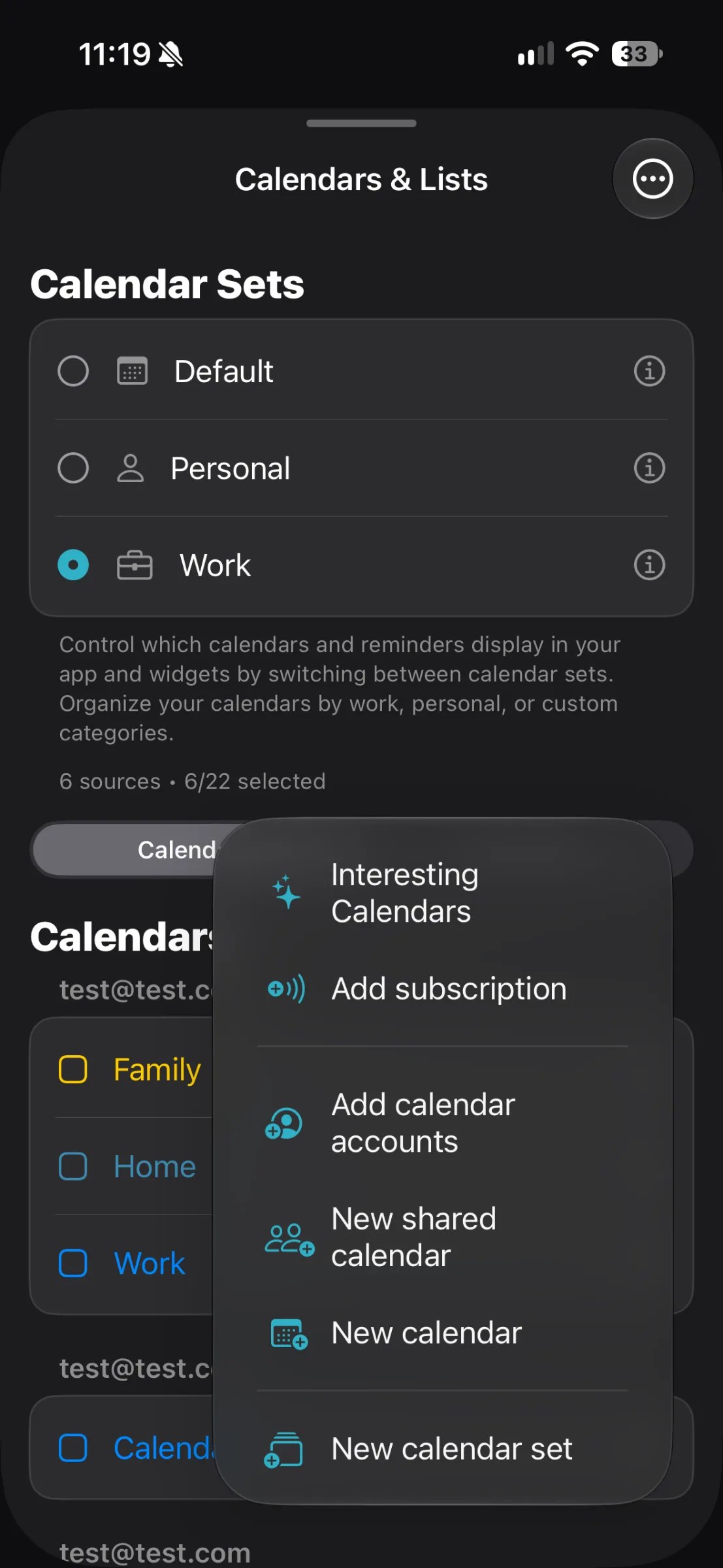
Once the subscription is added, look for it under Calendars in TapCal’s Calendars & Lists settings and make sure it is visible. TapCal’s month, week and list views give you different ways to scan the subscribed events with your existing schedule. In the month view, for instance, school dates can sit in the same grid as work meetings and family appointments, rather than needing a separate calendar app.
A distinct colour can help you pick out a feed without making the calendar harder to read. TapCal lets you customise calendar appearance, while calendar sets can help you choose which calendars are shown together. A “School and home” set might include the school feed, family calendar and personal reminders; a focused work set can leave those out when you need fewer things on screen.
The precise TapCal subscription form and its management controls can vary with the current app version. TapCal’s published guide confirms the Add subscription path and that feeds are read-only, but does not specify a refresh interval or a full removal sequence. Check the subscription’s calendar entry in the app, or use TapCal’s Help guide if you need to remove it. Hiding a calendar is not necessarily the same as unsubscribing from it.
What to expect from updates and visibility
A subscription does not guarantee that a change made by the publisher will appear immediately. The publisher has to update the feed, and the calendar service and device need to fetch that update. Apple’s guidance explains how to subscribe and unsubscribe, but does not promise an instant refresh time. TapCal’s public guide does not state its refresh cadence either, so check the source’s own information if timing matters. For a last-minute change, confirm it with the organisation rather than relying only on the calendar display.
In Apple Calendar, use the Calendars list to show or hide a subscription, or unsubscribe there when you no longer need it. In TapCal, check that the calendar is selected in Calendars & Lists if its events are missing. If a feed was added directly in TapCal, do not assume removing or hiding an Apple Calendar subscription will also remove that TapCal entry; follow the controls for the app where you added it.
When an ICS feed is the right choice
A subscription works well when an organisation publishes a calendar you want to refer to without editing its events: term dates, public holidays or community event listings, for example. It is less suitable when you need to change individual entries, depend on immediate updates, or the publisher offers only a static download. Those are limits of the feed arrangement, not something a different month view can fix.
If you want to see a subscribed feed beside the rest of your schedule, start with its publisher’s subscription link, then add it in Apple Calendar or TapCal and check its visibility. For a clearer view of the events you already manage on iPhone, download TapCal from the App Store.