
Published 19 October 2026 · By JonsTech
How to Add Buffer Time Between Appointments on iPhone
Stop back-to-back plans from squeezing out travel and breathing space. Learn how to add labelled buffer blocks, check your week for tight handovers, and reuse a template when it helps.
To leave enough time between appointments, put a separate, clearly labelled event between them for travel, preparation or a breather. Then check your week view for anything that still looks back-to-back. For example, if a dentist appointment ends at 10:45 and you need to get home before an 11:30 call, block out 10:45–11:30 as “Travel home + reset”. The gap is now visible in your calendar, not just something you have to remember.
This is a manual planning step: TapCal does not automatically calculate journey times or insert travel buffers. Adding a location to an event is useful for recording where you need to be, but it is not a travel-time estimate. A separate block lets you decide how much room you need and adjust it when your plans change.
Start with the week, not the gap
A day can look manageable when you inspect each appointment on its own. The squeeze becomes clearer when you see how one commitment hands over to the next. Open your calendar’s week view and scan for events that touch, overlap or leave an implausibly short gap. Pay particular attention when you need to change location, gather something, eat, or switch from one kind of task to another.
In TapCal, the week view helps you see the shape of your commitments across the week. If you want a quick overview of how the views differ, see which iPhone calendar view to use. A week scan is especially useful if you find it easy to book the next appointment but harder to picture what it will take to get from one place or task to another.
Make the buffer a real calendar event
Once you spot a tight handover, add a separate timed event in the gap. Give it a plain name that explains what the time is for, such as “Travel to clinic”, “Collect bag + travel”, or “Quiet reset before call”. A label like “Buffer” is better than nothing, but a specific title makes it easier to understand the plan at a glance later.
Choose the time the buffer needs to start. For travel, that is usually when you need to leave, not when you expect to arrive.
Set the end time to when you realistically expect to be ready for the next commitment. Include time to park, walk in, settle, or switch tasks if those steps matter.
Save it on a personal calendar if it is for your own planning. If you use a work or shared calendar, consider whether others should see that time as unavailable before adding the block there.
Return to the week view and check that the buffer fits between the appointments. If it does not, revise the plan rather than relying on the gap to somehow appear.
For the hypothetical dentist-and-call example, the first appointment runs from 10:00 to 10:45. The separate “Travel home + reset” block runs from 10:45 to 11:30, followed by the call. That half-hour-plus gap is not a prediction about how long every journey takes; it is a deliberate allowance to match this particular plan. If the route, appointment or call changes, revisit the block too.
Decide what the time is protecting
A useful buffer is not always just a journey. Before choosing its length, name the job it has to do. Is it covering public transport, a possible delay, finding the entrance, picking up a prescription, or simply having a few quiet minutes before a demanding conversation? If several steps need to happen, make the event title reflect the main ones. That can make the block easier to respect when the day gets busy.
It can also help to distinguish protected time from free time. If you have allowed 30 minutes to travel, that does not mean you have 30 minutes spare for another errand. A clear title such as “Travel to appointment” tells future-you what the gap is for, especially when several events are close together.
Use a template for a buffer you add often
If you regularly add the same kind of block, a reusable event template can save you from re-entering the same starting details. In TapCal, templates can be suggested as you type an event title. You could create one for a familiar routine such as “Travel + reset”, then choose the date and time that fit this occasion.
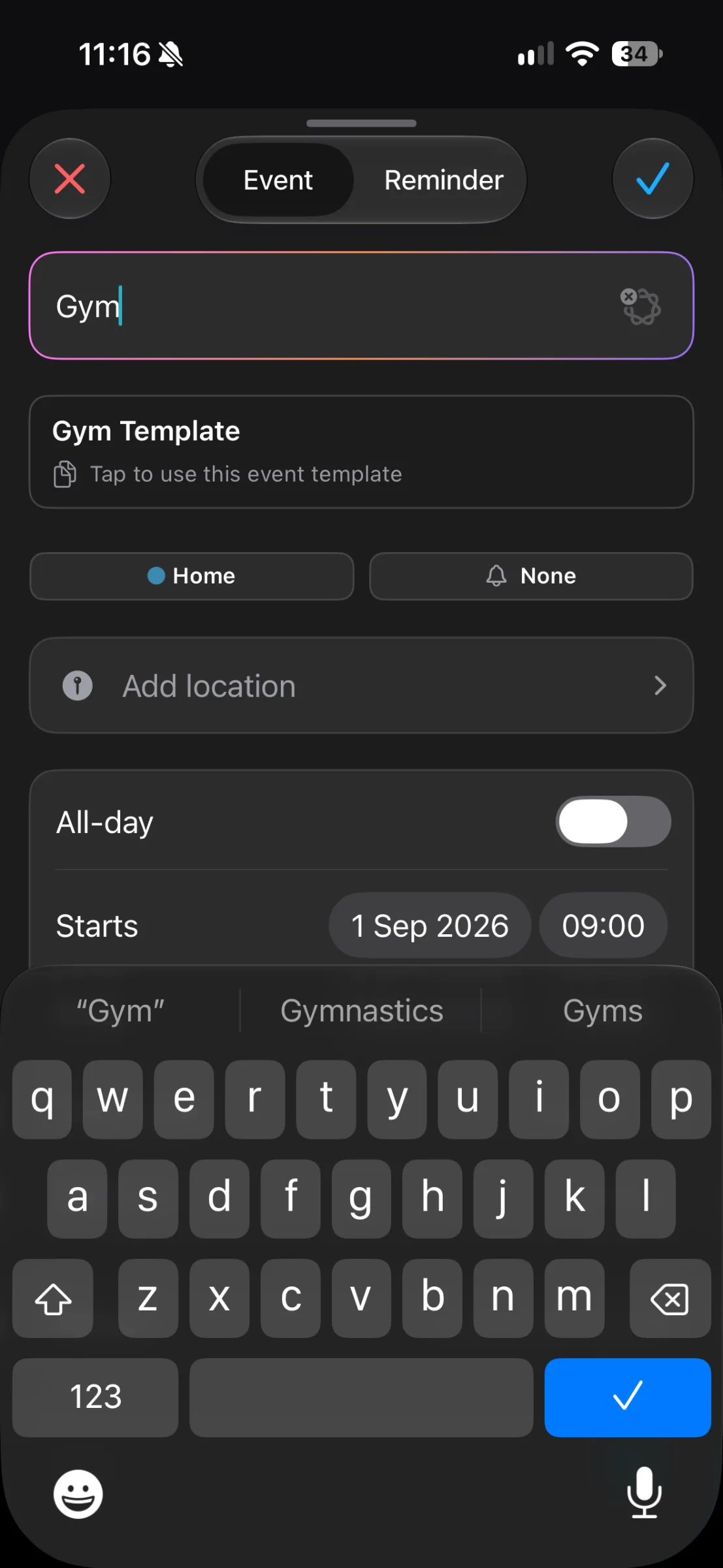
The screen above shows TapCal suggesting a “Gym Template” while an event is being created. It illustrates the reusable-template prompt, not a travel calculation or an automatically placed buffer. For the steps to create and use one, see how to use event templates for recurring routines on iPhone.
A template is a starting point, not a recurring schedule. Create the event for each occasion, then check its date, start and end times, location and other details before saving. If your buffer happens at the same time on a fixed schedule, a repeating event may be a better fit. If the timing changes with each appointment, add a fresh event from the template instead.
Keep location alerts and travel time separate
TapCal supports locations on events, and it also offers location alerts for reminders. Those are different from calculating how long a journey will take: neither feature should be treated as automatically adding travel time between appointments. If you need to leave by a particular time, create a separate departure or travel block yourself. You can add a reminder as an extra prompt, but the calendar block is what makes the protected time visible in your schedule.
Make the gap visible enough to use
The point is not to fill every empty space in your calendar. It is to make the time you genuinely need visible, so you can judge the day more realistically before agreeing to another commitment. Start with the handovers that involve a journey or a demanding change of focus. Add a labelled block, review it in week view, and adjust it when the plan changes.
If you want to try the approach in TapCal, download it from the App Store and add your next travel or reset block as a separate event.