TapCal guides
How to show upcoming events and countdowns on iPhone
TapCal shows upcoming events and a countdown on your iPhone Home Screen. Choose a list, week, month or Month & List widget for your plans, and add Event Countdown to count down to a chosen event.
Choose a view for upcoming events
An upcoming list puts events and reminders in order. Week gives the next few days more room, while month shows the wider calendar. Month & List combines a compact month with a today-first list. Each widget gives you a glance at your plans; open TapCal when you need to edit an event.
Explore the full range of TapCal widgetsAdd an Event Countdown
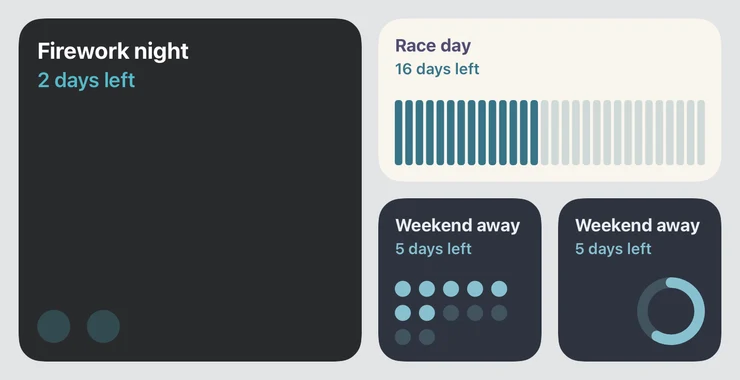
Count down to a birthday, trip or another upcoming plan. Event Countdown follows the event you select and lets you choose how it looks.
- 1Touch and hold an empty area on your Home Screen, then tap Edit and Add Widget.
- 2Find TapCal, choose Event Countdown and add your preferred size.
- 3Touch and hold the countdown and choose Edit Widget.
- 4Choose an upcoming event, then select a layout and theme.
What is free?
Dots, Ring and Bars are free in small, medium and large sizes. Daylight and Midnight themes are included; Pro adds more theme presets. You can also explore countdown styles in Settings → Widget Settings → Event Countdown.
Your month in view. Your day in reach.
Try TapCal on iPhone and iPad. Core planning and widgets are free, with optional Pro features.
Download on the App Store