
Published 12 October 2026 · By JonsTech
How to Colour-Code Calendars on iPhone
Give work, personal plans and appointments distinct calendar colours on iPhone, then use TapCal’s month view and calendar sets to make a busy schedule easier to scan.
Give work, personal plans and appointments their own calendar colours, then keep the palette simple enough to read at a glance. On iPhone, you can change a calendar’s colour in Apple Calendar; in TapCal, calendar sets let you choose which calendars appear together, while app and widget themes adjust the overall look. A calendar’s colour applies to its events as a group, not to individual events independently.
Start with separate calendars
Colour-coding works best when the calendars already reflect how you organise your life. For example, you might have one calendar for work, one for personal plans and a third for appointments. A dentist visit in the appointments calendar will use that calendar’s colour; changing the event’s calendar changes which calendar it belongs to, rather than giving that one event an unrelated colour.
Before adding anything, check which calendars you already have. If your work events arrive through Google or Exchange and family plans are in iCloud, you may not need to create duplicates. Keep events in the calendar that owns them, and use colours to tell those calendars apart. On iPhone, Apple Calendar can show calendars from connected accounts in one view.Apple’s current instructions for changing a calendar colour are in its guide to setting up multiple calendars.
Choose a small, practical palette
Try a simple scheme such as blue for work, green for personal plans and amber for appointments. Treat those as examples, not fixed rules: choose colours you can distinguish comfortably on your screen, and use the nearest options your calendar offers. If two categories are hard to tell apart, change one rather than adding several more colours.
Give each colour a consistent meaning. If blue means work, keep using it for work across the month instead of switching colours to mark urgency or event type. The calendar already tells you the category; the event title and details can explain what is happening. A compact palette is especially useful when several events land on the same day.
Change a calendar’s colour in Apple Calendar
Open the Calendar app on your iPhone and follow these steps:
Tap Calendars at the bottom of the screen.
Tap the information button beside the calendar you want to change.
Choose a colour, then tap Done.
Repeat for each calendar in your palette. Some account calendars, including certain Google calendars, have their colour set by the provider. If the colour option is unavailable or your change does not stick, check the calendar’s settings with that provider rather than assuming the iPhone setting will override it.
Set calendar colours in TapCal
TapCal reads calendars connected to iOS, so you can use your existing schedule rather than recreating it. To adjust a calendar’s colour in TapCal, open Settings, go to Calendars & Lists, and open the calendar’s settings. Its colour control appears on the calendar settings screen. The exact colour available for a calendar can depend on its account provider.For TapCal’s current settings guide, see Help.
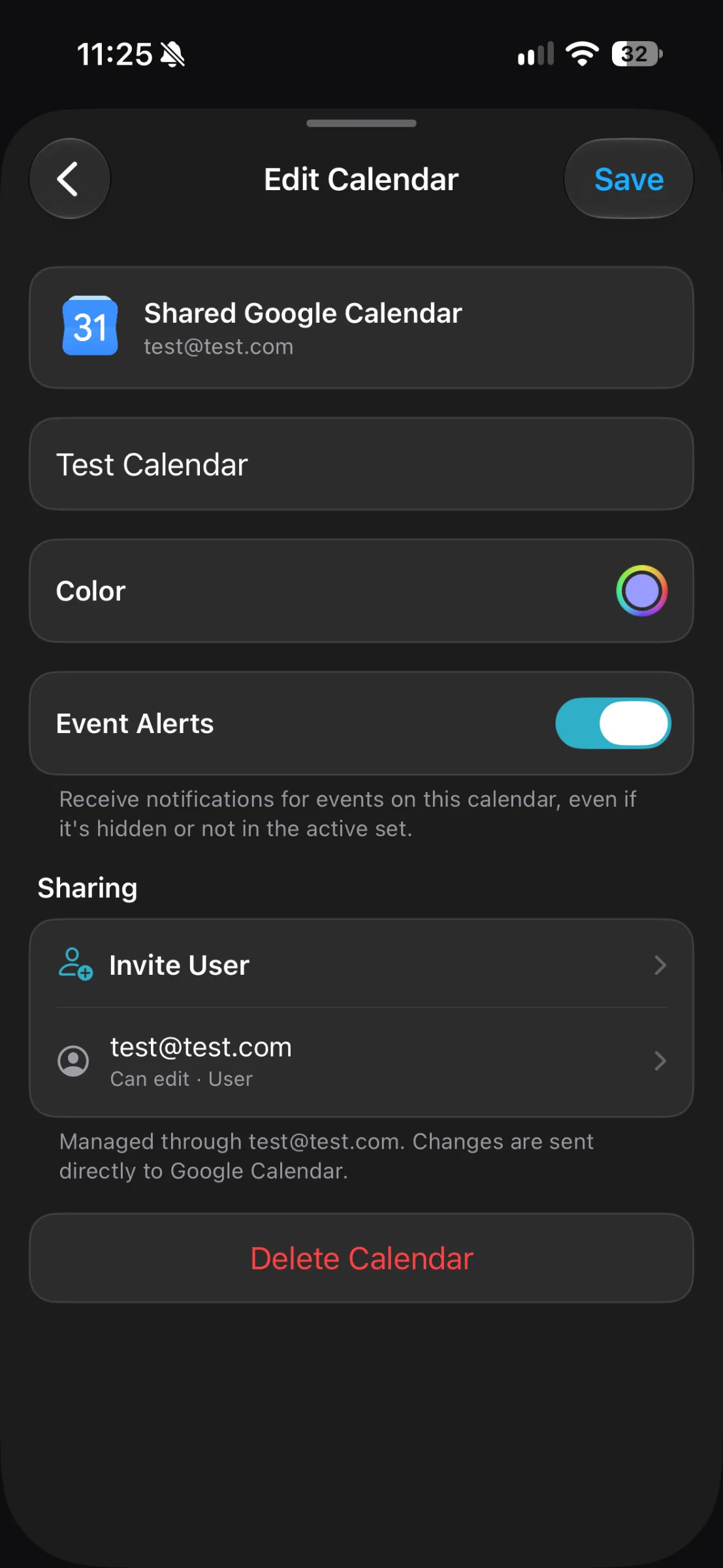
The screenshot shows a calendar’s colour swatch in its settings. This is where you set the colour for that calendar, not a separate colour for each event within it.
Check the colours in the month view
A colour scheme only helps if it is easy to read where you actually plan. Look at a full month, not just the calendar list: you want to spot which days contain work, personal plans or appointments without having to decode a crowded patchwork. TapCal’s month view shows event titles alongside the calendar’s colour, so you can scan both the category and what is happening.
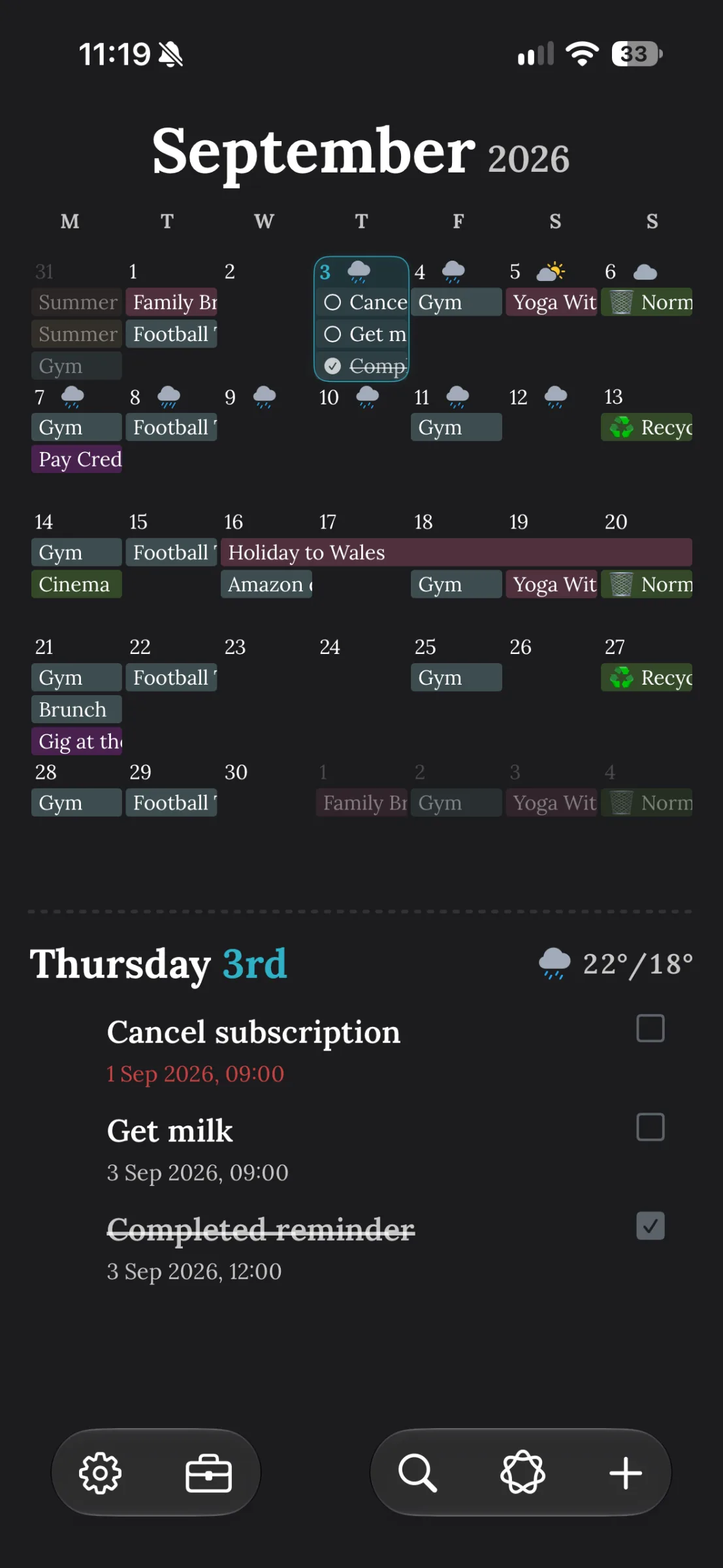
This September 2026 view shows coloured event labels in the month grid, with the selected day’s details below. It is an example of how calendar colours and readable event titles can work together; it is not a claim that each event has been given its own independent colour.
If the month still feels busy, try fewer visible calendars at once. For example, a hypothetical Work set might show your work calendar and work reminders; a Personal set might show family plans, appointments and personal reminders. Keep an all-calendars view available when you need to check for clashes before accepting a meeting or booking an appointment.
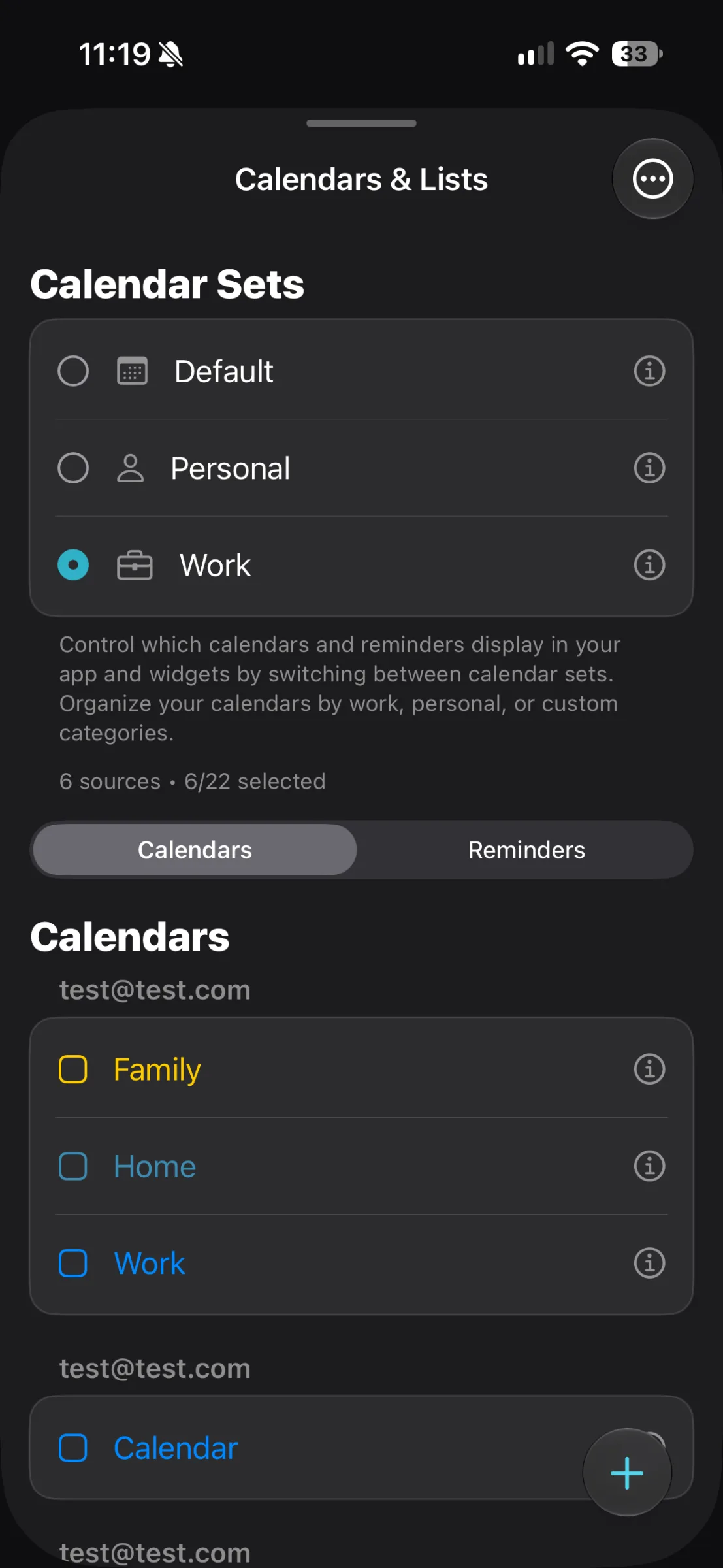
In TapCal, a calendar set controls which calendars and reminder lists are displayed together. It changes the view, not the colour or ownership of events. You can also customise the app and widget themes independently; those appearance choices affect the interface, while the calendar colours help distinguish the schedules themselves.
A simple routine for keeping it clear
Once you have picked the colours, make sure new events go into the right calendar. When creating an event, check its Calendar field before saving. If you put a work meeting in Personal, it will take the Personal calendar’s colour until you move it to the correct calendar. That is a useful distinction: colour helps you see where an event belongs, but it cannot correct a category mistake for you.
For a quick first pass, colour your existing calendars, review one month in TapCal, then hide any calendars you do not need in a focused set. Keep the palette consistent and switch back to your full view when checking availability. If you want to see how calendar sets can separate work and personal views, read the guide to switching between work and personal calendars on iPhone.
If you would like to try the month view and calendar sets with your existing iPhone calendars, download TapCal from the App Store.