
Published 6 October 2026 · By JonsTech
How to Create Calendar Events by Typing on iPhone
Create an iPhone calendar event by typing a sentence in TapCal. See how natural-language entry works, what to check before saving and where the feature is available.
Yes. In TapCal, you can type an event in ordinary language and use the suggested date and time instead of setting every field separately. For example, type “Dentist at 3pm tomorrow”; TapCal shows a suggestion to set it for 15:00 tomorrow. Tap the suggestion, then check the event details before saving. Natural-language input is currently a TapCal Pro feature, and TapCal requires iOS 18 or later.The current Help guide lists the feature under Settings > Natural Language and confirms that it requires Pro. The App Store listing gives iOS 18.0 or later as the compatibility requirement.TapCal Help and the App Store listing have the current details.
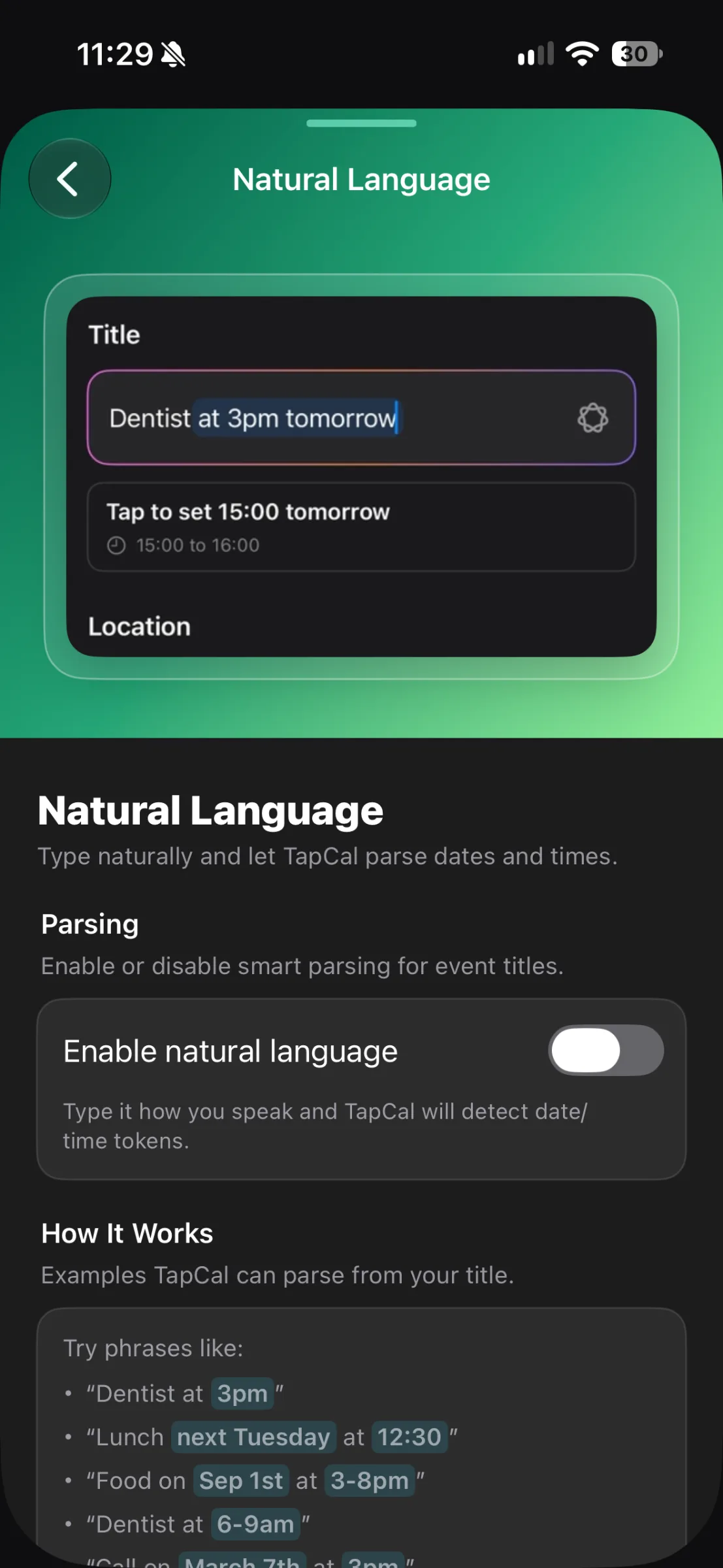
Type a sentence, then review the suggestion
Here’s the flow shown in TapCal’s Natural Language screen. The title field contains “Dentist at 3pm tomorrow”, and below it TapCal offers: “Tap to set 15:00 tomorrow”, with a one-hour time range. The key detail is that the screen presents a suggestion for you to choose, rather than making it wise to save without checking.
In TapCal, tap the plus button to start a new event.
Type the event in the title field, including the date or time in the sentence. The screen’s example is “Dentist at 3pm tomorrow”.
When a date-and-time suggestion appears, read it. If it’s right, tap it to apply the proposed timing.
Check the event title and the start and end times in the form. Edit anything that needs correcting.
Check the selected calendar and any other details you need, such as a location or alert, then save the event.
For a different example, “dentist next Tuesday at 10” expresses the same idea: name the appointment and include when it is. But don’t treat that exact wording as a guaranteed result. The supplied screen demonstrates “tomorrow” and 3pm; it doesn’t show what TapCal proposes for every phrase. Read the date it offers, especially when “next Tuesday” could mean different things to you. If the suggestion is wrong or missing, edit the date and time in the event form instead.
What to check before saving
Typing a sentence can help with the date and time, but it isn’t a substitute for reviewing the event. Before you save, check these details:
Date and time: does the proposed day match the one you meant, and is 10 in the morning or evening if that matters?
Duration: check the end time too. The example screen shows a one-hour event, but you may need a different length.
Title: make sure it reads the way you want in your calendar. If the scheduling words remain in the title, remove them.
Calendar: confirm that the event is going into the right calendar, such as work or personal.
Practical details: add a location or alert if you need one. Don’t assume typing a time also adds those for you.
This quick review matters most when the wording leaves room for interpretation. “Tomorrow” depends on the day you enter it; “next Tuesday” can be read differently; and “at 10” doesn’t say whether you mean morning or evening. Use the proposed date and time as a draft, not as confirmation of what you intended. The App Store’s current release notes also list fixes for date-parsing edge cases, another good reason to check the result before saving.
Turn on natural-language input
If typing a sentence doesn’t bring up a date-and-time suggestion, check that natural-language input is enabled. In TapCal, open Settings > Natural Language and switch on “Enable natural language”. The current Help guide marks this feature as Pro. If you don’t see the setting or can’t use it, check your Pro access in the app.
TapCal’s settings screen gives examples such as “Dentist at 3pm”, “Lunch next Tuesday at 12:30” and “Food on Sep 1st at 3-8pm”. They show the kind of short, direct wording to try. They are examples, not a promise that every phrasing or ambiguous date will be interpreted exactly as you expect. When it matters, check the suggested result or enter the date and time directly.
A faster start, with the usual event controls
The benefit is a quicker way to get the basics in place: describe the appointment, apply a date-and-time suggestion, then review the details in the event form. You can still choose the calendar and add the information that makes the entry useful, rather than trying to fit everything into one sentence.
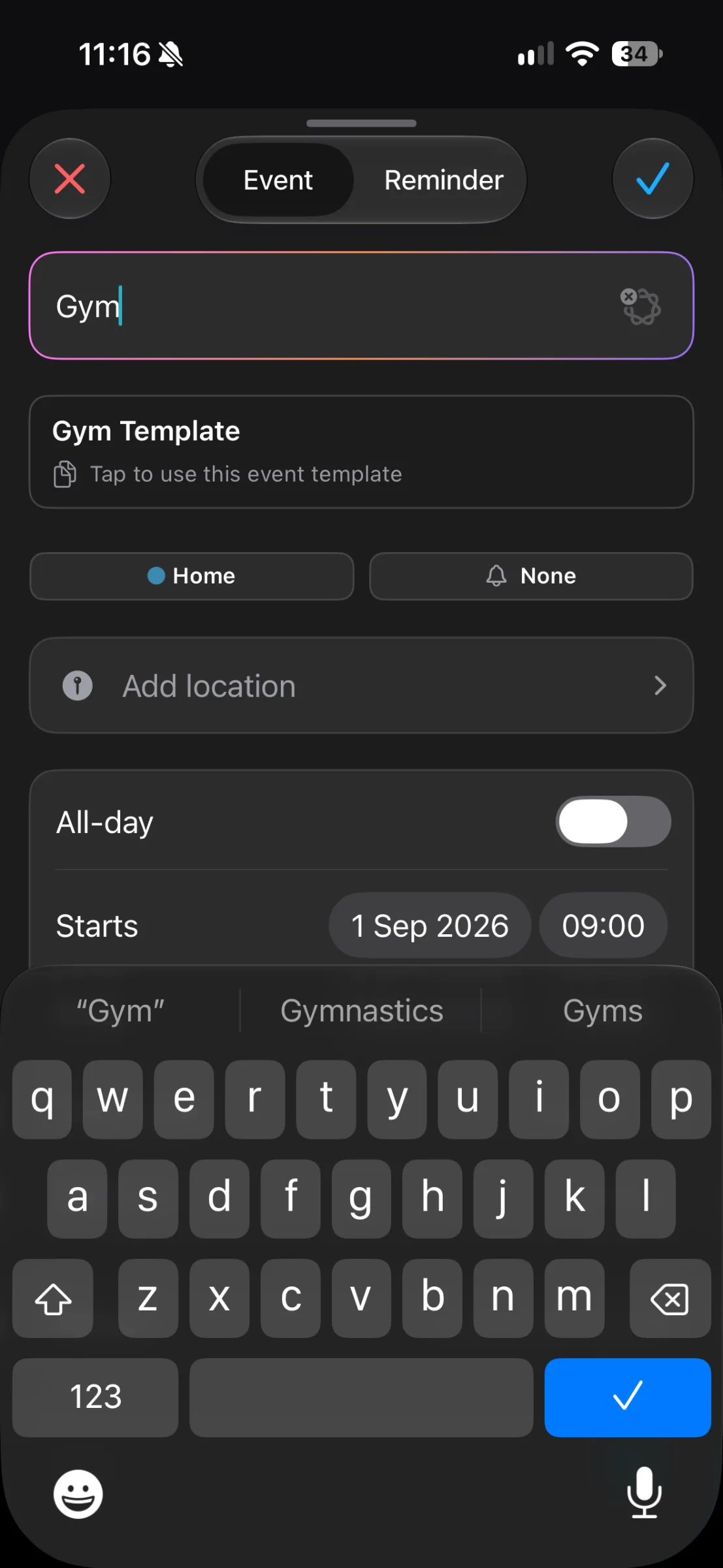
The form shown here is a separate example, not the dentist event from the first screen. It illustrates the details you can inspect when creating an event, including its calendar, alert, location and start time. If natural-language entry gets you most of the way there, you can finish the rest in those fields.
If you want to try it, download TapCal from the App Store. Once natural-language input is enabled, start with a simple appointment, tap the suggested time and confirm the date before you save.