
Published 10 October 2026 · By JonsTech
How to Manage Time Zones in iPhone Calendar
Set an iPhone calendar event to the right time zone, check what will change when you travel, and stop doing meeting maths in your head.
Imagine booking a call for 15:00 in London with someone in New York. On Thursday 15 October 2026, that is 10:00 in New York. In TapCal, check the event’s Time Zone row and set it to the location whose clock the appointment follows. Then check the other person’s local time for the date of the call. The key is to save the event against a real time zone, rather than relying on a conversion you might forget when you travel.
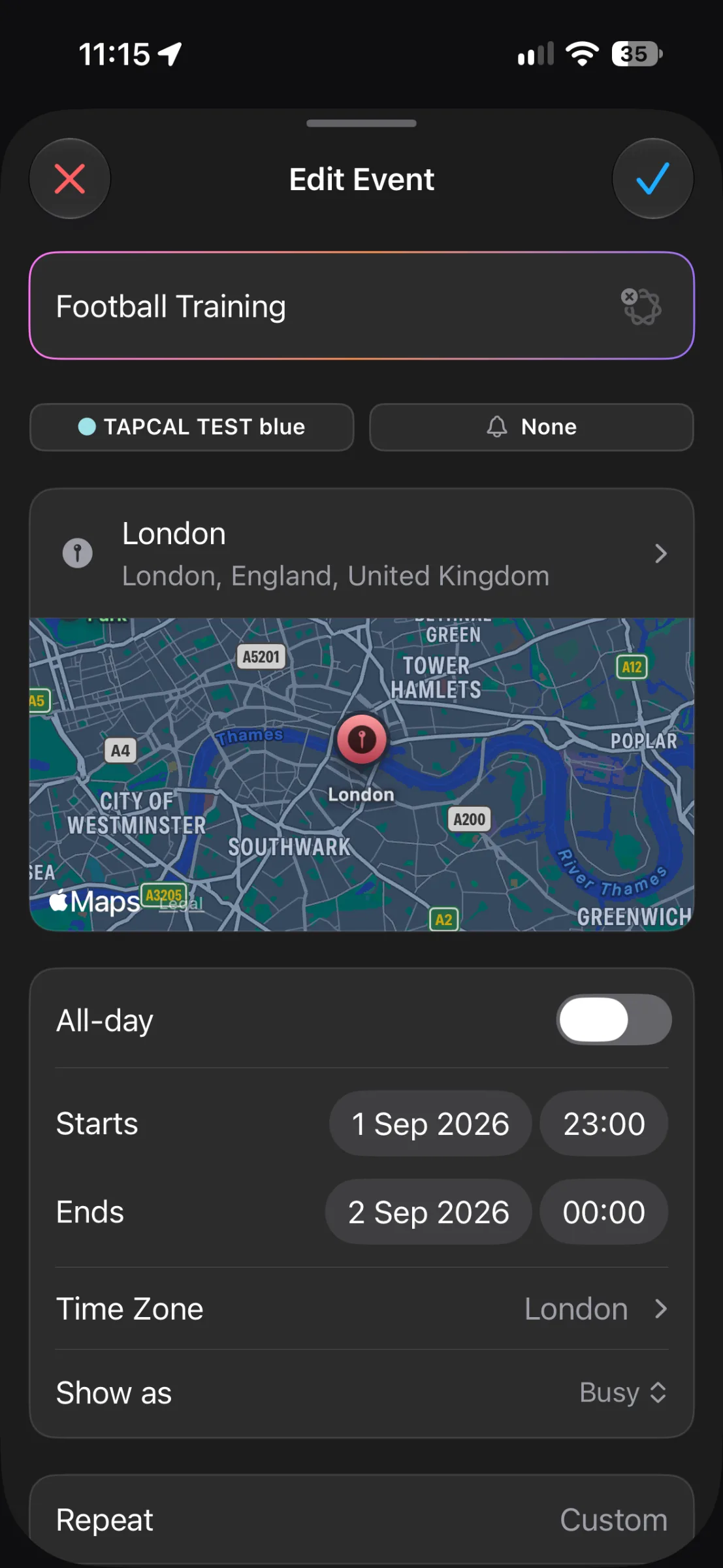
TapCal’s event editor shows a Time Zone row beneath the start and end times. In this screen, it is set to London. Tap the row to review the event’s time zone; before saving, check that it matches the place or clock you mean. The screenshot shows where to look, not a recommended time for Football Training.
First decide which clock the event follows
For an appointment that happens in a particular place, use that place’s time zone. A hotel check-in in Tokyo should be scheduled in Tokyo time, even if you add it while you are still at home. A meeting with a London-based colleague could be entered in London time, then checked against New York time for the other attendee.
A time-zone setting anchors an event to a region’s clock. It is not a second clock displayed beside the event. Calendar apps can show the same event at a different local time when you or another attendee is in another time zone. Apple’s iPhone guide explains how to set an event’s time zone and how Calendar’s separate Time Zone Override changes the time zone used to display events.Read Apple’s guide to scheduling events in other time zones.
Check the time zone in TapCal
Open the event in TapCal. If you are creating it, start a new event with the + button.
Set the event’s date, start time and end time, then find the Time Zone row in the event form.
Tap the displayed location or time zone and check the choice. For the London–New York example, use London if the booked time is 15:00 London time.
Save the event, then check the date and time once more in your calendar. If it is an invitation, confirm the time you agreed with the organiser, rather than assuming the event title or location will set the zone correctly.
You can also open an existing event from the calendar and inspect its details. TapCal’s Help page explains how to open an event from the day timeline.See TapCal Help.
What to confirm before travelling
Before you go, check your iPhone’s date, time and time zone under Settings > General > Date & Time. If you want the phone to update its local time as you move between places, check that Set Automatically is on. If you have deliberately chosen a fixed time zone, remember that it can keep showing your calendar in that zone rather than the one where you have arrived.
Also check Calendar’s Time Zone Override under Settings > Apps > Calendar. Apple describes this as a way to display Calendar in a chosen time zone even when you travel. That can be useful if you want to keep seeing your home or work schedule in the same zone, but it can be confusing if you expect every event to appear in the time where you are now. Decide which view you need, then check the event itself as well as the calendar display.
Keep both local times beside the invitation
For a cross-border call, include both locations and times in the invitation or event notes. For example: “London 15:00 / New York 10:00, Thursday 15 October.” This gives you and the other person a quick sense-check without asking either of you to remember which city is ahead.
Be extra careful around clock changes. London and New York do not switch between summer and standard time on the same dates, so their usual five-hour difference briefly changes. Check the conversion for the actual date of the event, not just the difference today. A location-based time zone handles local clock rules better than trying to reuse a manually calculated offset.
Use a quick check instead of mental maths
Before saving an important appointment, ask yourself three questions: which city’s local time did the organiser give you, which time zone is selected in the event, and what time should the other person see locally? If the answers line up, save it. If they do not, correct the zone or confirm the time with the organiser before sending an invitation.
That small check is useful for travel days, remote meetings and busy weeks when a one-hour mistake can be easy to miss. For another common calendar timing issue, see our guide to fixing iPhone calendar events that show the wrong time.