
Published 30 September 2026 · By JonsTech
How to Make iPhone Reminders Harder to Miss
Put an important reminder where you can see it, add a stronger alert when your iPhone supports it, and build in a simple follow-up so one missed notification does not derail your plan.
For a reminder you really cannot afford to overlook, give it a clear title and a specific time, make sure it appears in your schedule, then switch on an urgent alarm and snooze option if your iPhone and TapCal version support them. Check your alert permissions too, and decide what you will do if you snooze it. This makes the reminder more visible, not foolproof: no alert can guarantee you will notice it.
Here is the basic setup in TapCal: tap +, choose Reminder, write an action you can recognise at a glance, set its due date and time, choose the right list, and turn on Urgent if the option is available. The supplied TapCal editor capture shows that Urgent switch alongside the date and time fields. For example, “Take the form to the post office” is easier to act on than “Form”.
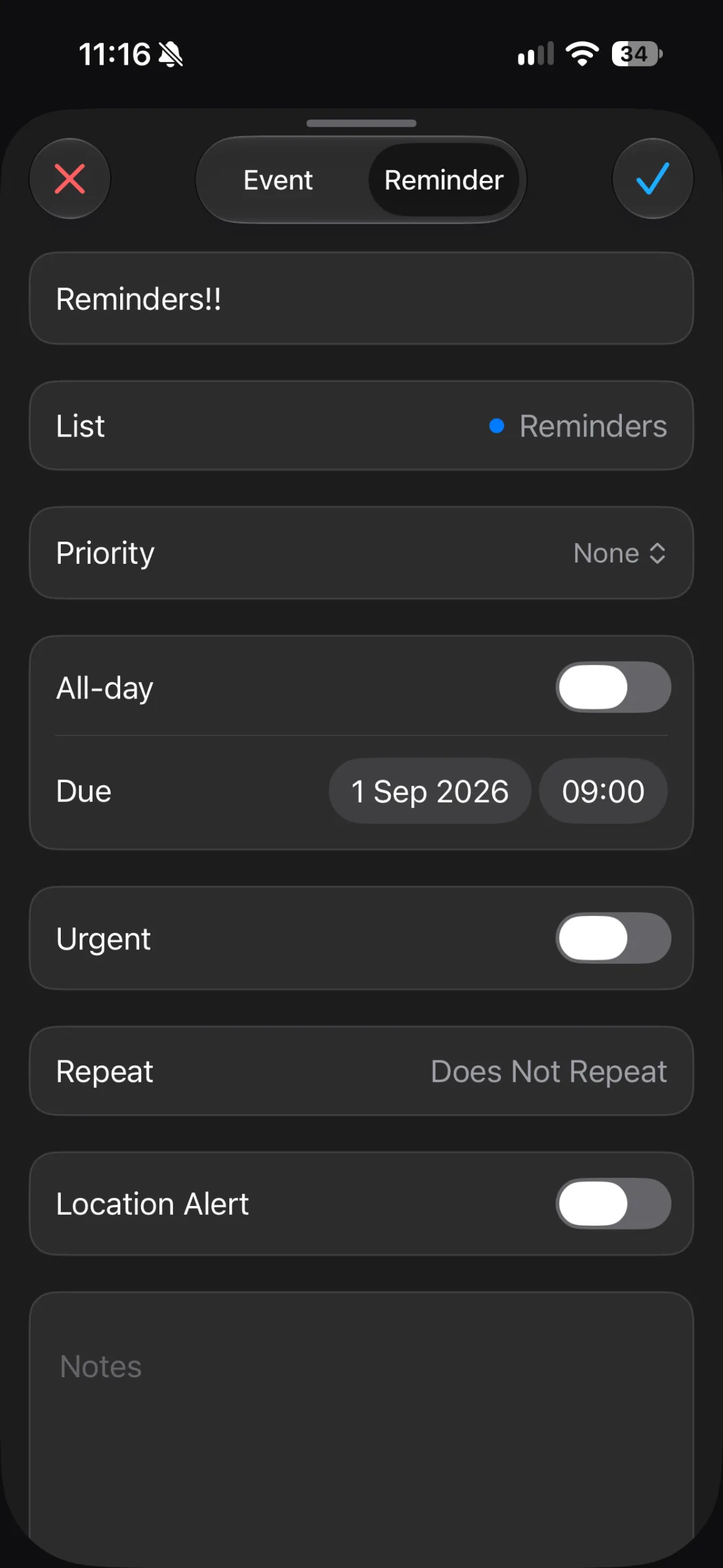
Put the reminder in view
An alert is only one part of the system. When reminders sit apart from appointments, it is easy to miss the clash between “collect prescription” and a meeting, or to forget a small task in a busy week. TapCal can show reminders and calendar events together in its timeline, month view and widgets, so you can check what is coming without switching between apps.
First, check that the reminder list you used is visible. In TapCal, open Calendars & Lists, choose Reminders and make sure the relevant list is selected. If you use calendar sets, confirm the current set includes that list too. Otherwise, you may have created the reminder correctly but hidden it from the view you normally check.
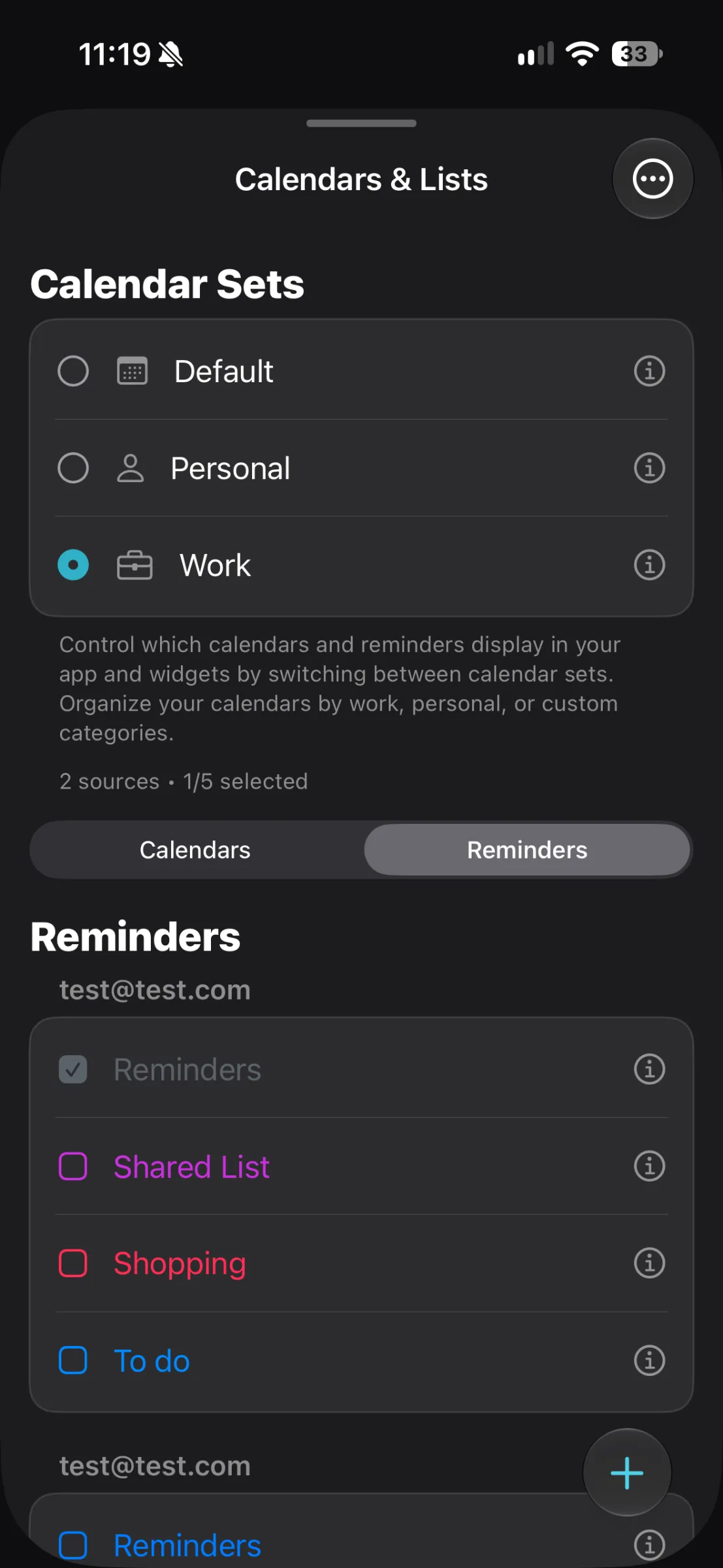
A Home Screen widget can add another useful glance point. Choose a layout that shows the detail you need, rather than relying on a badge or a coloured dot. The aim is not to put every task everywhere; it is to make the important ones visible in the places you already look.
Use an alarm for the genuinely urgent ones
When the alarm appears, snooze only if you also choose when you will deal with the task. “I’ll do it after this meeting” is a plan; tapping snooze and hoping you remember later is not. If you need more than five minutes, set a new time that matches your next realistic opportunity.
Check permissions, then test a low-stakes reminder
Then try a short, non-essential test reminder while you are awake. Check that it appears in TapCal and that the alarm arrives as expected on your own iPhone. The supplied screenshots show the reminder editor and list controls, not the alarm screen or snooze controls, so they should not be treated as proof of how those controls appear on every device. The public TapCal notes describe the alarm and five-minute snooze, but do not specify a minimum iOS version for that feature. If you do not see the option or get the expected alert, check your installed iOS and app versions, permissions and current TapCal guidance before depending on it.
Give yourself a second chance to notice it
Use a small follow-up routine for anything important: put it in the right list, check that it appears in your day view, and decide what happens if you cannot act when it sounds. You might snooze once until the end of a call, then move the reminder to a specific time when you can complete it. If the task depends on a place, consider a location alert where appropriate, but do not use that instead of a due time for a deadline.
For recurring responsibilities, set a repeat schedule you can maintain and review unfinished items at a regular point in your day. For ADHD or anyone juggling a lot, a reliable cue and a simple next action are often more useful than adding layers of alerts that soon become background noise. Keep the stronger alarm for the reminders that truly need it.
If you want to see reminders alongside appointments, download TapCal from the App Store and start by adding one important, timed reminder. Make sure it is visible in your schedule, test the alert, and keep a realistic follow-up plan for when it rings.