
Published 29 September 2026 · By JonsTech
How to Build an ADHD-Friendly Calendar System on iPhone
A practical, non-medical way to organise calendars, reminders, widgets and alerts on iPhone so plans and tasks are easier to see.
Start with three simple choices: separate your plans by context, show reminders beside calendar events, and put one readable calendar widget where you’ll see it. Then reserve alerts for the things you genuinely need a prompt for. This setup can make your schedule easier to scan without turning your phone into a stream of notifications. It isn’t a treatment for ADHD, and the right arrangement will vary from person to person.
1. Separate calendars by context
When work, appointments and family plans all use one colour and one list, it can be hard to tell what a busy day actually contains. Split events into a few calendars that match the way you think about your time. For example, you might use Work, Personal and Home. If you already have separate calendars in iCloud, Google or another account, you may not need to create anything new.
In TapCal, open Calendars & Lists and make sure the calendars you rely on are visible. Calendar Sets let you save combinations of calendars and reminder lists, then switch between them. You could have a Work set for your working week and a Personal set for everything else, while keeping a combined view for planning days that cross over. TapCal’s current help guide describes saving up to five combinations; check the options available in your version if you need more. See the setup guide for the current menu paths.
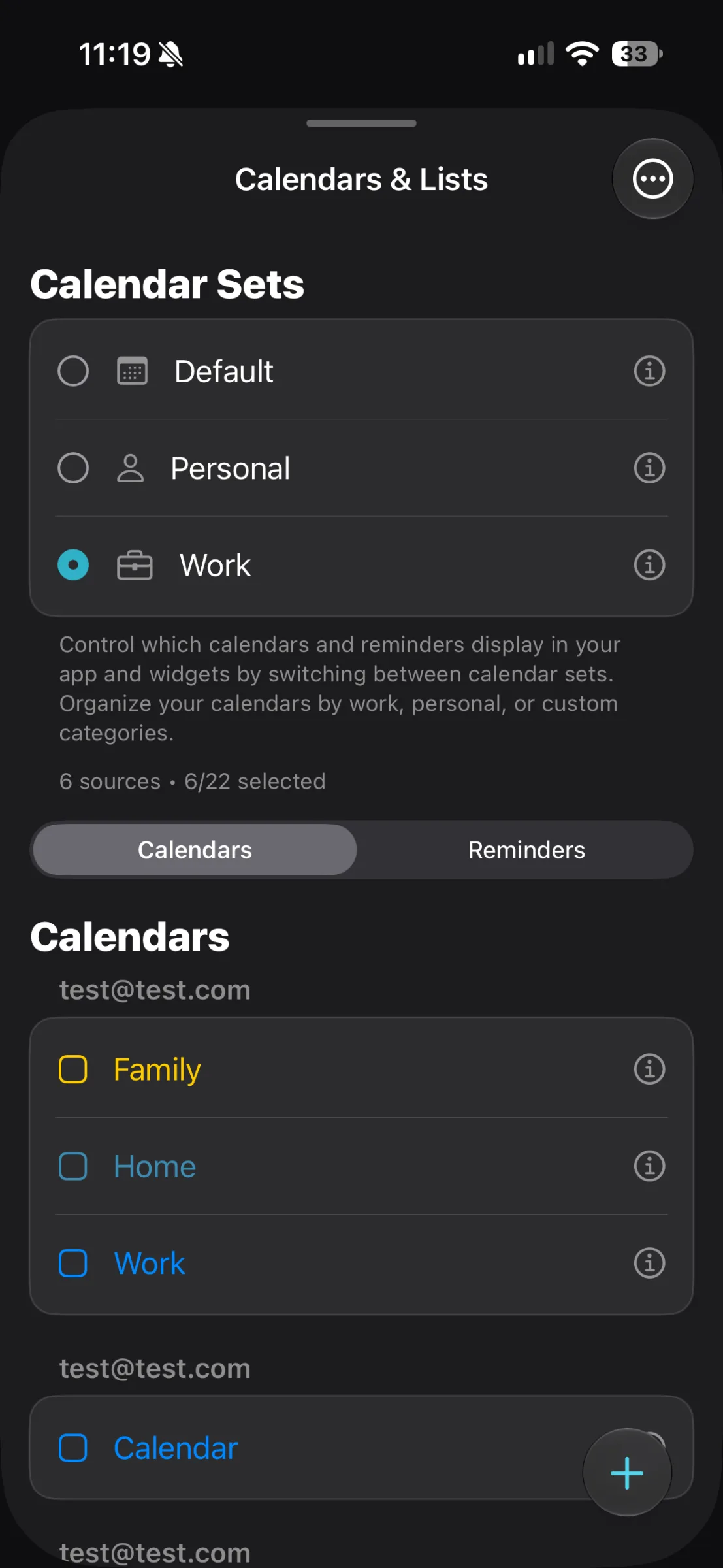
Keep the categories broad at first. If you make a separate calendar for every project, person and type of errand, the system can become another thing to maintain. Add a new one only when it helps you answer a real question, such as “What’s work-related this week?” Use distinct colours if they help you tell calendars apart, but don’t rely on colour alone: clear names matter too.
2. Put tasks and appointments in the right place
Use a calendar event for something that takes place at a particular time: a dentist appointment, a meeting or a booked class. Use a reminder for an action you need to do, such as sending a form, buying washing-up liquid or preparing questions before an appointment. Giving each item the right home makes the schedule easier to read. A task with no fixed time doesn’t need to look like a meeting.
TapCal brings calendar events and Apple Reminders into the same timeline and can show them together in widgets. In Calendars & Lists, switch from Calendars to Reminders to choose which lists appear. Consider showing only the lists you actively use. An old list full of completed or low-priority tasks can add visual noise, so hide it if it isn’t helping you plan.
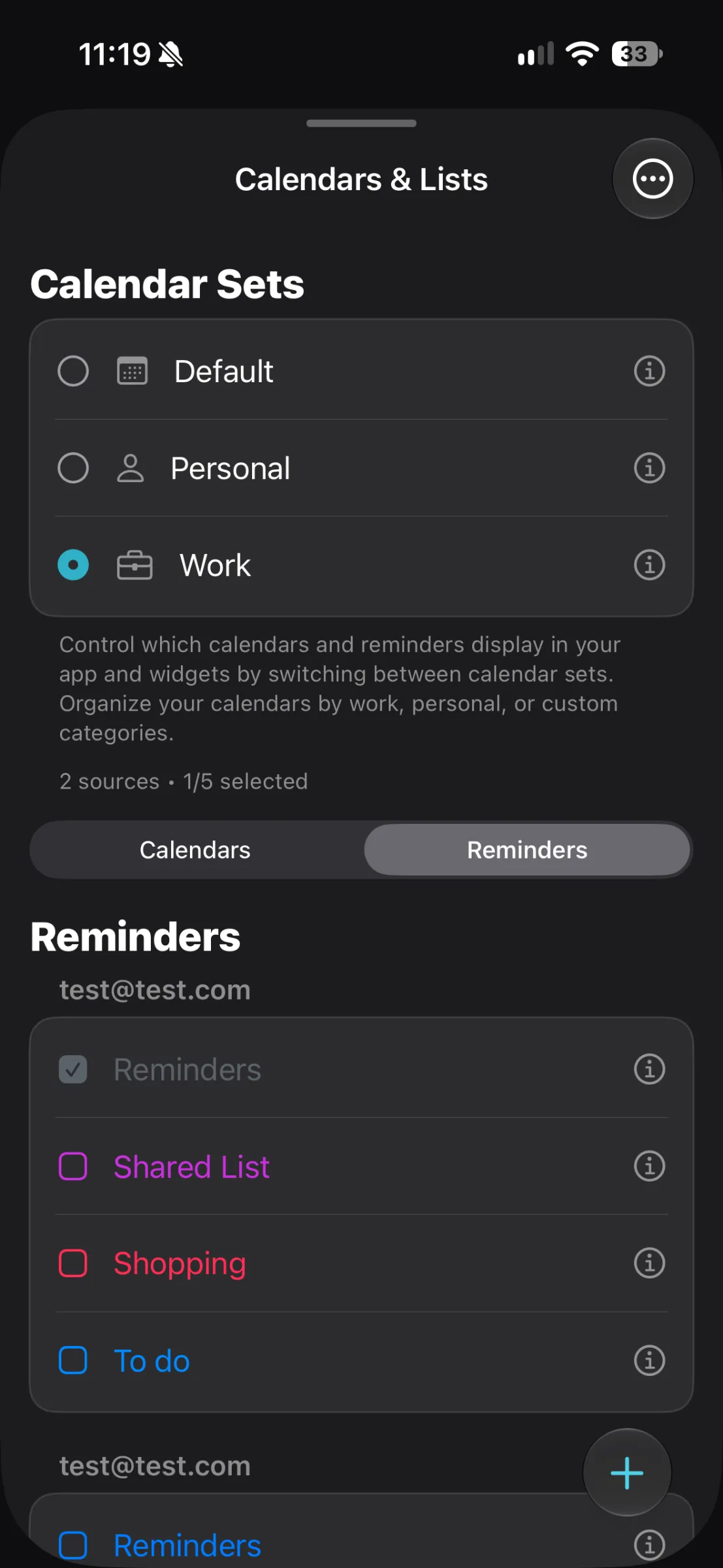
A useful rule of thumb is to give reminders a next action, not just a topic. “Sort car” is hard to act on; “Book car service” tells you what to do. If an item needs a time, add one. If it doesn’t, avoid inventing a deadline simply to make the reminder look more organised.
For a fuller walkthrough of viewing the two together, read How to see Apple Reminders and calendar events together on iPhone.
3. Choose a widget you can read at a glance
A calendar widget is most useful when it answers a quick question without asking you to open the app: “What’s next?” or “What does this week look like?” Put one on a Home Screen you visit often. If seeing a whole month helps you orient yourself, use a month view. If a list of the next few commitments is more useful, choose an agenda or upcoming-events view. You don’t have to show every detail on the Home Screen.
TapCal offers month, week, list and heat-map widgets, with customisable layouts. Its Month & List widget combines a compact calendar with upcoming events and reminders. Choose a size and layout that leaves the event names legible on your iPhone, then hide anything that distracts from the information you check most. TapCal’s widget settings let you adjust the presentation; you can also give the widget its own theme and accent colour.
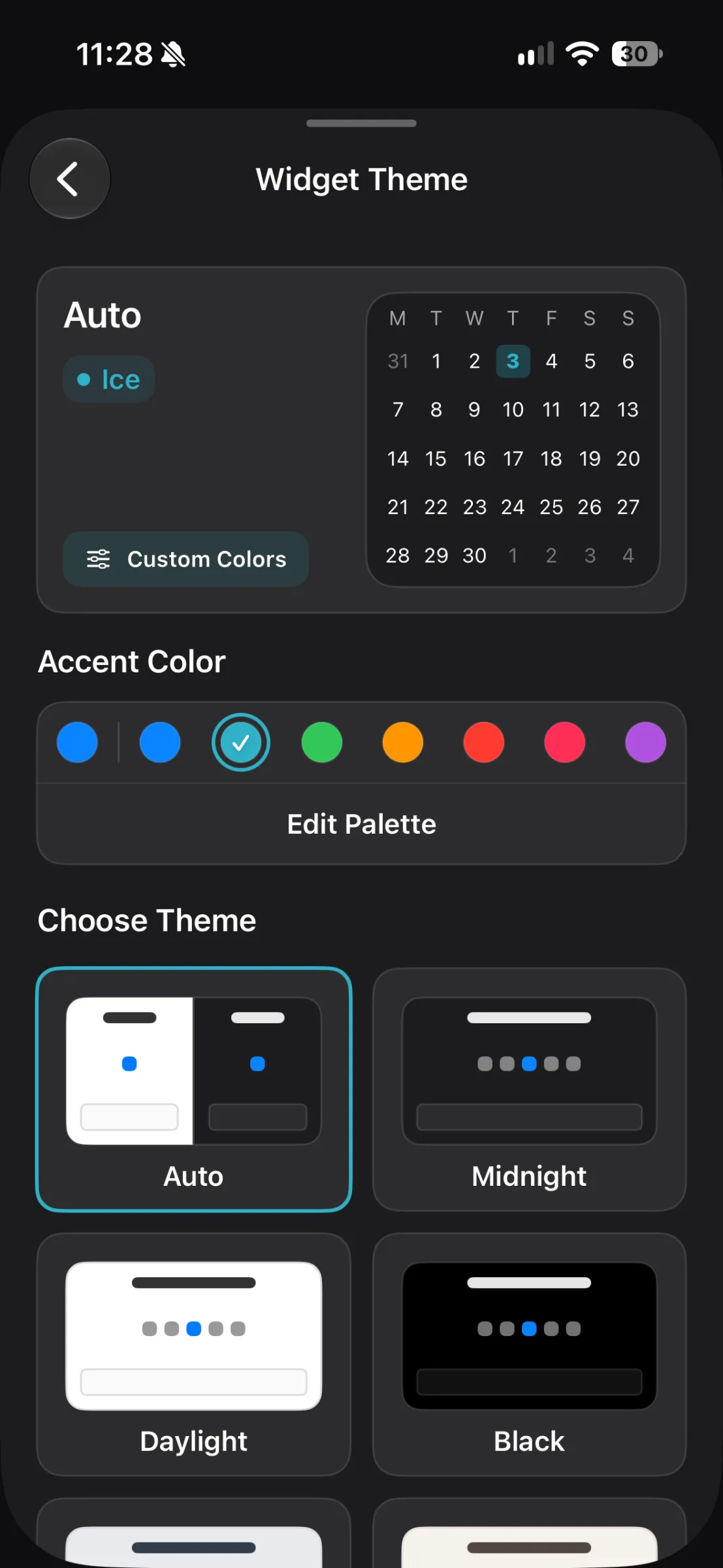
Try the widget for several days before adding more. A second widget is useful if it serves a different purpose, such as showing a month view alongside today’s agenda. If you find yourself scrolling past a crowded stack, remove the extras. The aim is a glance that gives you enough context to decide what to do next, not a miniature dashboard to manage.
4. Make alerts meaningful
Alerts help when they arrive at a useful moment. They become easier to ignore when every event and task makes a sound. Start by enabling alerts for the calendars and reminder lists where a missed item would matter. For routine events, decide whether you need an alert at all. For an appointment that requires travel, a reminder ahead of time may be more useful than a notification at the start.
In TapCal, event alerts are controlled through calendars, while reminder alerts are controlled through reminder lists. That means you can keep, for example, appointment alerts on without getting a notification for every item on a general shopping list. Exact preferences are personal, so start with fewer alerts and add one when you notice a specific kind of reminder would have helped.
It’s also worth checking that TapCal has permission to send notifications and access the calendars and reminders you want to see. A missing event in the app or widget may be a visibility or permission setting, rather than a problem with the event itself.
5. Make adding an item quick enough to keep doing
A system only stays useful if it’s easy to update. In TapCal, the plus button starts a new event or reminder. You can also select a day in the month view to add something there. For a recurring commitment, an event template can save repeating the same details each time. Natural-language event entry is available with TapCal Pro; if you use it, check the proposed date and time before saving, particularly for phrases that could be interpreted more than one way.
Try a short daily check rather than rebuilding your system every week: look at the next day, make sure appointments have any needed alerts, and choose one or two reminders to bring into focus. Keep the process small enough that you can return to it after a busy patch.
A note on TapCal and compatibility
TapCal is an iPhone calendar app and currently requires iOS 18 or later. The App Store listing describes its calendar sets, widgets and Reminders integration. The app is free to use with limits; Pro unlocks additional options, and some features, including natural-language input and reminder location alerts, are Pro. Feature availability can change, so check the current listing or the in-app plan details before relying on a specific Pro feature. View TapCal on the App Store or use the TapCal Help guide for setup steps.
Start with one context split, one combined view of events and reminders, one widget and a small number of alerts. After you’ve used that setup for a week, change only what is getting in the way. A calmer calendar is usually the one you can understand and keep up to date, not the one with the most settings.